15 Report Center
The Report Center turns the data you already keep in TraxrGRC into seven cross-module reports: a risk register, a compliance rollup, an exception inventory, a review schedule, awareness training completion, an incident listing and policy acknowledgements. Managers use it to see the state of the program at a glance, auditors use it to collect evidence, and GRC staff use it to find work that is overdue. Every report applies your own permissions to the underlying module, so two people opening the same report can see different rows. You can filter each report, download it as a CSV file for spreadsheets or evidence packs, and have it emailed to colleagues on a schedule.
The Reports entry in the sidebar has two pages: Report Center (the reports themselves) and Scheduled (reports sent by email, described under Scheduled reports below).
15.1 The landing page
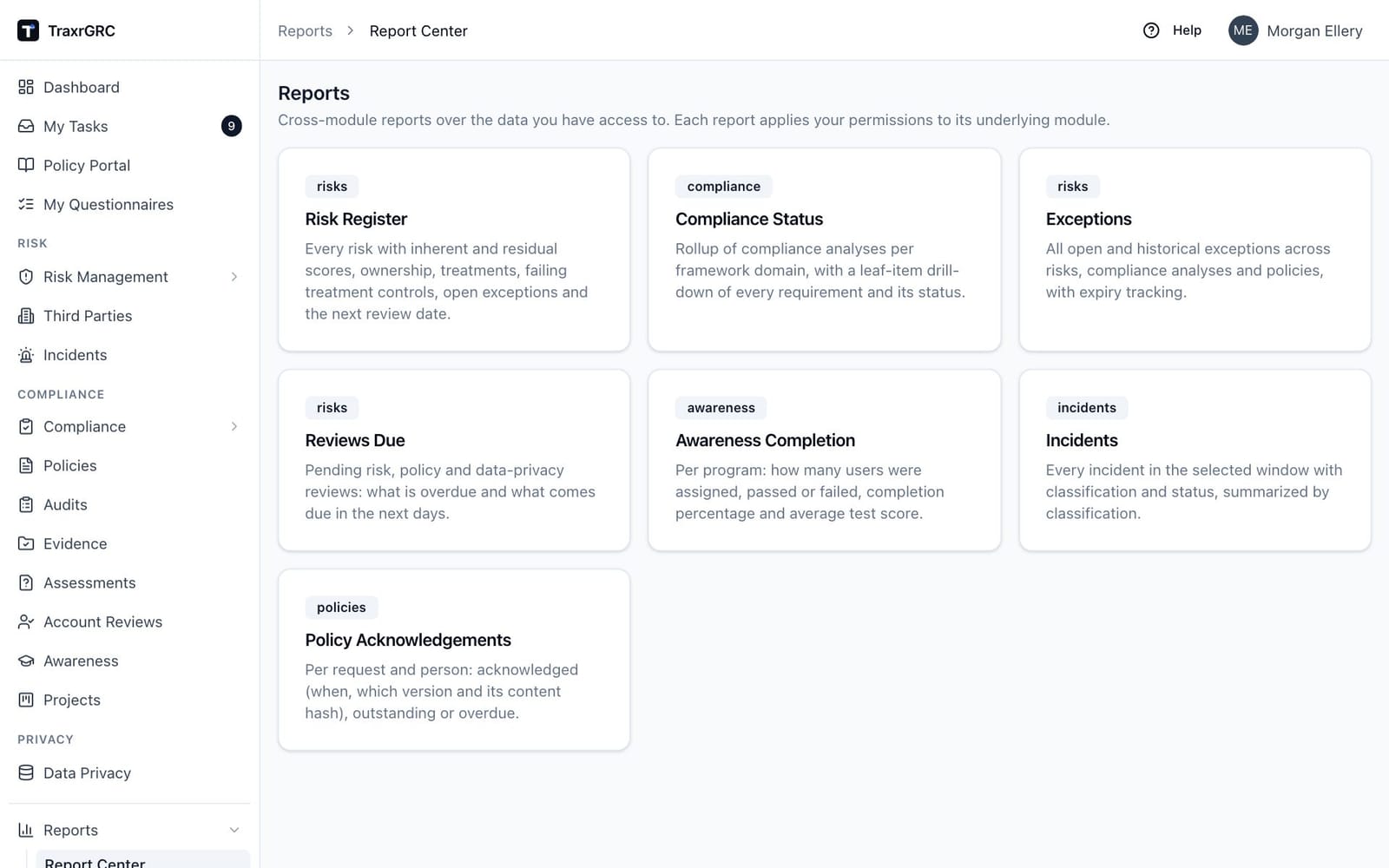
Open Reports → Report Center. You see a card per report, each with a module badge, the title and a one-line description. Click a card to open the report.
A card appears only if you hold the reports:read permission and read
access to at least one module the report draws on. If your permissions cover
none of them, the page says "No reports available for your permissions."
15.2 Anatomy of a report
Every report page is laid out the same way:
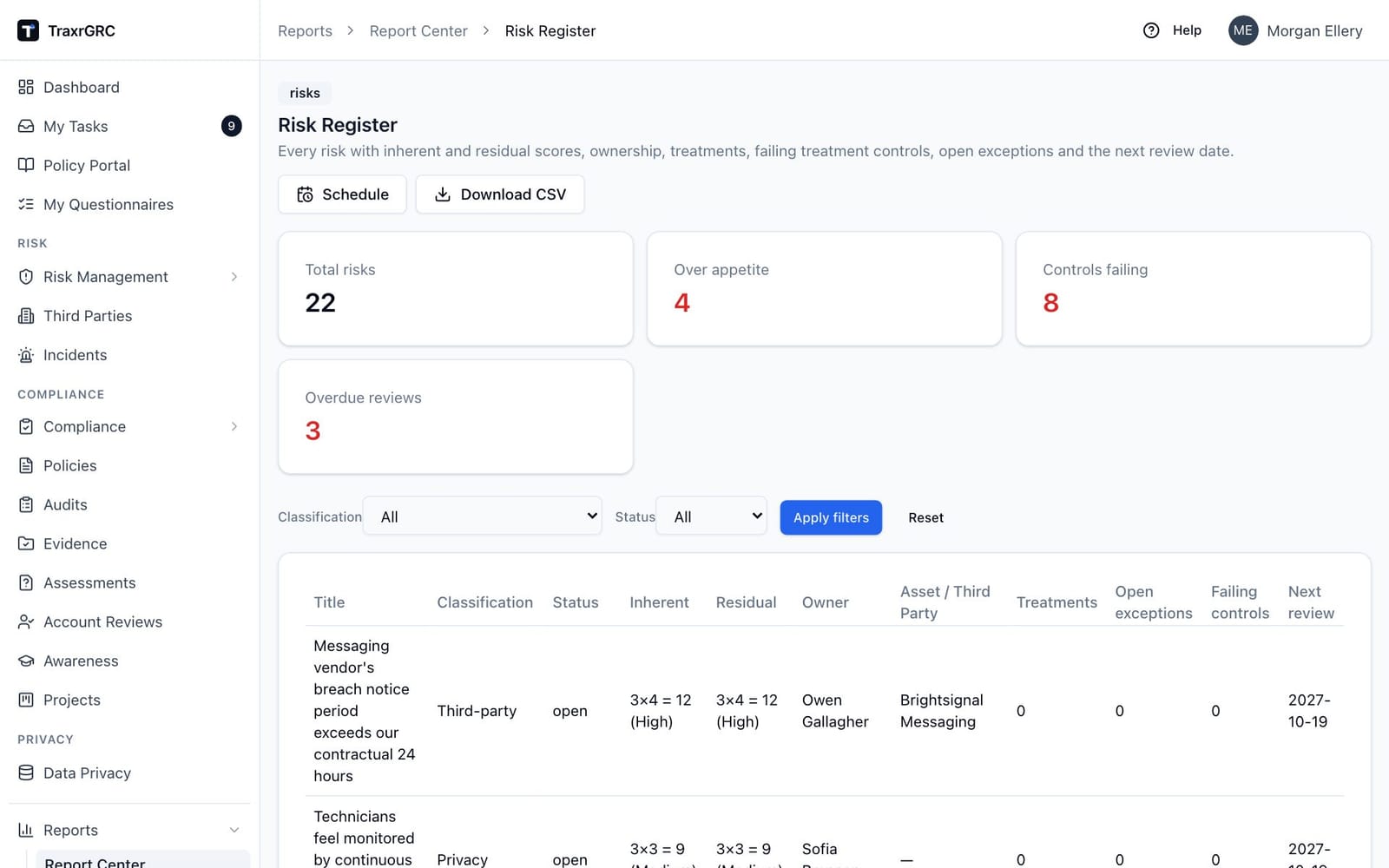
- Summary cards at the top show the headline numbers, computed from the same rows as the table. A card's number renders in red when it flags a problem (details per report below).
- Filters sit below the cards. Their values are carried in the page address, so a filtered view can be bookmarked or shared. Select filters always offer All. Click Apply filters to run them; Reset returns to the unfiltered report.
- The results table lists the rows behind the current filters. Cells that need attention (overdue dates, expired items) render in red. When nothing matches, the table says "No results for the selected filters."
- Download CSV (top right) downloads the report with the filters you
currently have applied, in the same columns as the on-screen table. The
file is named
report-<report>-<date>.csvand opens correctly in Excel. - Schedule (top right, shown when you hold
reports:create) opens a new scheduled report for this report, keeping the filters you have applied.
15.3 Risk Register
Lists every risk you can read, with its scores and housekeeping data.
Requires reports:read plus risks:read. With risks:read at the own
level the register contains only risks you or your groups own.
| Filter | Values | Address parameter |
|---|---|---|
| Classification | All, or one risk classification | classification |
| Status | All, Open, Closed, Archived | status |
| Column | Meaning |
|---|---|
| Title | The risk title. |
| Classification | The risk classification. |
| Status | Open, closed or archived. |
| Inherent, Residual | The full score cell, for example 4×5 = 20 (High): likelihood × impact = score, with the score's band. |
| Owner | The risk owner. |
| Asset / Third Party | The asset or third party the risk is scoped to. |
| Treatments | Number of treatments. |
| Open exceptions | Exceptions still requested or approved. |
| Failing controls | Treatment controls whose latest test failed or is overdue (see The Risks list), counted whether or not you can read them. Renders red when an open risk is flagged Controls failing. |
| Next review | The next review date; red when it is in the past. |
| Summary card | Counts | Red when |
|---|---|---|
| Total risks | Every row in the report | Never |
| Over appetite | Risks whose residual score is above your organization's appetite | Above zero |
| Controls failing | Open risks flagged Controls failing | Above zero |
| Overdue reviews | Risks whose next review date has passed | Above zero |
15.4 Compliance Status
Rolls compliance analyses up per framework domain, with a drill-down of every
requirement. Requires reports:read plus compliance:read.
| Filter | Values | Address parameter |
|---|---|---|
| Framework package | All, or one compliance package | package |
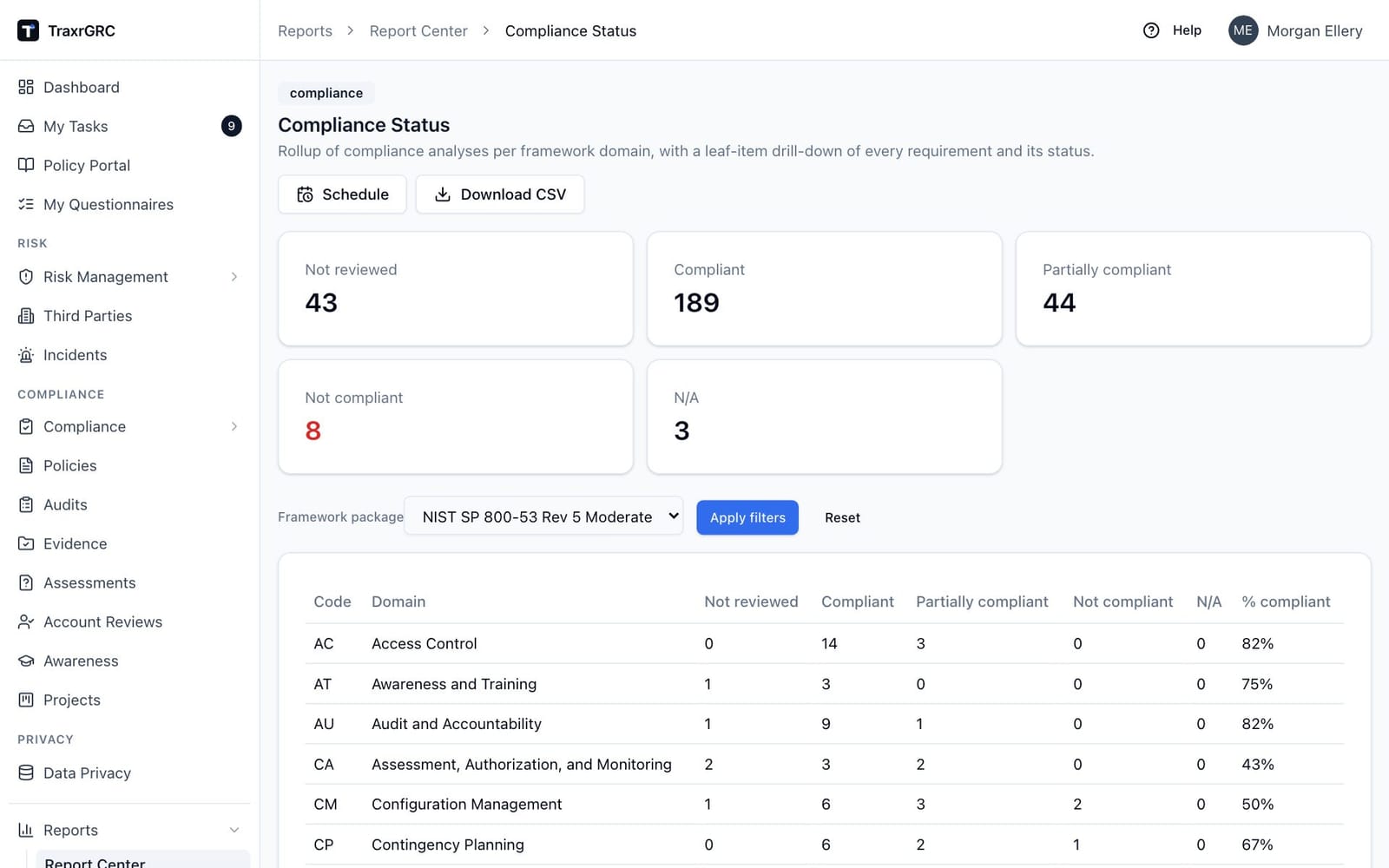
The main table has one row per domain: Code, Domain, Not reviewed, Compliant, Partially compliant, Not compliant, N/A, and % compliant, the percentage of in-scope requirement items (everything except N/A) that are Compliant.
The summary cards count every requirement by status: Not reviewed, Compliant, Partially compliant, Not compliant (red when above zero) and N/A. Only requirement items count, in the cards, the domain rows and the details table: headings and additional items do not, so the figures match the dashboard's compliance donut and the package page.
Below the main table, a Requirement details table lists every leaf requirement with its Code, Requirement, Domain, Status, Owner, linked Control and Open exceptions. The CSV download contains the per-domain table.
15.5 Exceptions
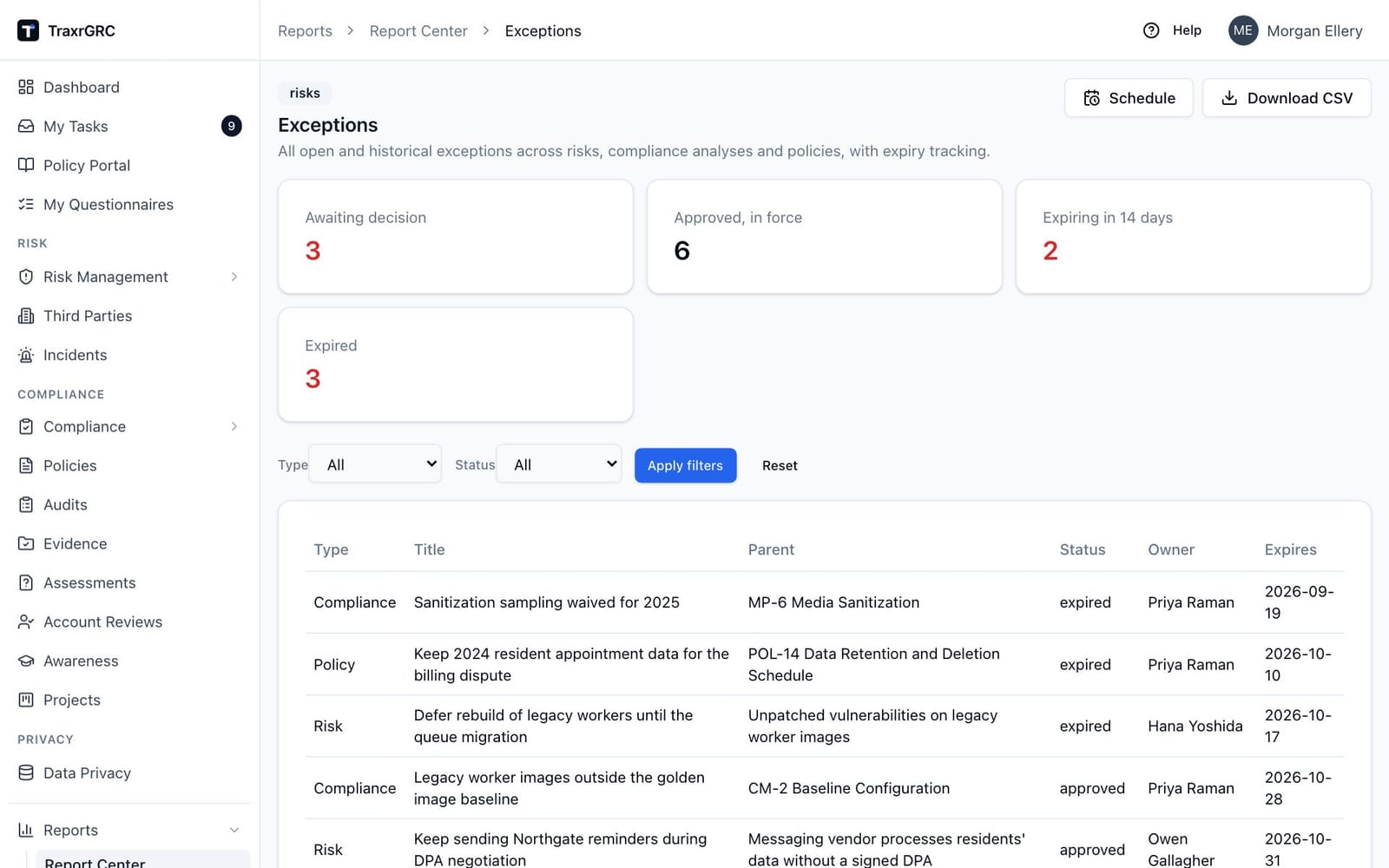
One table for all exceptions across risks, compliance analyses and policies,
with expiry tracking. Requires reports:read plus read on at least one of
risks, compliance and policies; the table includes only the sources you
can read.
| Filter | Values | Address parameter |
|---|---|---|
| Type | All, Risk, Compliance, Policy | type |
| Status | All, Requested, Approved, Rejected, Expired | status |
Columns: Type, Title, Parent (the risk, requirement or policy the exception belongs to), Status, Owner, Expires. An approved exception whose expiry date has passed displays as Expired, and its Expires cell renders red. Rows sort by expiry date, soonest first.
| Summary card | Counts |
|---|---|
| Awaiting decision | Exceptions in Requested status |
| Approved, in force | Approved exceptions not yet past their expiry date |
| Expiring in 14 days | Approved exceptions that expire within 14 days |
| Expired | Approved exceptions past their expiry date (a rejected request does not count) |
Each card except Approved, in force renders red when above zero.
15.6 Reviews Due
The consolidated review schedule for risks, policies and data privacy (data
flow) records. Requires reports:read plus read on at least one of risks,
policies and dataPrivacy; each source is limited by your ownership level
in that module.
| Filter | Values | Address parameter |
|---|---|---|
| Module | All, Risks, Policies, Data Privacy | module |
| Next N days | Number of days to look ahead (default 30) | days |
| Overdue only | Checkbox; when ticked, only past-due reviews are listed | overdue (value 1) |
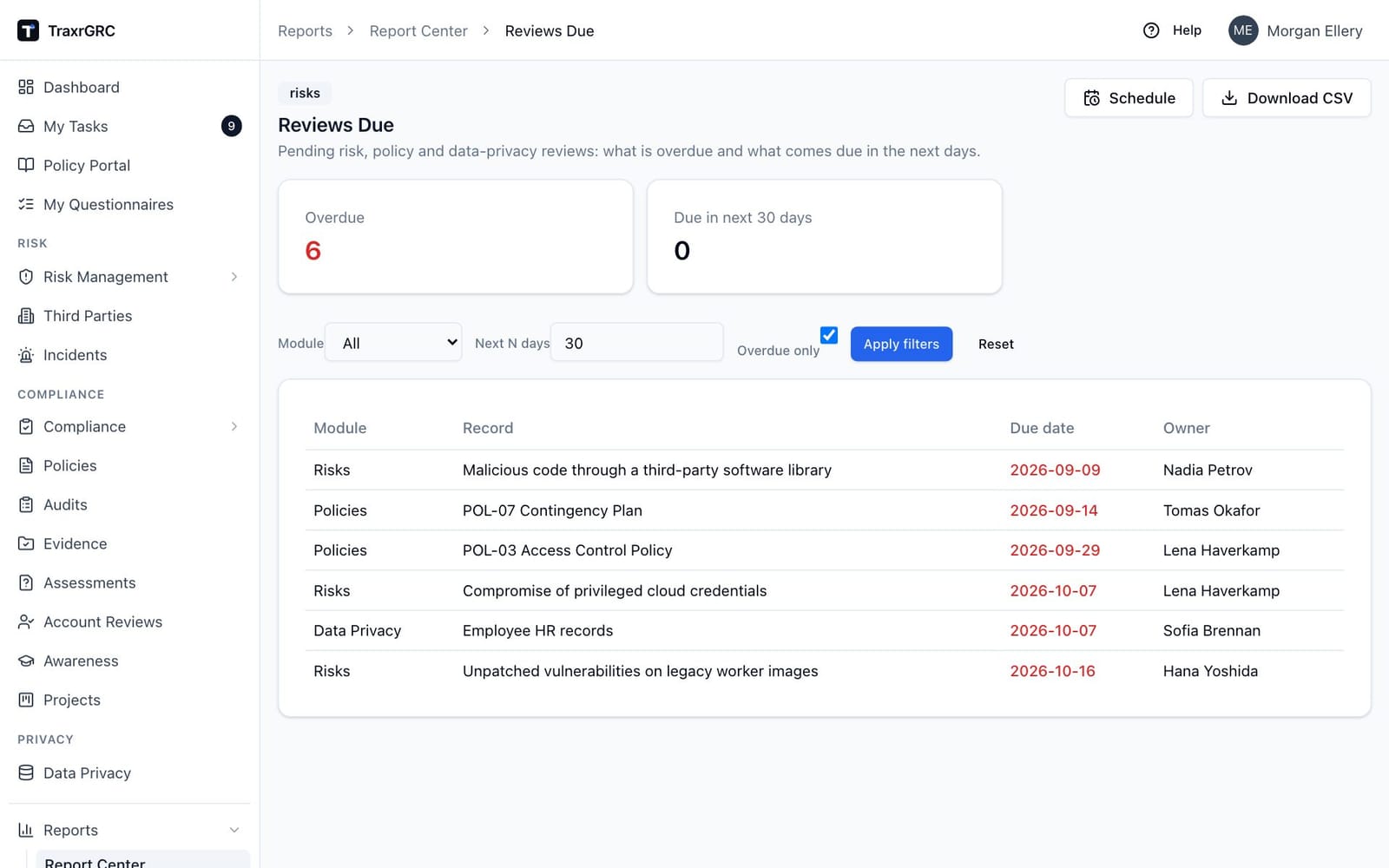
Only reviews that have not been completed are listed. Columns: Module, Record, Due date (red when overdue), Owner. Rows sort by due date, earliest first. A review is overdue from the day after its due date, by the organization's time zone.
Summary cards: Overdue (red when above zero) and Due in next N days, matching the window you entered.
15.7 Awareness Completion
Training completion per awareness program. Requires reports:read plus
awareness:read. Only active programs are listed.
| Filter | Values | Address parameter |
|---|---|---|
| Program | All, or one awareness program | program |
| Column | Meaning |
|---|---|
| Program, Status | The program and its status. |
| Assigned | The number of active users in TraxrGRC. |
| Passed, Failed | Recorded test results that passed or failed. |
| Completion % | Passed results as a share of assigned users. |
| Average score | The mean test score across all recorded results. |
Summary cards: Active programs, Assigned users, Completion (the passed share across all listed programs) and Average score (the mean of the per-program averages, or a dash when no results exist).
15.8 Incidents
Every incident in the selected window. Requires reports:read plus
incidents:read. With incidents:read at the own level you see only
incidents you or your groups own.
| Filter | Values | Address parameter |
|---|---|---|
| Classification | All, or one incident classification | classification |
| Opened from | Date; incidents opened on or after | from |
| Opened to | Date; incidents opened on or before | to |
Columns: Opened (date), Title, Classification ("Unclassified" when none is set), Status, Owner. Rows sort newest first.
Summary cards: Total incidents, then one card per classification present in the results, with its count.
15.9 Policy Acknowledgements
One row per person per acknowledgement request (see Policy portal and
acknowledgements). Requires reports:read plus policies:read. With
policies:read at the own level you see only requests on policies you or
your groups own.
| Filter | Values | Address parameter |
|---|---|---|
| Policy | All, or one policy with requests | policy |
| Status | All, Acknowledged, Outstanding, Overdue | status |
| Request | All, Active, Superseded, Closed | state |
| Column | Meaning |
|---|---|
| Policy, Version | The policy and the version the request asked people to acknowledge. |
| Due | The request's due date. |
| Request | The request's state: Active, Superseded or Closed. |
| Name, Email | The person. |
| Active | Whether the person's account is still active. |
| In audience | Whether the person is still in the request's audience. |
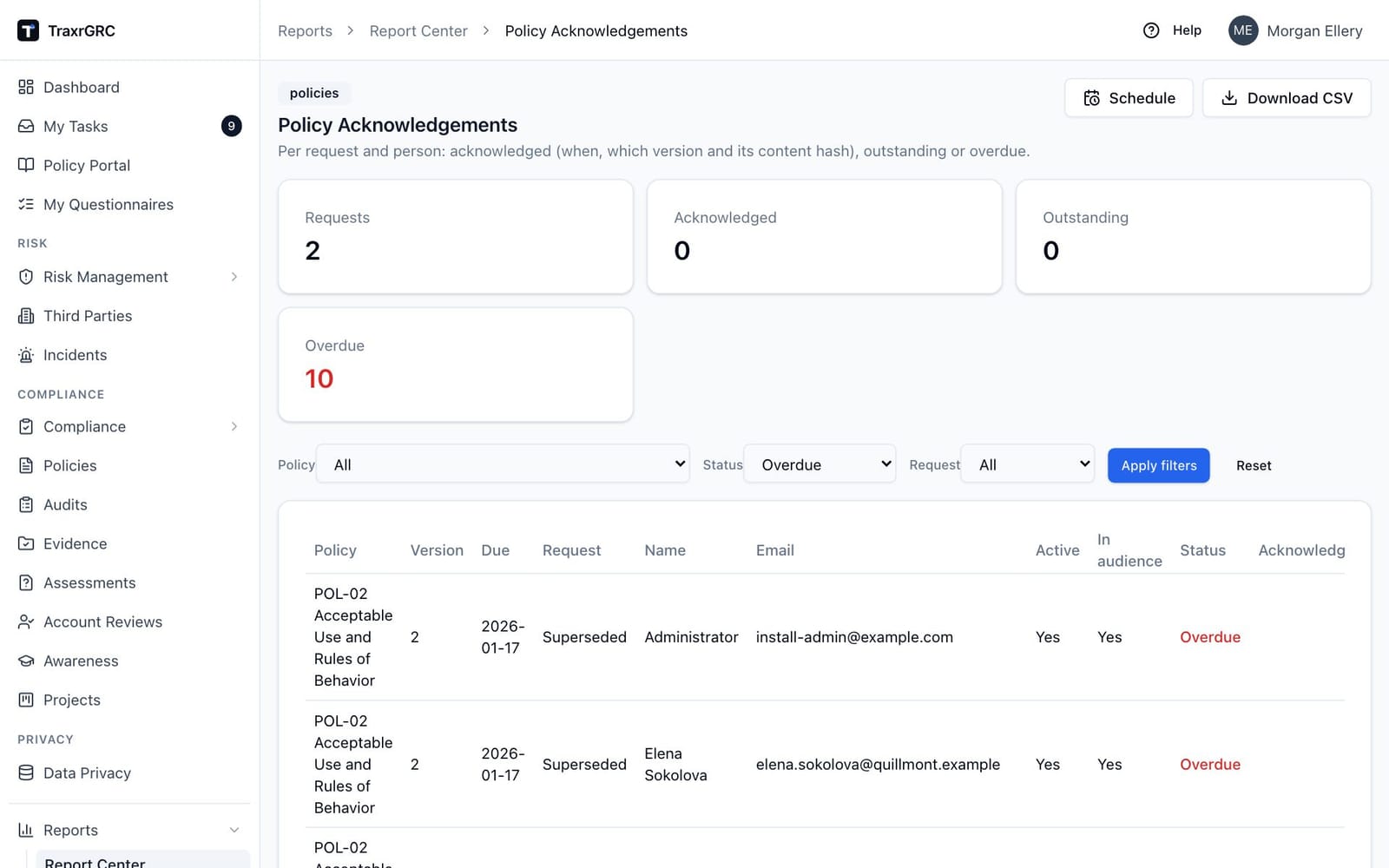
| Status | Acknowledged, Outstanding or Overdue (overdue in red). |
| Acknowledged | When the person acknowledged: in your time zone on screen, UTC in the CSV. |
| Content hash | SHA-256 of the version text acknowledged. |
The report lists everyone in each request's audience now and everyone who acknowledged it, including people since deactivated or moved out of the audience.
Summary cards: Requests, Acknowledged, Outstanding and Overdue (red when above zero). Outstanding and Overdue count only people still in the audience.
15.10 Scheduled reports
A report can be emailed to people in this installation on a schedule, for example the compliance gaps to management on the first of every month. Open Reports → Scheduled, or click Schedule on any Report Center report (the schedule keeps the filters you have applied) or Schedule by email on Compliance → Gaps.
What can be scheduled, and in which format:
| Report | Attached as |
|---|---|
| Any Report Center report | CSV, with the filters chosen |
| Compliance package report | PDF, for one package |
| Compliance gaps (POA&M) | CSV, optionally narrowed to a package, a gap status, a coverage, or gaps with overdue projects |
15.10.1 The schedules list
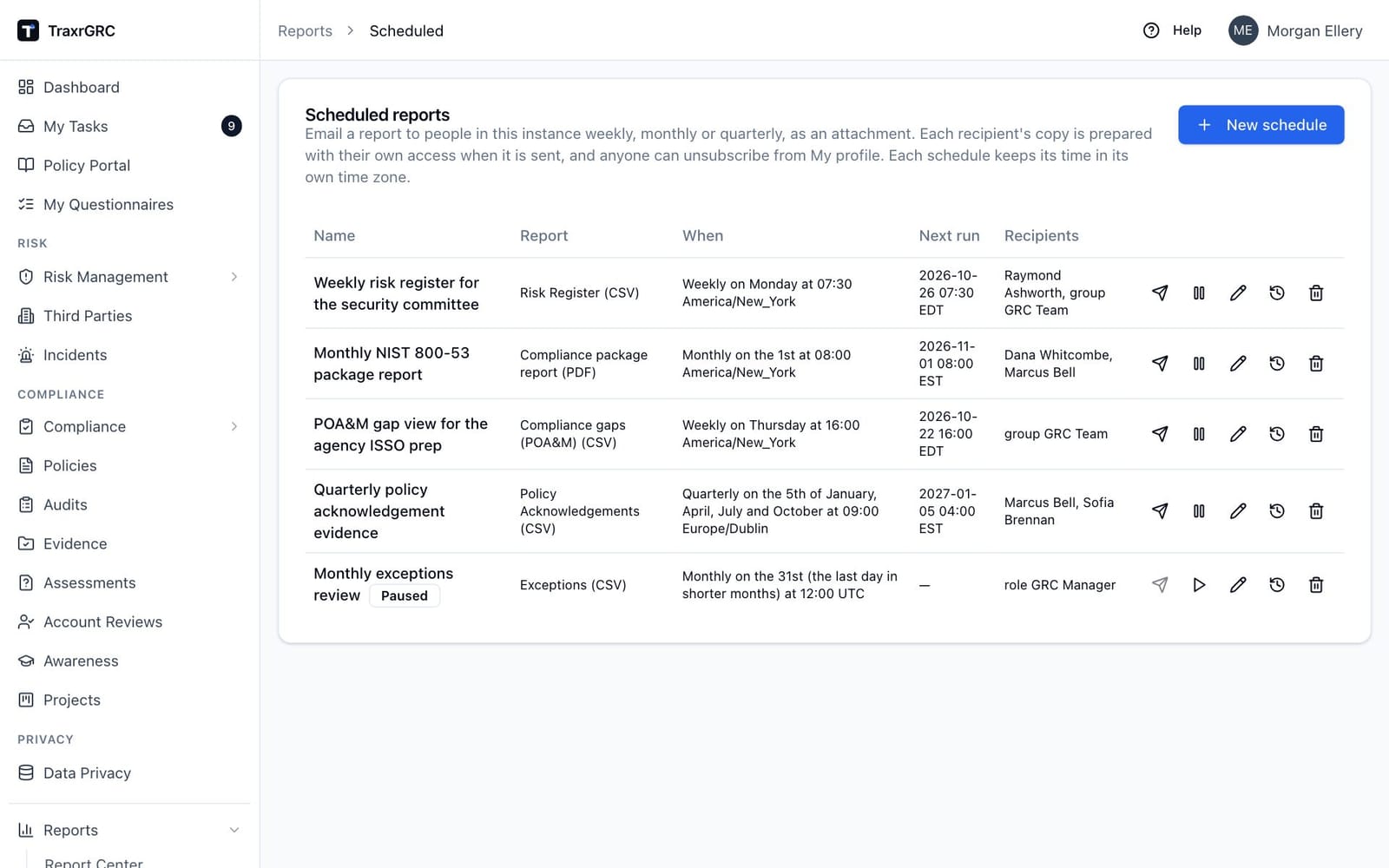
The Scheduled reports page lists the schedules for reports you can open yourself; schedules for reports you cannot open are hidden.
| Column | Meaning |
|---|---|
| Name | The schedule's name, with a Paused badge when it is not active. |
| Report | The report and its format, for example "Risk Register (CSV)". |
| When | The timing in words, for example "Weekly on Monday at 07:30 America/New_York". |
| Next run | When it is next sent, in your own time zone; a dash while paused. |
| Recipients | The users, groups (prefixed "group") and roles (prefixed "role") it is sent to, and how many people have unsubscribed. |
The buttons at the end of each row are:
| Button | Action | Needs |
|---|---|---|
| Paper plane | Send now: queue a run straight away | Update on Reports; schedule active |
| Pause / play | Pause or resume the schedule | Update on Reports |
| Pencil | Edit the schedule | Update on Reports |
| Clock | Show the schedule's recent deliveries | Any schedule right |
| Trash can | Delete the schedule | Delete on Reports |
15.10.2 Creating a schedule
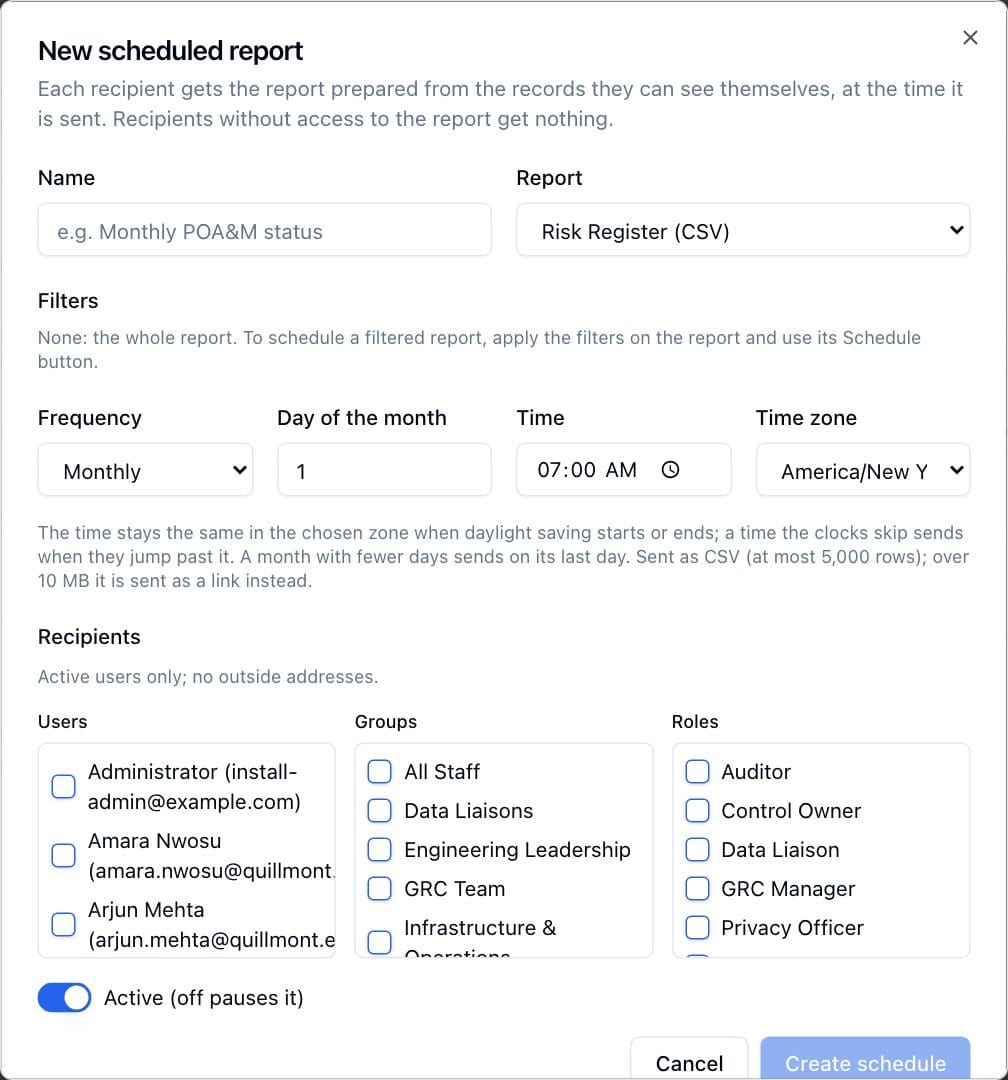
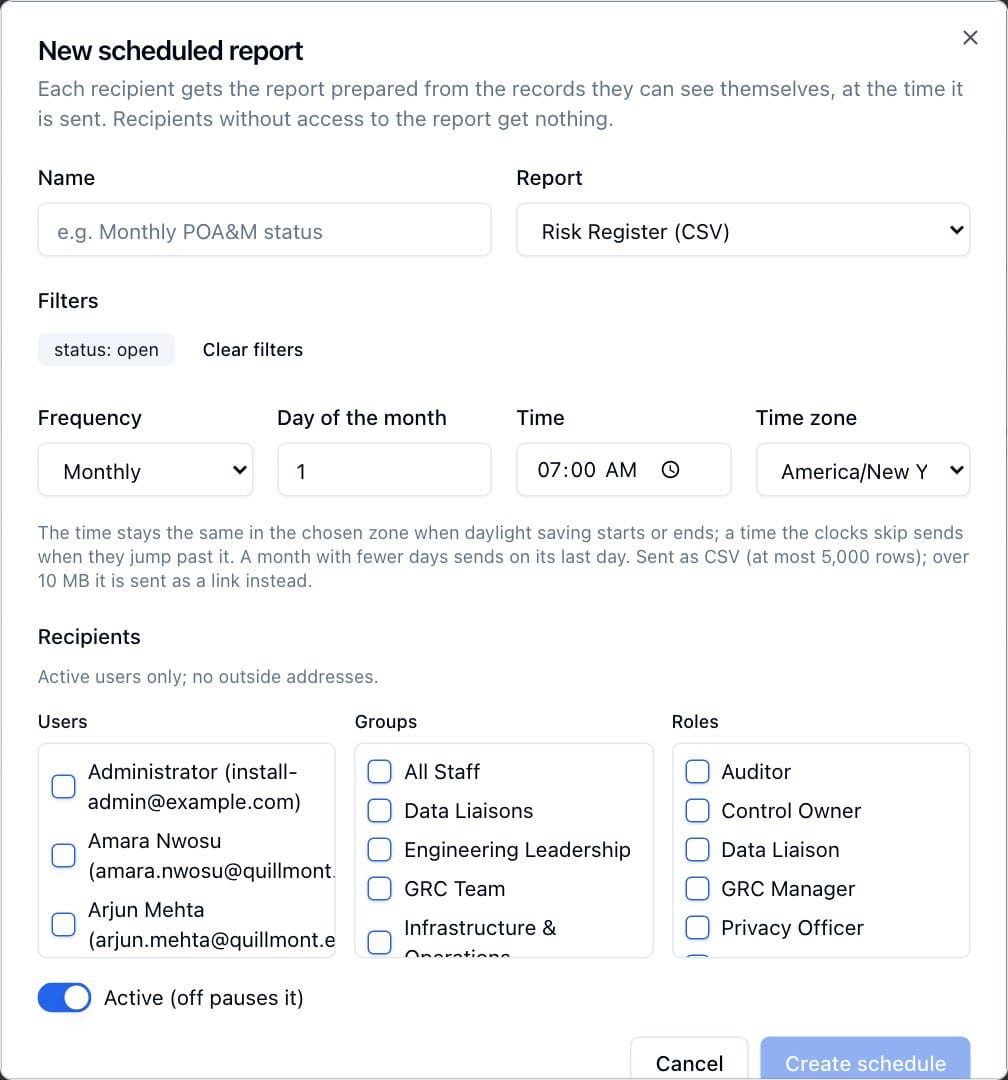
- Click New schedule, or Schedule on a report page. The New scheduled report dialog opens.
- Enter a Name and choose the Report. Each option shows its format, for example "Compliance package report (PDF)".
- Set the report's options:
- For a Report Center report, Filters shows the filters carried over from the report page. To schedule a filtered report, apply the filters on the report and use its Schedule button; Clear filters sends the whole report.
- For the compliance package report, choose the Package.
- For the compliance gaps, optionally choose a Package (or All packages), a Status (Both gap statuses, Partially compliant or Not compliant), a Coverage (Any coverage, No project, In remediation or Projects completed), and tick Only gaps with overdue projects.
- Set the Frequency, the Day or Day of the month, the Time and the Time zone (see the field reference below).
- Tick the Recipients under Users, Groups and Roles.
- Leave Active (off pauses it) on to start sending, then click Create schedule.
To change a schedule, click its pencil, edit the fields and click Save schedule.
| Field | What it means |
|---|---|
| Name | Shown in the email subject, the delivery log and each recipient's My profile page. |
| Report | What is sent, with its filters or package. |
| Frequency | Weekly on a day of the week, Monthly on a day of the month, or Quarterly on a day of the month in January, April, July and October. A day past the end of a shorter month (the 31st in April, the 29th to 31st in February) sends on that month's last day. |
| Time and Time zone | The time of day it is sent, in the chosen zone, which starts as your own (UTC if you have none). The time stays the same in that zone when daylight saving starts or ends: 09:00 New York is 09:00 in both summer and winter. A time the clocks skip (02:30 on the night they go forward) sends when they jump past it, at 03:30; a time that happens twice (01:30 on the night they go back) sends once, the first time. Schedules made before time zones existed are in UTC. |
| Recipients | Named users, the members of chosen groups, and the members of every group carrying a chosen role. Active users of this installation only; no outside address can be entered. |
| Active | Off pauses the schedule. |
15.10.3 How a scheduled report is sent
- Each recipient gets their own copy. The report is prepared separately
for every recipient, with their permissions and record visibility at the
moment it is sent, exactly as if they had opened it themselves. Two
recipients can get different files. A recipient who cannot open the report
(no
reports:reador no read on its module for a Report Center report, no Compliance read for the gaps, Compliance read at "all" for the package PDF) is skipped and the skip is logged. - CSV files hold at most 5,000 rows, like every other export; the email says so when the report had more. Copies are prepared one at a time by the background worker, so a large schedule never slows the application.
- A file over 10 MB is not attached: the email carries a link to the report in the app instead, and the delivery log notes it.
- If the worker was stopped when a schedule was due, the schedule runs once when it is back, not once for every slot it missed, and then waits for its next slot. Pausing and resuming, or changing a schedule's timing, also starts from the next slot after now.
- Send now queues a run straight away, for testing. A message confirms how many emails were queued and how many were skipped. It can be used once every five minutes per schedule, and not while the schedule is paused.
- The email states when the report was prepared, in the recipient's own time zone.
- Every email says why the person receives it and links to My profile, where they can unsubscribe.
15.10.4 Delivery history
Click a schedule's clock icon to open Recent deliveries. It has one row per recipient and run, with Queued (when), To (the address), Status and Attachment (the file sent, or "too large, sent as a link"). A suppressed row names the reason:
| Reason | Meaning |
|---|---|
no-access | The recipient may not open the report. |
opted-out | The recipient unsubscribed on My profile. |
recipient-inactive | The recipient's account is deactivated. |
template-disabled | The scheduled-report email template is turned off under Settings → Notifications. |
schedule-paused, schedule-deleted | The schedule was paused or deleted before a queued email was sent. |
report-unavailable | The report could not be prepared, for example because its package was deleted. |
Administrators also see every delivery under Settings → Notifications → Delivery log.
15.10.5 Deleting a schedule
Click the trash can and confirm Delete this schedule?. The schedule stops sending, including emails queued and not yet sent. Its past deliveries stay in the log.
15.10.6 Unsubscribing
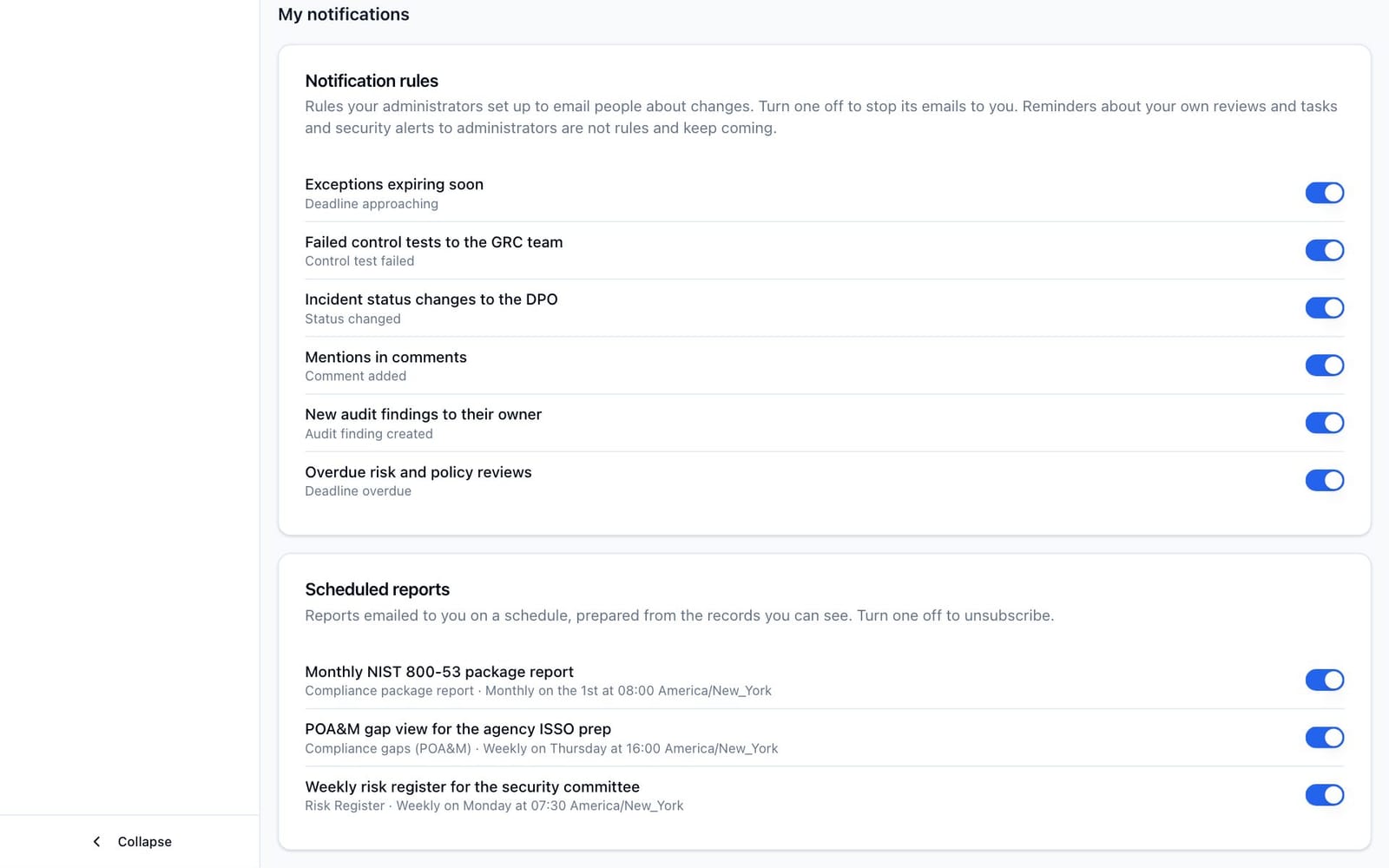
Every recipient sees the schedules sent to them on My profile, under Scheduled reports, with the report and its timing. Turn a schedule's switch off to stop receiving it, or on again to resume. The schedules list shows how many people have unsubscribed from each schedule.
15.10.7 Who can manage schedules
| Action | Needs |
|---|---|
| Open Reports → Scheduled | Create, Update or Delete on Reports |
| Create a schedule | Create on Reports |
| Edit, pause, resume, Send now | Update on Reports |
| Delete a schedule | Delete on Reports |
In every case you must be able to open the report yourself. Read on Reports alone lets someone receive reports but not schedule them. On a new installation the GRC Manager role carries all three rights; on an installation upgraded from an earlier version only administrators can schedule until those rights are added to a role (Settings → Roles).
Every schedule created, changed, paused, resumed, deleted or sent now is recorded in the Audit Log. A new or upgraded installation has no schedules, so nothing is sent until someone creates one. Emails need SMTP configured (Settings → Integrations).
15.11 Who can see reports
- Opening the Report Center at all requires the
reports:readpermission. - Each report card additionally requires
readon at least one of its underlying modules; cards you do not qualify for are hidden. - Within a report, rows follow your record-level access: reports over risks,
policies, data privacy and incidents respect the
ownlevel (you see records you or your groups own), while the compliance and awareness reports are all-or-nothing for that module's readers. - Download CSV applies exactly the same permission checks and filters as the on-screen report, so an export never contains more than the table shows.
- Administrators bypass all of the above.