9 Projects
Projects tracks improvement and remediation work, from rolling out phishing-resistant MFA to fixing what an audit found. A project can stand alone, be linked to an audit finding, and be linked to the compliance requirements whose gaps it closes (see The gap view under Compliance Management), so remediation stays connected to the evidence. Completing a project stamps its completion date, giving you a clean record of when the work landed.
Project owners keep their projects current; the GRC team and the CISO use the list to follow remediation against deadlines.
9.1 Who can do what
Access is controlled by the projects module rights. Administrators bypass all of them.
| Action | Permission |
|---|---|
| See the projects list and detail pages | projects:read |
| Create a project (including from a finding) | projects:create |
| Edit, change status, unlink a finding, comment, upload, edit custom fields | projects:update, "all" or "own" (you or your groups own the project) |
| See linked compliance requirements | compliance:read |
| Link or unlink compliance requirements | projects:update on the project and compliance:read on each requirement newly linked |
| Delete a project | projects:delete (all or own) |
| Import projects from CSV | projects:create or projects:update |
9.2 The projects list
The Projects page lists every project you can read. Click a column heading to sort; the Status column has a filter dropdown.
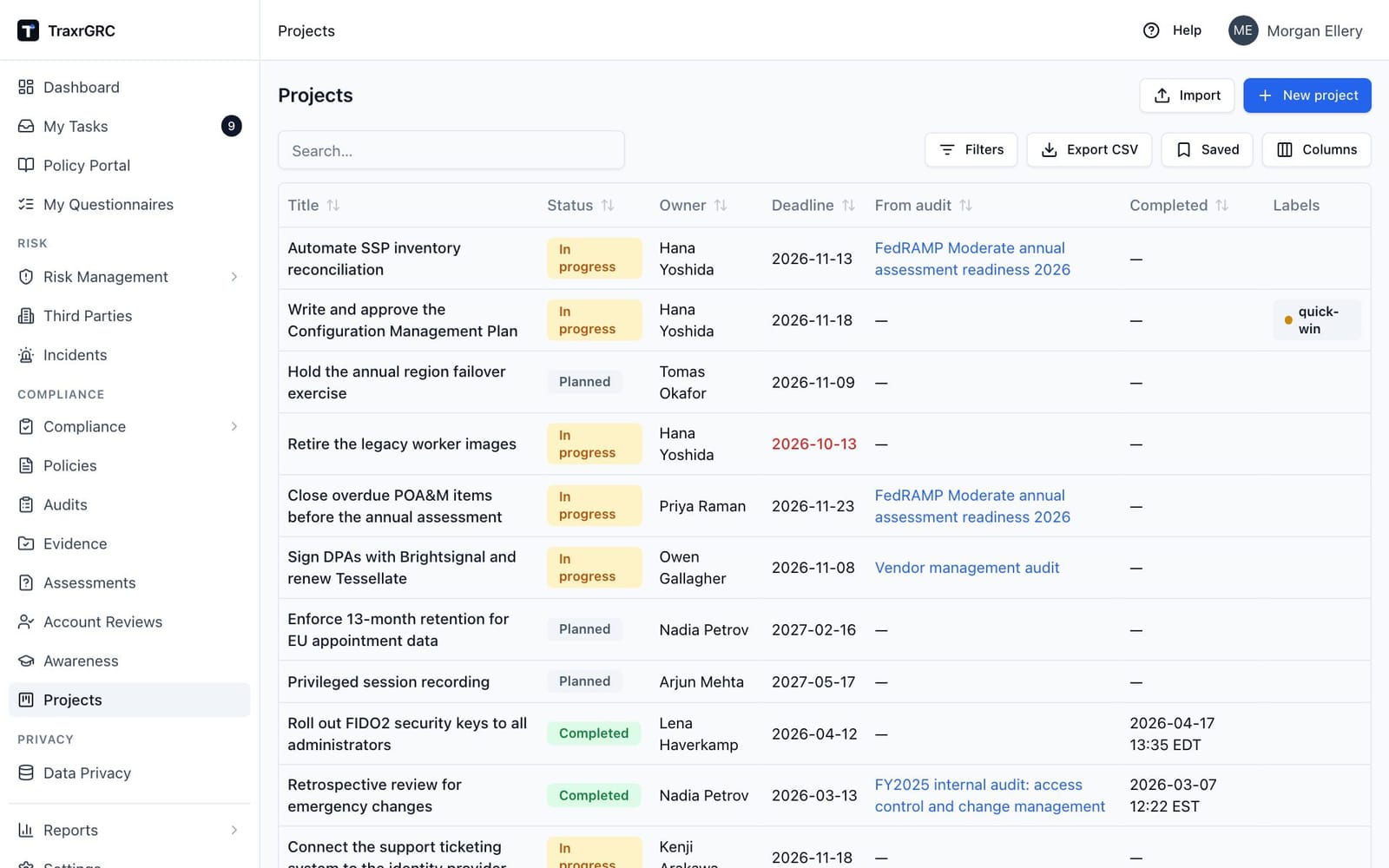
| Column | What it shows |
|---|---|
| Title | The project's title. Click it to open the project. |
| Status | planned, in_progress or completed (see below). |
| Owner | The owner user, or the owner group when no user is set. |
| Deadline | Target date. Shown in red when it lies in the past and the project is not completed. |
| From audit | For a project linked to an audit finding: the title of the audit plan the finding belongs to. Click it to open that plan. Without read access to the plan the cell says only "Audit finding". |
| Completed | When the project was completed, or a dash. |
| Labels | The project's labels. Filter by typing part of a label name. |
Project statuses:
| Status | Badge | Meaning |
|---|---|---|
| planned | Gray | The work is agreed but not started. New projects start here. |
| in_progress | Amber | The work is under way. Projects created from a finding start here. |
| completed | Green | The work is done; the completion time is stamped. |
The Import button beside New project creates or updates projects in bulk from a CSV file (see Importing from CSV under Getting Started).
9.3 Creating a project
-
On the Projects page, click New project.
-
Complete the dialog (only the title is required):
Field What it means Title Name of the work, e.g. "Deploy phishing-resistant MFA". Description What the project covers and why. Owner The user responsible for delivery. Owner group The team responsible for delivery. Deadline Target completion date. -
Click Create project.
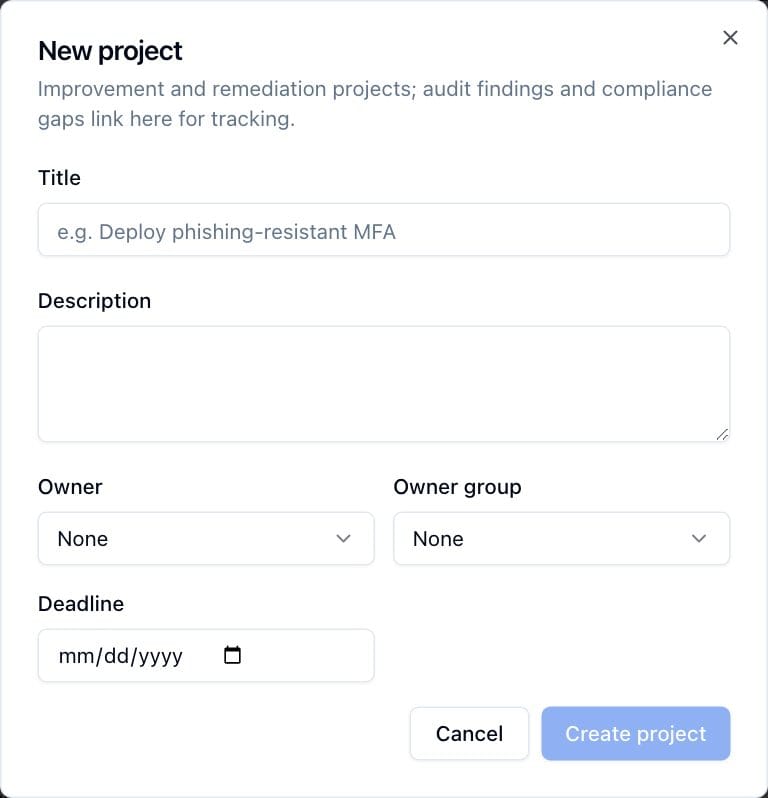
The project starts as planned. The create dialog does not offer a finding link. To track remediation for an audit finding, create the project from the finding instead (see Internal Audits): it arrives pre-filled and linked in both directions. Requirements are linked from the project page once it exists.
9.4 The project detail page
Click a project's title to open it.
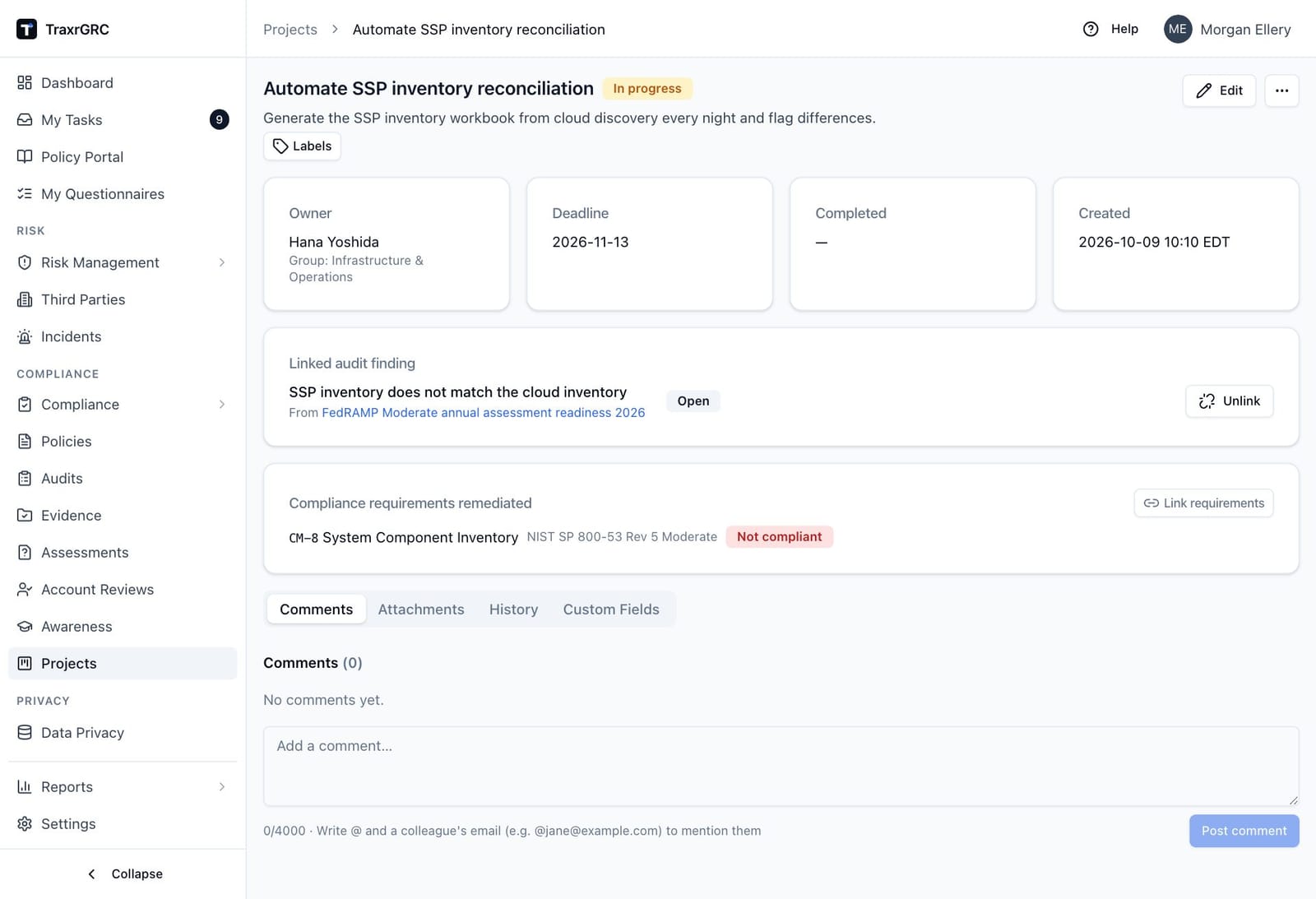
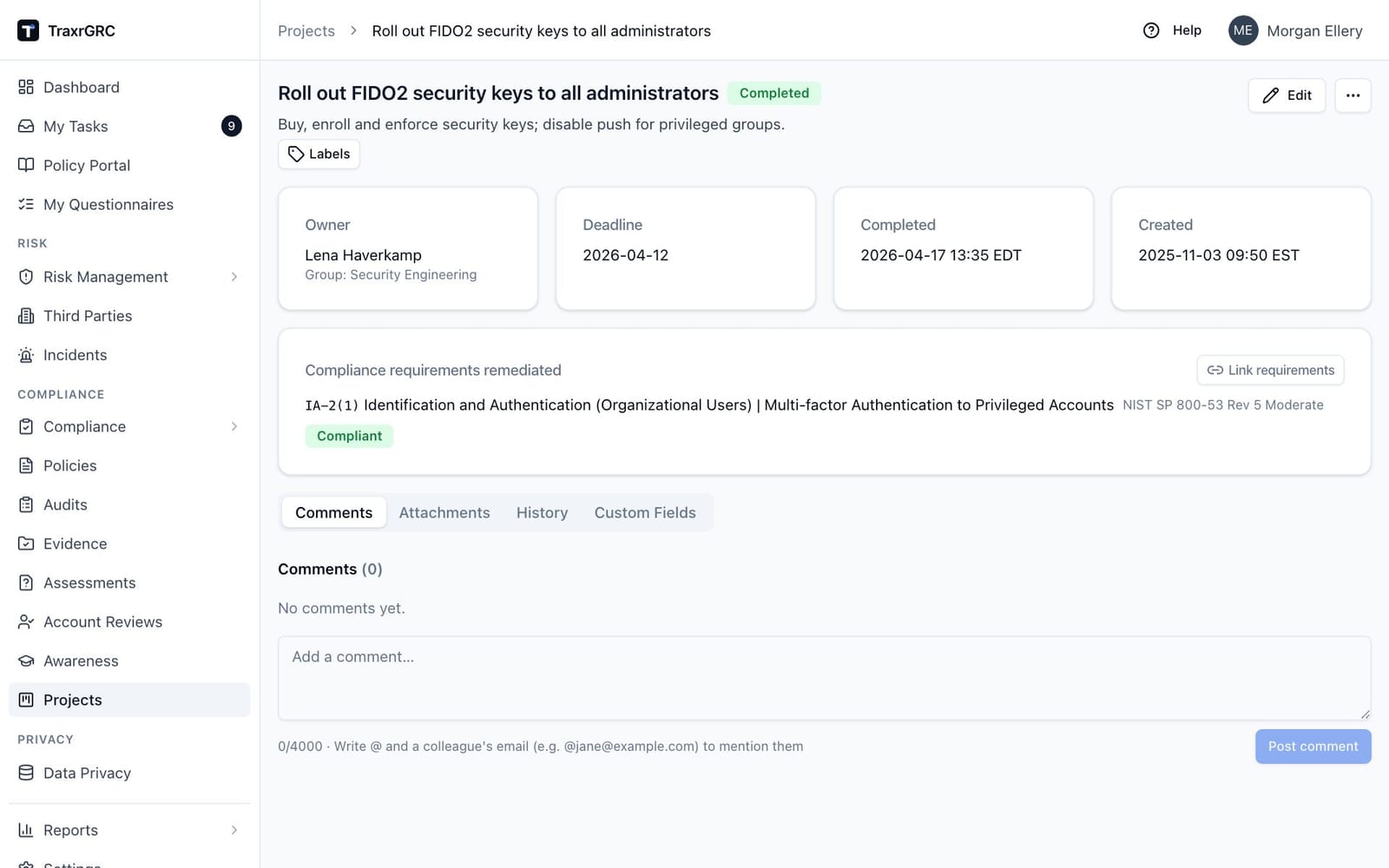
The page shows the title, status badge and description, the Labels picker (see Labels in Getting Started; attaching needs projects:update on the project), the Edit button and the More actions menu (…, with Delete), cards for Owner, Deadline, Completed and Created, the Linked audit finding and Compliance requirements remediated cards when they apply, and the Comments, Attachments, History and Custom Fields tabs.
9.4.1 Changing status
- Click Edit.
- Pick a new Status (the field appears only when editing). Any of the three values is reachable from any other.
- Click Save changes.
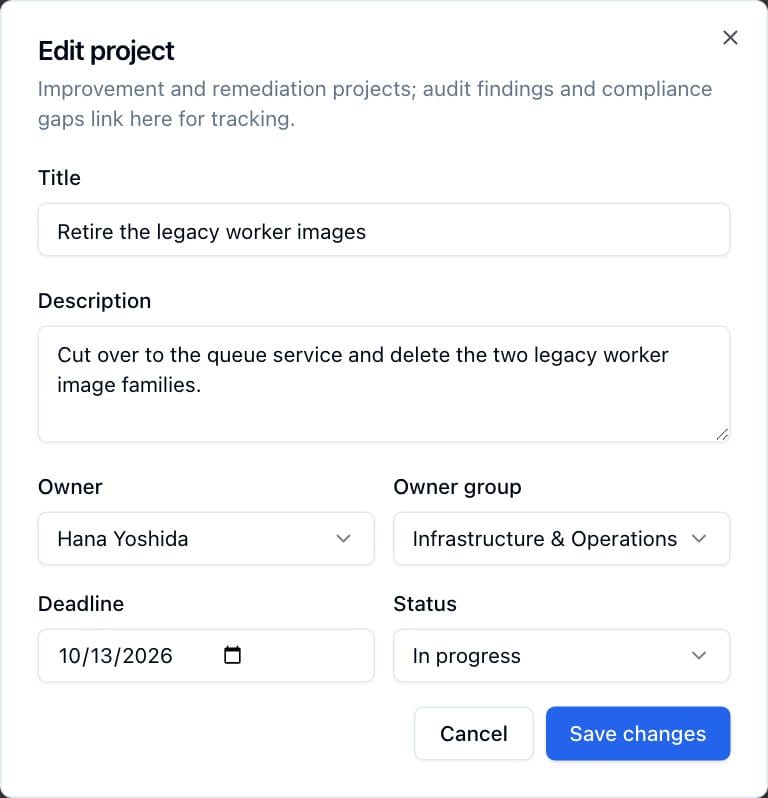
Two things happen automatically:
- Moving a project to completed stamps the Completed card with the current time.
- Moving it out of completed (back to planned or in progress) clears that time.
The Completed time therefore always reflects the most recent time the project entered completed.
9.4.2 The linked audit finding
When the project was created from a finding (or linked to one through the REST API), a Linked audit finding card shows the finding's title and status, and the plan it came from ("From plan"; click the plan name to open it). The plan is shown only when you have read access to it.
To remove the link:
- Click Unlink on the card (requires
projects:update). - Confirm with Unlink in the Unlink finding? dialog.
Unlinking removes the connection only. The finding itself is unchanged, and it can later get a new remediation project. The same link is visible from the other side, in the Project column of the finding's row in its audit plan.
9.4.3 Compliance requirements remediated
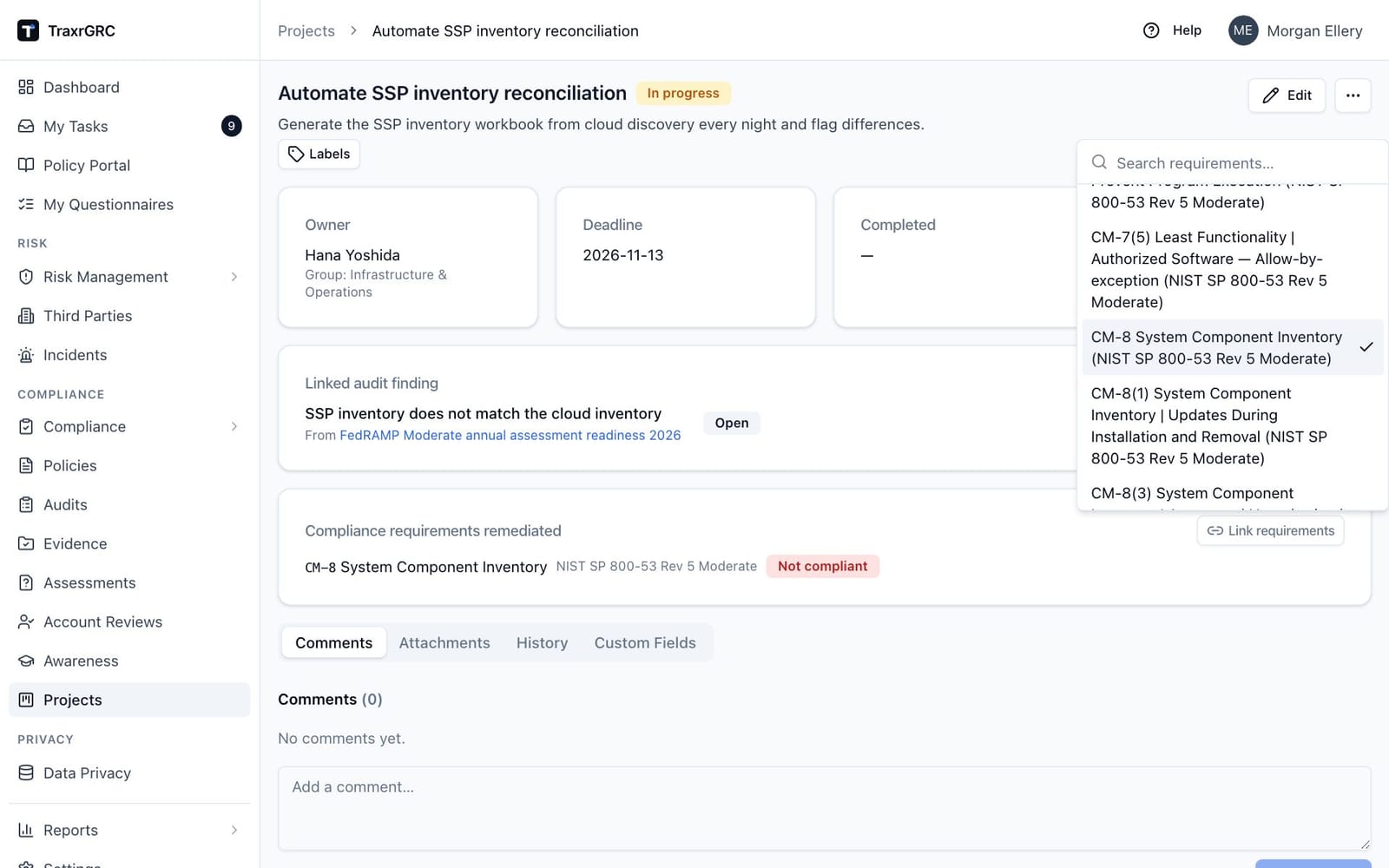
With compliance:read, the Compliance requirements remediated card lists
the requirements this project is linked to, each with its code, name,
package and analysis status; click one to open it. Requirements you cannot
read are counted ("n more you do not have access to"), not named, and stay
linked.
To link or unlink requirements:
- Click Link requirements (requires
projects:update). - Search the checklist of requirements you can read (headings are left out).
- Tick or untick a requirement. Each change saves straight away and is recorded on the history of both the project and the requirement.
The same link shows on the requirement's Remediation projects card and in the gap view.
9.4.4 Comments, attachments and history
These tabs work as described for incidents: comments up to 4,000
characters, uploads up to 25 MB with download links, and an audit trail of
edits, status changes, finding unlinks and requirement links. Commenting and
uploading require projects:update on the project.
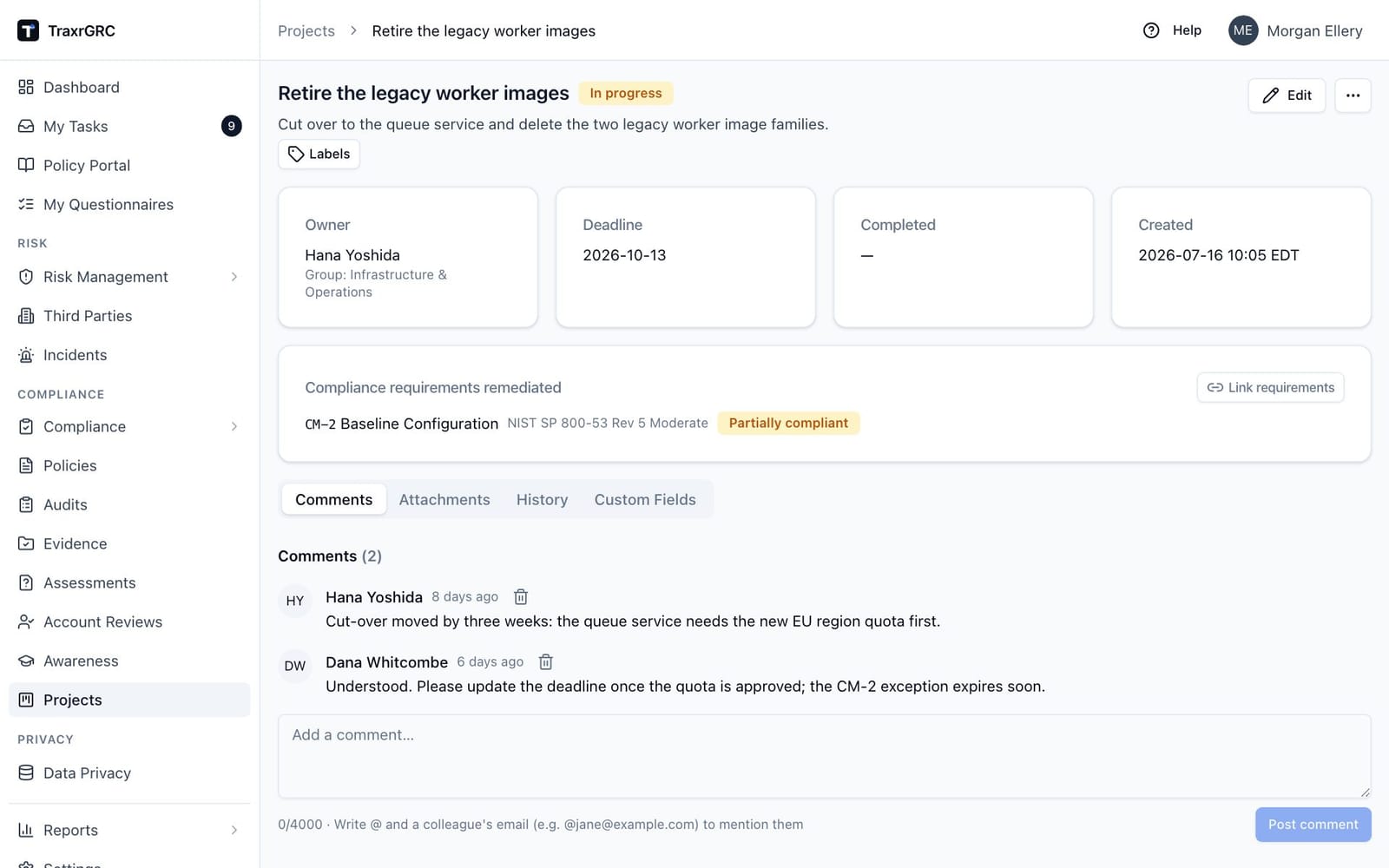
The Custom Fields tab, last in the row, holds organization-defined fields for projects (see Custom Fields).
9.4.5 Deleting a project
Open More actions (…), click Delete and confirm with Delete. The project is removed together
with its comments, attachments and labels. A linked audit finding is not
deleted: it loses the link, so its remediation history stays in the audit
record. Linked compliance requirements lose the link too, and each
requirement's history records that the project was deleted. Deleting
requires projects:delete and cannot be undone.