14 Online Assessments
Online assessments let you send a questionnaire to someone outside your organization, typically a vendor or other third party, without giving them an account. You build reusable templates, create a request from a template, and the contact answers through a personal link. Choice answers are scored automatically, files can be attached as evidence, and the answers come back to you for review answer by answer. A request can repeat every year (or every N months) against the same third party, offering last time's answers for the contact to confirm.
The module is used mainly by vendor and third-party risk managers, with security and privacy staff reviewing answers in their area. This chapter covers both sides: managing templates and requests inside TraxrGRC, and what your contact sees on the public assessment page.
14.1 The Assessments page
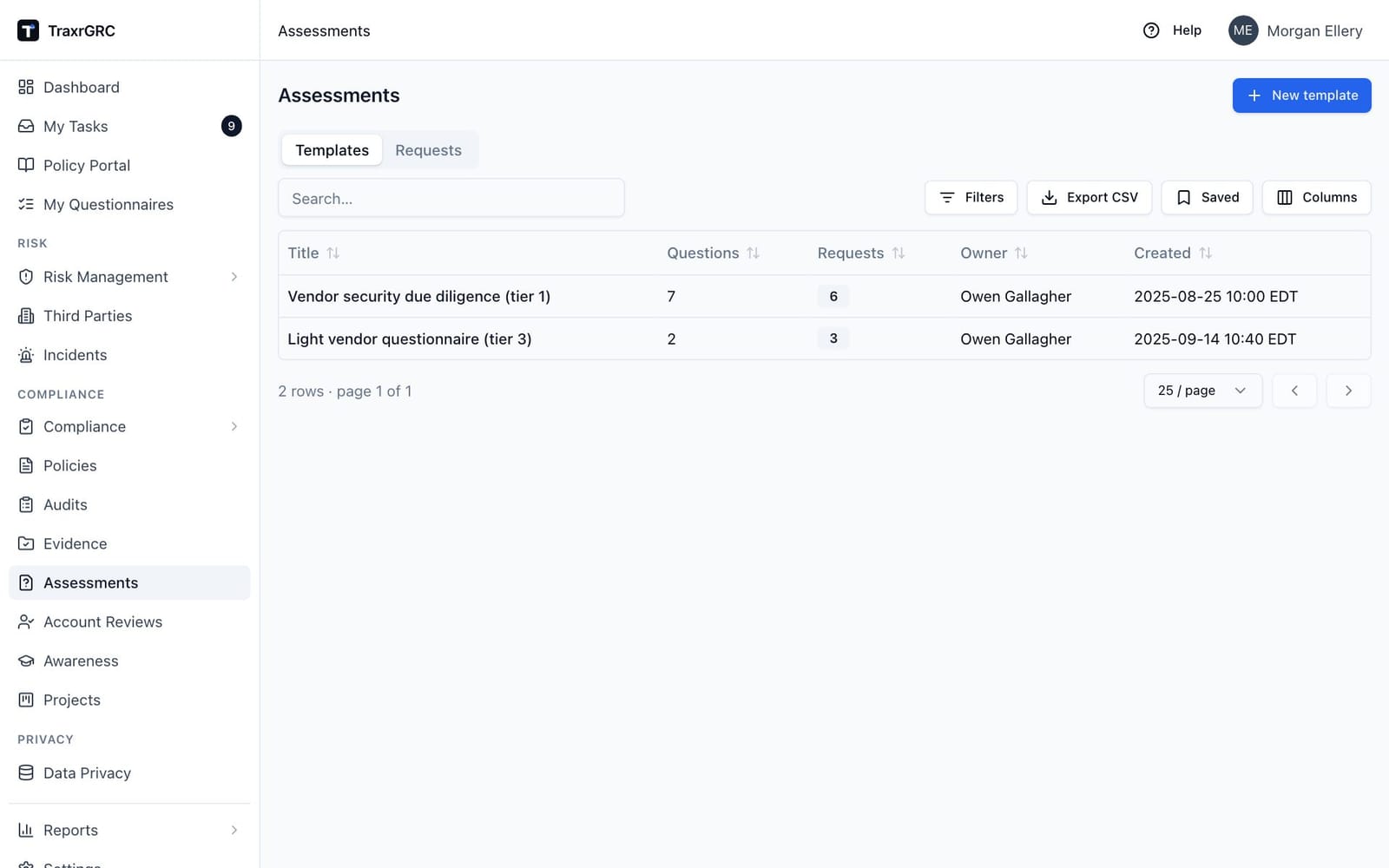
Open Assessments from the navigation. The page has two tabs:
- Templates (the default): the reusable questionnaires, with the columns Title, Questions (the number of questions), Requests (how many requests use the template), Owner and Created.
- Requests: every questionnaire sent to a contact (see Requests below).
Both lists have a search box, Export CSV and Saved filters. With
assessments:create you see New template at the top of the page and
New request on the Requests tab.
The dashboard widget Assessment requests counts requests by status (see Getting Started, The Dashboard).
14.2 Templates and the question editor
14.2.1 Creating a template
- Click New template. The New assessment template dialog opens.
- Fill in Title (required, for example "Vendor due diligence"), an optional Description, and an optional Owner. If you leave the owner as "None", you become the owner.
- Click Create template.
- Open the template from the list to add its questions.
14.2.2 The template page
The template page shows the title, owner, creation time and the number of requests that use it. Edit details opens the Edit template dialog for the title, description and owner (questions are edited on the page itself); click Save changes to apply. Below the header is the question editor.
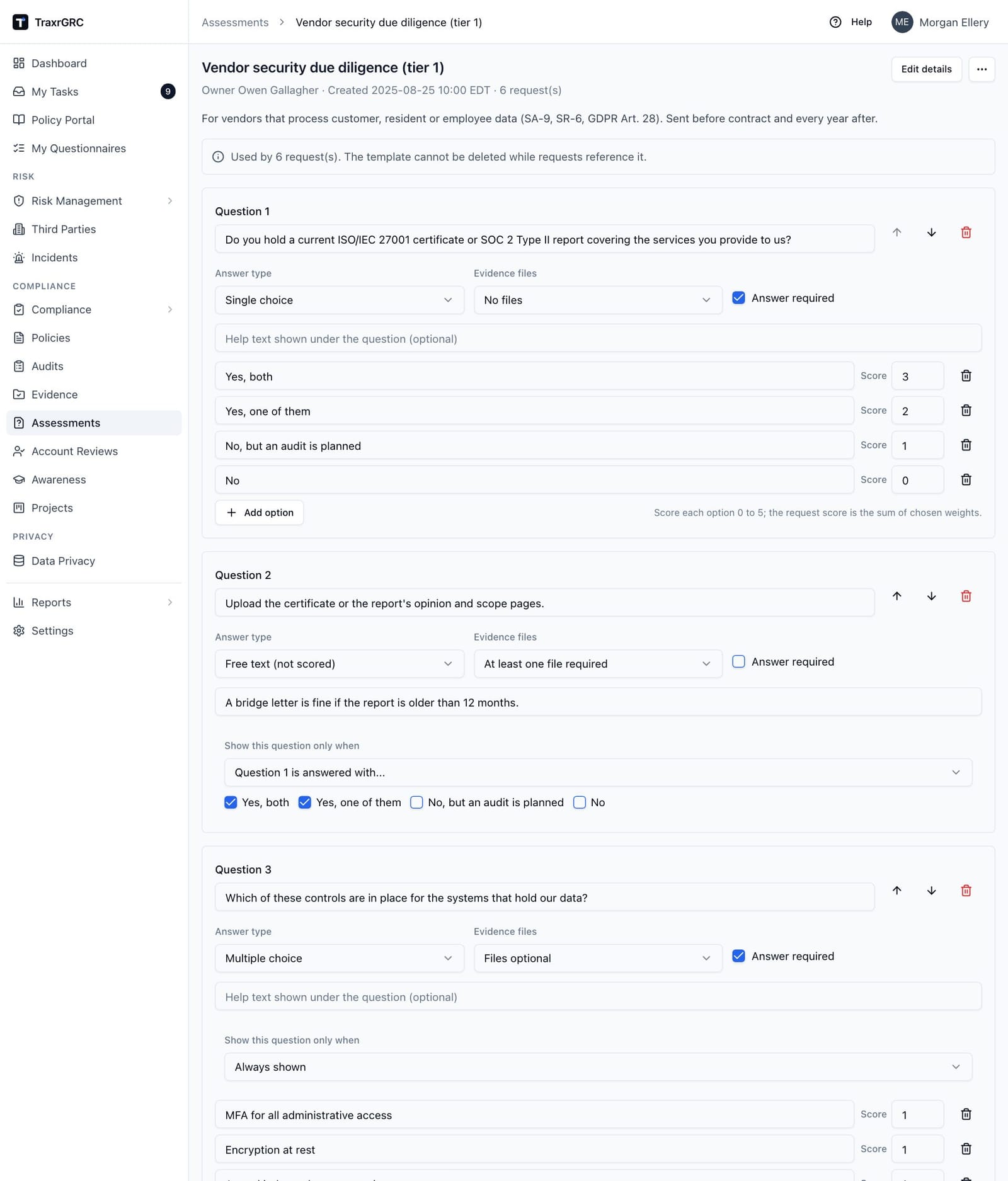
Each question has these settings:
| Setting | What it does |
|---|---|
| Question text | Required. |
| Answer type | Single choice (one option), Multiple choice (any number of options) or Free text (not scored). |
| Options | Choice questions only: 2 to 20, each with a label and a Score from 0 to 5. A single choice earns its option's score; a multiple choice earns the sum of the options picked. |
| Evidence files | No files, Files optional or At least one file required: whether the contact can or must attach documents (certificates, reports, policies) to this question. |
| Answer required | On by default. An optional question can be left blank. |
| Help text | Optional guidance shown under the question. |
| Show this question only when | Optional condition. Always shown by default; otherwise pick an earlier single or multiple choice question and tick the options that show this one (one option means "equals", several mean "one of"). |
To build the questionnaire:
- Click Add question for each question and complete its settings.
- On choice questions, use Add option to add options and the trash button to remove one. The last two options of a choice question cannot be removed.
- Use the arrow buttons to move a question up or down, and its trash button to delete it.
- Click Save questions. Nothing is stored until you save.
A template holds at most 100 questions. Contacts never see the scores; grading happens inside TraxrGRC. A request's score is the sum earned over the questions the contact was shown, as a percentage of what those questions could earn: a question hidden by its condition counts neither way, and free-text questions are not scored.
Conditions. A question can depend only on an earlier choice question. If you move questions so that a condition would point at a later question, or remove the option it names, the condition is dropped. A question that depends on a hidden question is hidden too. Hidden questions are never required, and anything typed into them before they were hidden is dropped when the contact submits.
Saving questions replaces the whole set. Each request keeps the questions it was sent with, so editing a template never changes, regrades or redisplays assessments already sent or completed. A repeat (see Repeating assessments) asks the template's questions as they are when it is sent. Templates built before answer types existed keep working unchanged: their questions read as required single choice without evidence.
14.2.3 Deleting a template
A template that has requests cannot be deleted; the template page says how
many requests use it. Once the last referencing request is gone, Delete
in the More actions menu (…, requires assessments:delete) asks for confirmation ("Delete template?") and
removes it permanently.
14.3 Requests
14.3.1 Creating a request
-
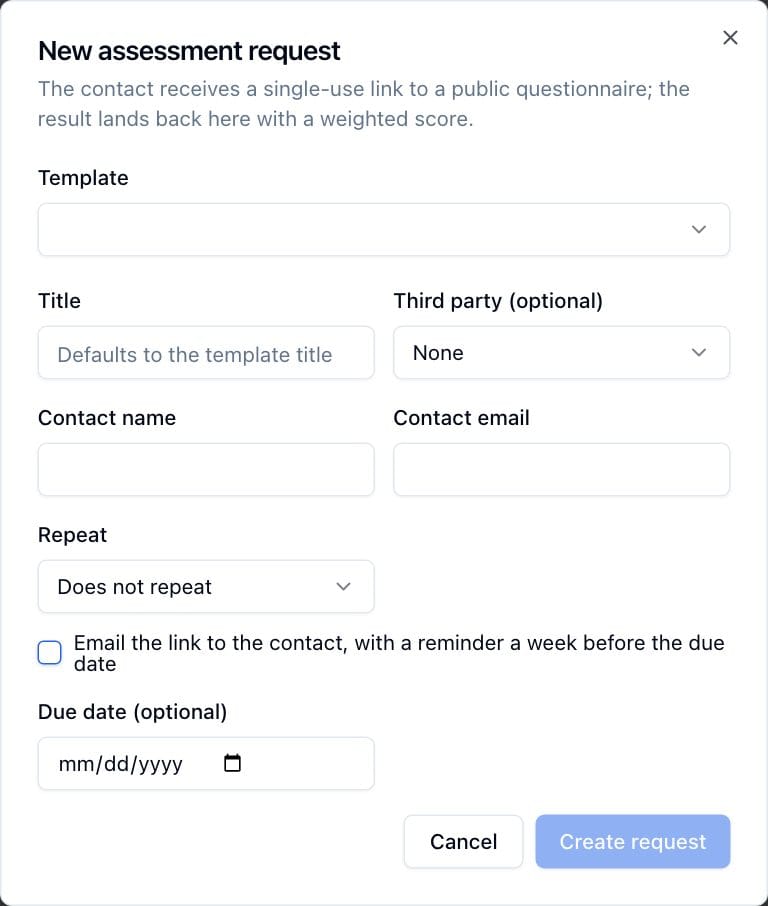
On the Requests tab, click New request. The New assessment request dialog opens.
-
Complete the fields:
Field What it means Template Required. Choosing one prefills the title. Title Defaults to the template title. Override it for a per-request name. Third party (optional) Links the request to a third-party record (see Third-Party Management). Required for a repeating request and for raising risks from answers. Contact name Optional. Shown in the public page greeting and in emails. Contact email Required. The person you are sending the questionnaire to. Repeat Does not repeat, Annually, Every 2 years, Every 6 months, Every 3 months or Every month. A repeating request needs a third party. Email the link to the contact, with a reminder a week before the due date Off by default. When ticked, TraxrGRC emails the link now, a reminder a week before the due date, and a notice if you send answers back for rework. Always on, and locked, for a repeating request. Due date (optional) After this date the link stops accepting answers. -
Click Create request. The Request created dialog shows the public link with a Copy button.
-
If TraxrGRC is not emailing the contact, send them the link yourself.
-
Click Done.
The link contains a random, unguessable token. Anyone holding it can answer, so share it only with the intended contact.
14.3.2 The requests list
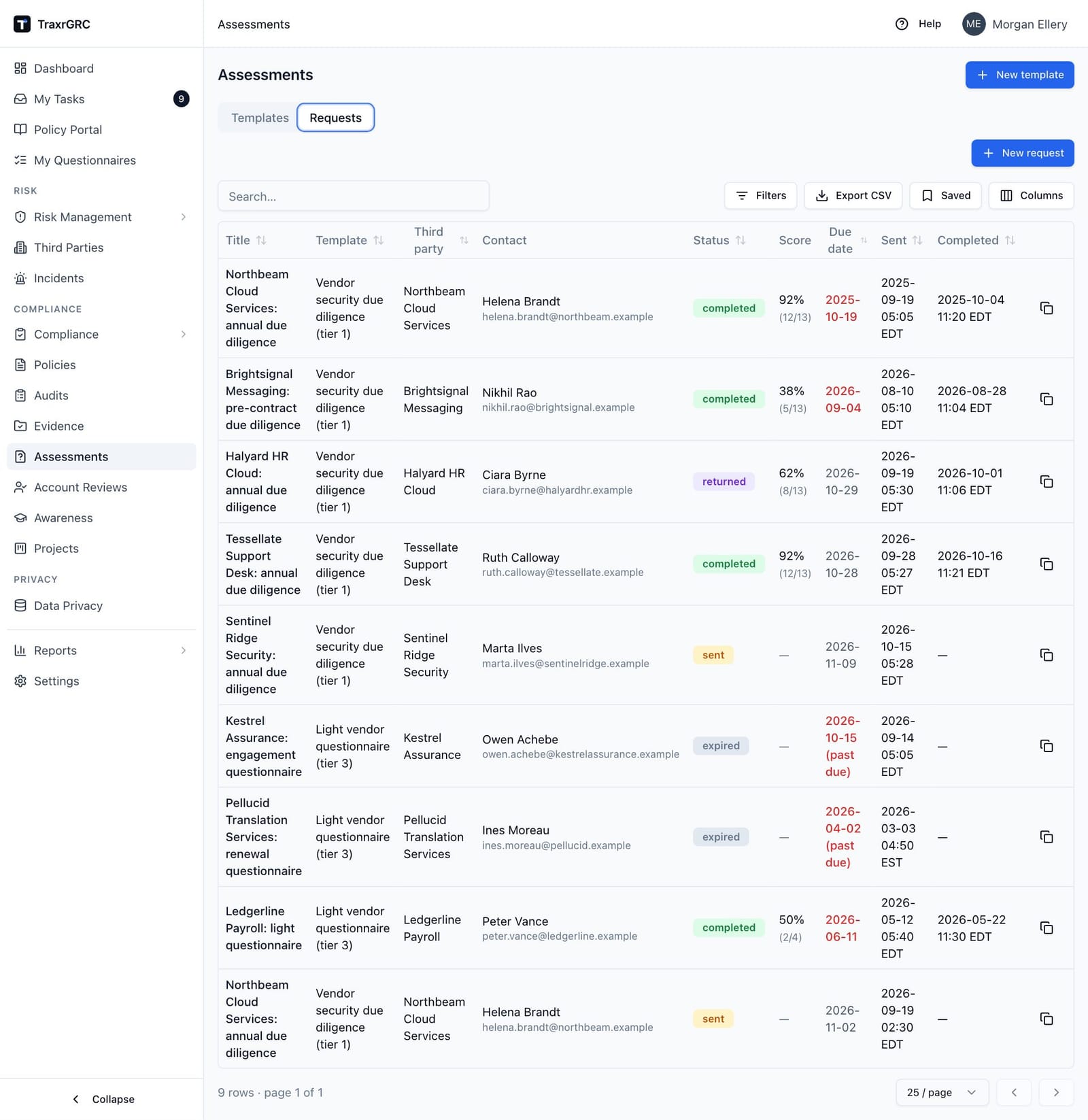
| Column | What it shows |
|---|---|
| Title | Click to open the request. |
| Template | The template the request was created from. |
| Third party | The linked third party, if any. |
| Contact | The contact's name, with the email underneath. |
| Status | The status badge (see below). Filterable. |
| Score | For a submitted request, pct% (score/max). |
| Due date | The due date. A past date shows in red with "(past due)" unless the request is completed. |
| Sent | When the request was sent. |
| Completed | When the contact submitted. |
The search box matches the title, contact name and contact email.
Status badges:
| Status | Meaning | Badge |
|---|---|---|
| Sent | Created; the contact can still answer. | Amber |
| Completed | The contact submitted. | Green |
| Returned for rework | You sent flagged answers back; the contact can change those until the new due date. | Violet |
| Expired | Either explicitly marked expired, or a Sent or Returned request past its due date. The badge changes as soon as the due date passes, without anyone touching the record. | Gray |
The Status filter matches the status stored on the request. A request that shows Expired only because its due date has passed is still stored as Sent or Returned, so the filter lists it under that status.
Row actions on each request:
- Copy link (copy icon, only with
assessments:updateon the request) copies the public link again; the icon turns into a checkmark when copied. - Mark expired (ban icon, on requests stored as Sent) asks for confirmation and then makes the link stop accepting answers immediately.
- Delete (trash icon) asks for confirmation and permanently removes a request that has never been submitted, together with its link and any files the contact uploaded. A submitted request cannot be deleted: its answers are the record.
14.3.3 The request page
Open a request from the list. The page has no tabs; a Custom Fields card below the answers shows any custom fields defined for assessment requests.
The header shows the title, status badge, template, third party, sent time and
owner. Below it are the contact, the due date (red once expired), the
completion time and, for people with assessments:update on the request, the
Public link with a Copy button. The link is hidden from everyone else
because it is the contact's only credential.
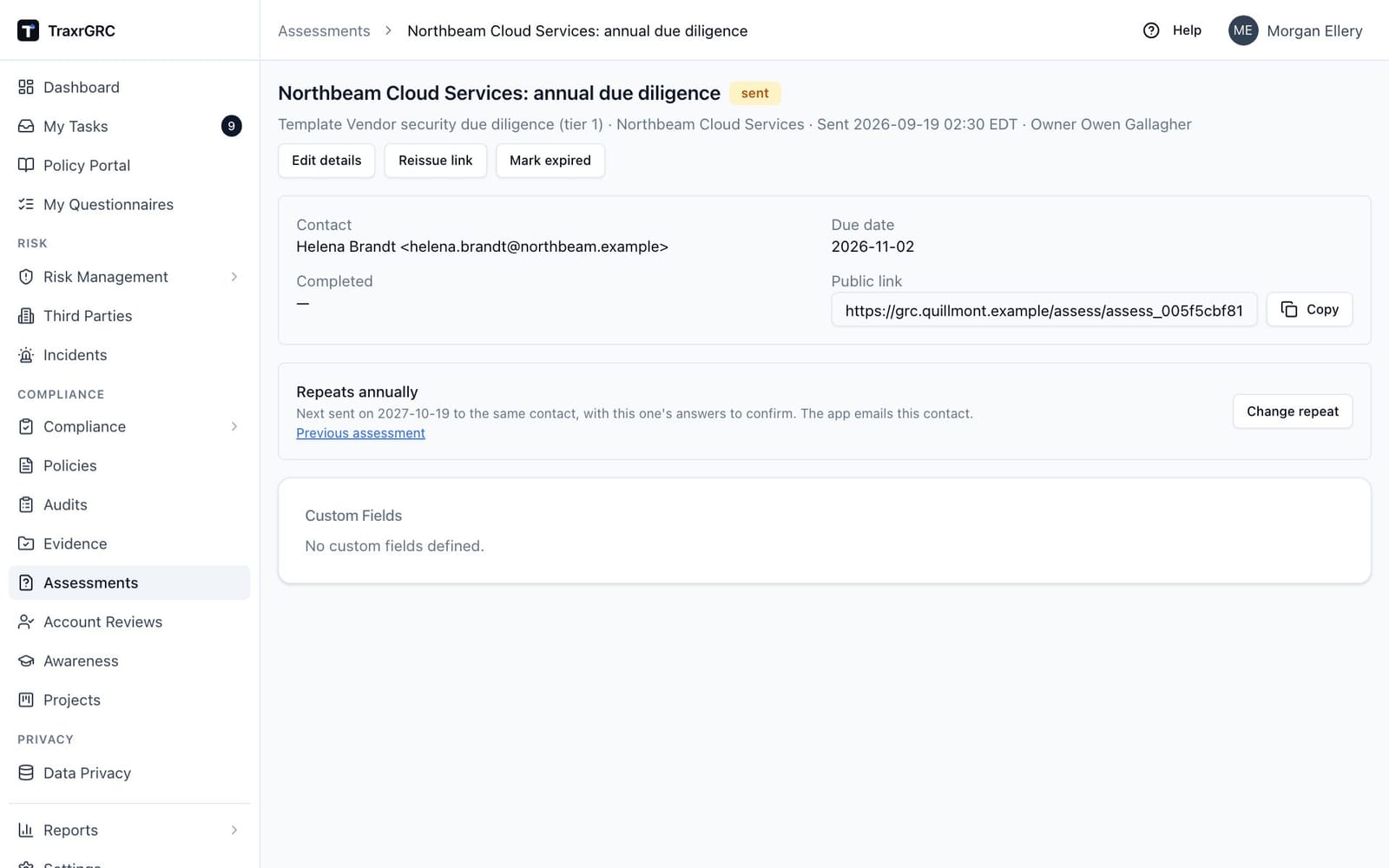
The buttons at the top right depend on the request's state and your rights
(assessments:update):
| Button | When it shows | What it does |
|---|---|---|
| Once the contact has submitted. Needs only read access. | Downloads the submitted assessment (see Reviewing answers). | |
| Edit details | Until the contact first submits. | Opens Edit request for the title, contact name, contact email, due date and third party. The public link and any answers are not affected. |
| Reissue link | On Sent and Returned requests. | Replaces the public link (see below). |
| Mark expired | On Sent and Returned requests. | After confirmation, the link stops accepting answers immediately. |
Once the contact has submitted, a score summary appears with the percentage and the raw score, followed by the Answers review.
14.3.4 Reissuing the public link
Use Reissue link when the link reached someone other than the contact.
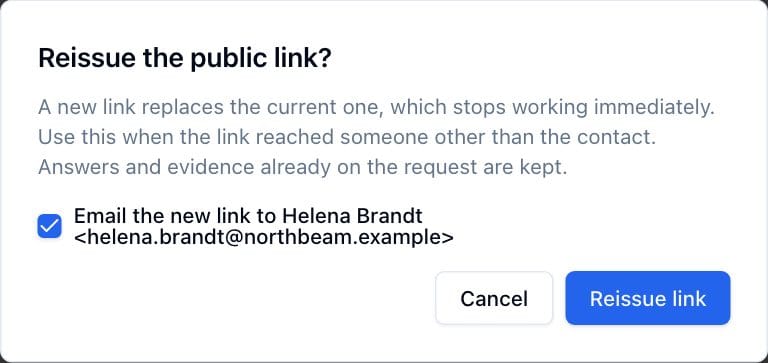
- On the request page, click Reissue link. The Reissue the public link? dialog opens.
- Leave Email the new link to contact ticked to have TraxrGRC send the new link, or untick it to send the link yourself. The box starts ticked when the request was set up to email the contact.
- Click Reissue link.
The old link stops working at once. Answers and evidence already given stay on the request, and the new link appears in the Public link field. The new link is never written to the audit log; the log records only that the link was reissued and to whom it was emailed. If someone else already submitted through a leaked link, return the request for rework first (see Reviewing answers), then reissue the link.
14.4 Reviewing answers
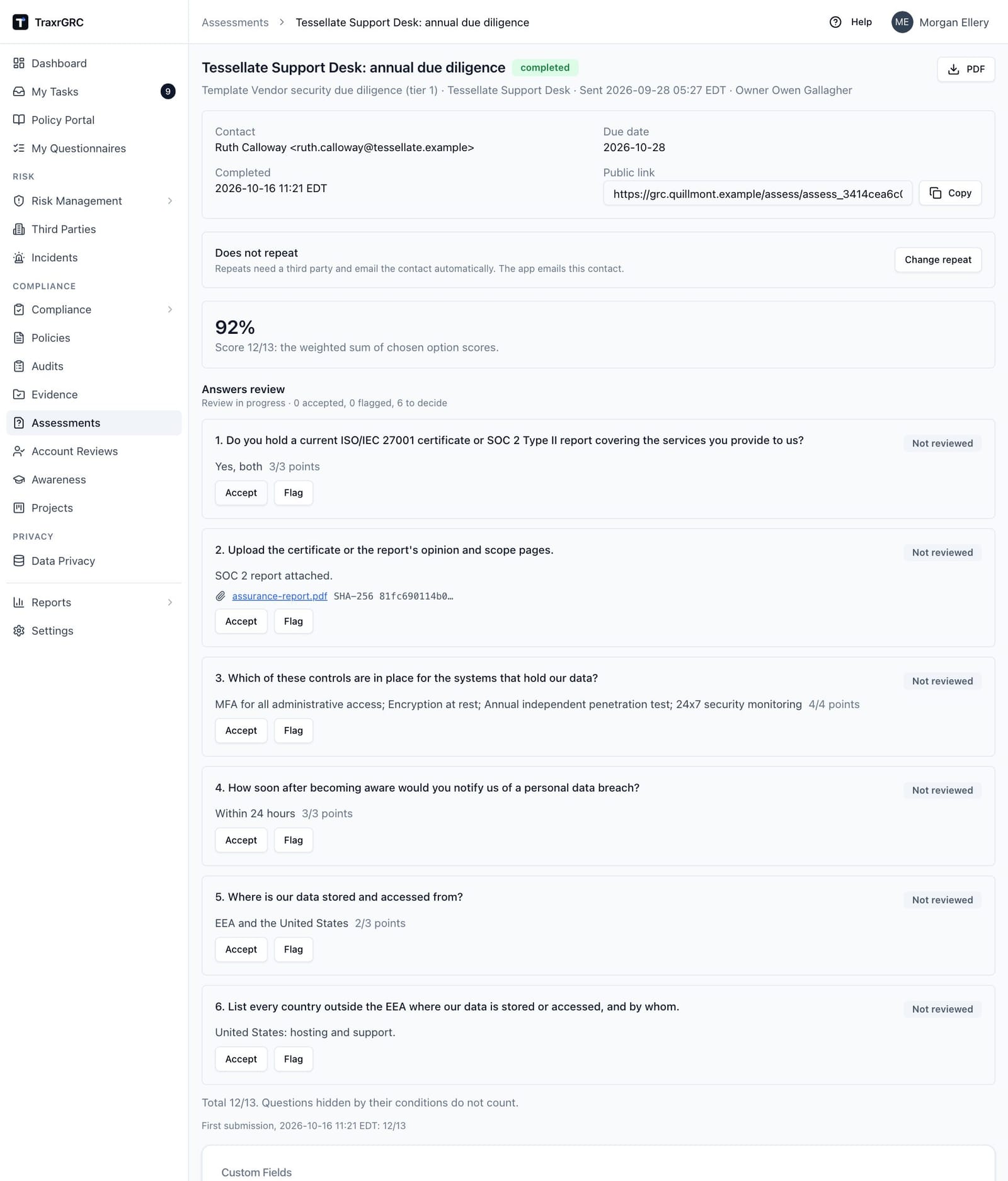
The Answers review lists each answer with:
- its points (for scored questions);
- the files attached to it, by name and the start of its SHA-256 fingerprint (click a name to download; files added during rework are marked "(rework)");
- "Unchanged from last time" where the contact confirmed last time's answer;
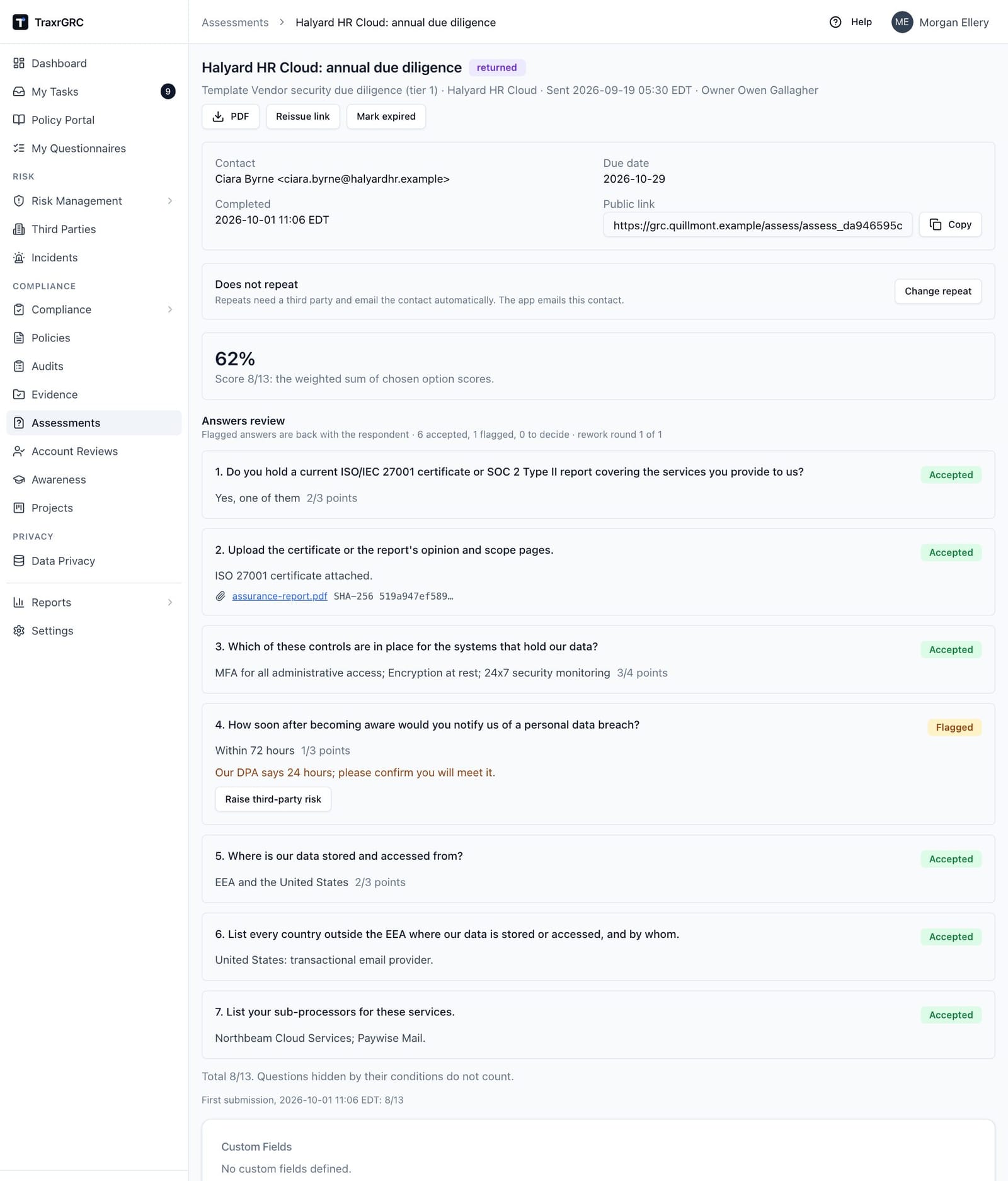
- a decision badge: Not reviewed, Accepted, Flagged or Reworked, review again;
- the review comment, and a History (N) list once an answer has more than one decision.
The status line above the answers reads Review in progress, Flagged answers are back with the respondent or Review finished, followed by how many answers are accepted, flagged and still to decide, and who finished the review and when. Below the answers, each submission (the first and any rework) is listed with its time and score.
With assessments:update on the request, you review as follows:
- Click Accept on each answer you are satisfied with, or click Flag, enter what needs to change (a comment is required; the contact sees it if the answers go back) and click Flag answer. You can change a decision until you finish; every decision is kept in the answer's History.
- Optionally, on a flagged answer of a request linked to a third party,
click Raise third-party risk. In the Raise a third-party risk
dialog, adjust the Risk title and click Raise risk. TraxrGRC
creates a risk in the Third-party classification, attached to that third
party and owned by you, at the lowest likelihood and impact for you to
rate. Its description carries the question, the answer and your comment,
and the answer links to it ("Risk raised: ..."). One risk per answer. This
needs
risks:createand read access to the third party. - Optionally, click Send flagged answers back (once per request). In the dialog, set a New due date (14 days from today if left empty) and click Send back. The request becomes Returned for rework. The contact sees your comments and can change only the flagged answers, add files to them, and answer any question their changes reveal; everything else stays as it was. If TraxrGRC does not email this contact, the dialog reminds you to tell them the link is open again. While the answers are back with the contact, the flagged answers keep their Flagged badge and your comment, and the status line reads Flagged answers are back with the respondent.
- When the contact resubmits, each reworked answer shows Reworked, review again until you decide on it again. Flags go stale only at this point; if the link expires during rework without a resubmission, the flags stay current.
- Click Finish review once every answer has a current decision. Flagged answers can stay flagged when you finish; the flag is the decision.
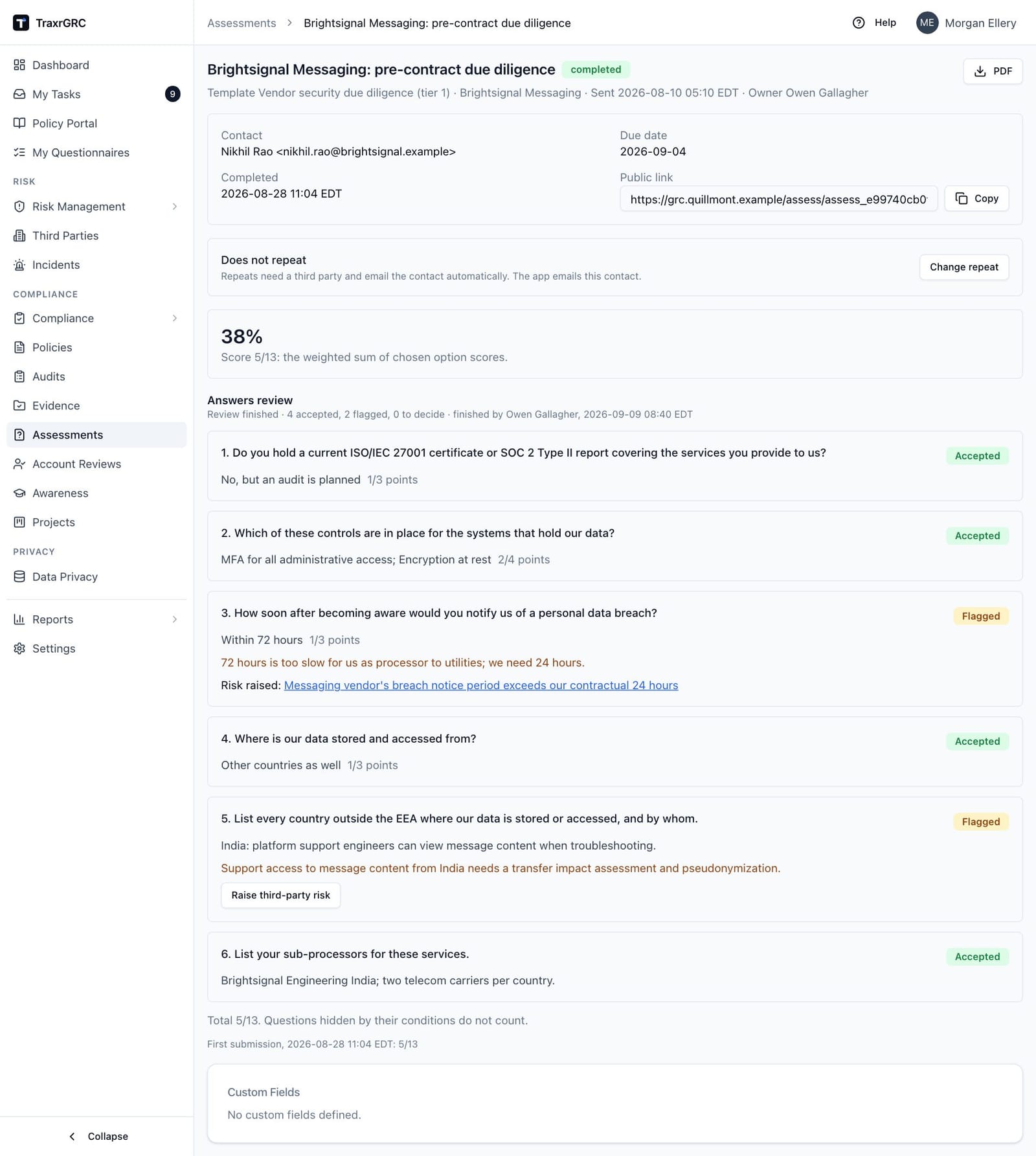
PDF. The PDF button downloads the submitted assessment: every question in order with the answer, points, whether it was confirmed unchanged, the review decision with the reviewer, time and comment, earlier decisions, any risk raised (by title if you may read it), and each evidence file by name, size and SHA-256 fingerprint. The files themselves are not embedded; download them from the request page. Questions the contact was not shown are marked as such. Times are in your time zone. At most two PDFs render at once; if the server is busy, try again in a few seconds.
14.5 Repeating assessments
You set a repeat in the New assessment request dialog, or with Change repeat on the request page. Only the latest request in a chain can carry the repeat, so Change repeat appears only there. The repeat panel on the request page shows the schedule ("Repeats annually" and the date the next one will be sent) and, in a chain, Previous assessment and Next assessment links.
To change or stop a repeat:
- On the latest request in the chain, click Change repeat. The Repeat this assessment dialog opens.
- Choose an interval, or Does not repeat to stop.
- Click Save.
The daily notification sweep sends the repeat automatically, counted from when the request was sent: annually means a year after the send date. Setting a repeat on an older request whose date has already passed sends the repeat at the next sweep. The repeat:
- goes to the same contact and third party, owned by the same person;
- asks the template's current questions;
- gets as many days to answer as the previous request had (30 if it had no due date);
- is emailed to the contact, who sees last time's answers under each question with Unchanged from last time to confirm them;
- carries the schedule on, so the previous request links to the next one and vice versa.
14.6 The public assessment page (for external contacts)
This page is for the people you send links to; they need no TraxrGRC account. The URL ends in the link's token. The page carries only a header with your logo, product name and "Online assessment": no navigation and no sign-in.
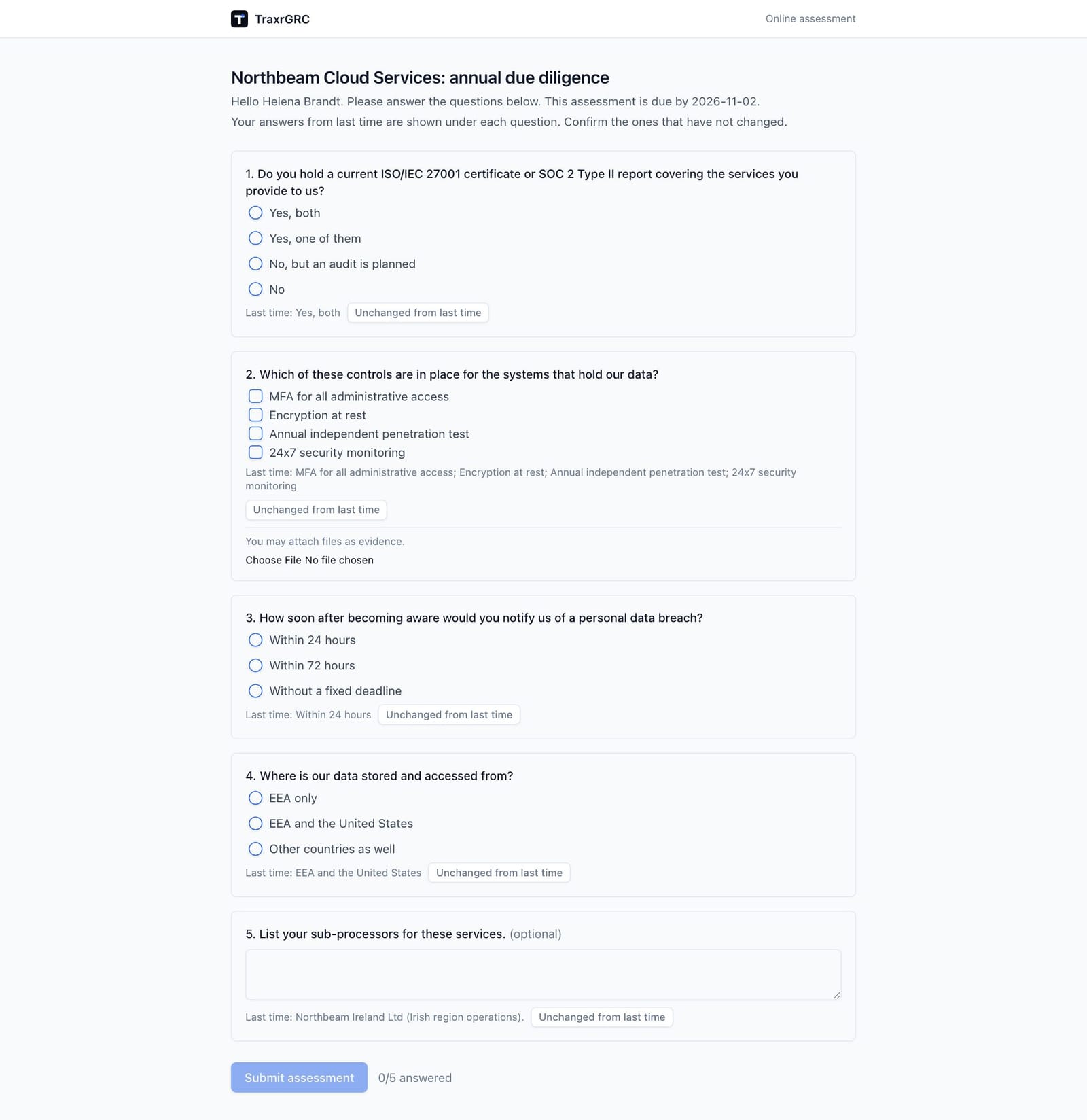
- Answering. The page greets the contact by name (if given), says "Please answer the questions below." and shows the due date. Single choice questions offer radio buttons, multiple choice questions checkboxes, and free-text questions a text box. Optional questions are marked "(optional)", and help text appears under the question. Follow-up questions appear and disappear as the answers they depend on change. A counter next to the button shows how many shown questions are answered. Submit assessment stays disabled until every shown required question has an answer and every shown question that needs a file has one. Option scores are never shown.
- Evidence files. Where a question takes files, the page says "Attach at least one file as evidence." or "You may attach files as evidence." The contact picks a file and it uploads straight away (PDF, images, Office documents, text, CSV or ZIP; the content must match the extension). Limits per link: 10 MB per file, 5 files per question, 40 files and 100 MB in all. Files can be removed until the answers are submitted; after that they are kept as evidence.
- Last time's answers. On a repeat, each question shows "Last time:" with the earlier answer and an Unchanged from last time button. Clicking it fills the answer in and shows "Confirmed unchanged". Changing the answer removes the mark.
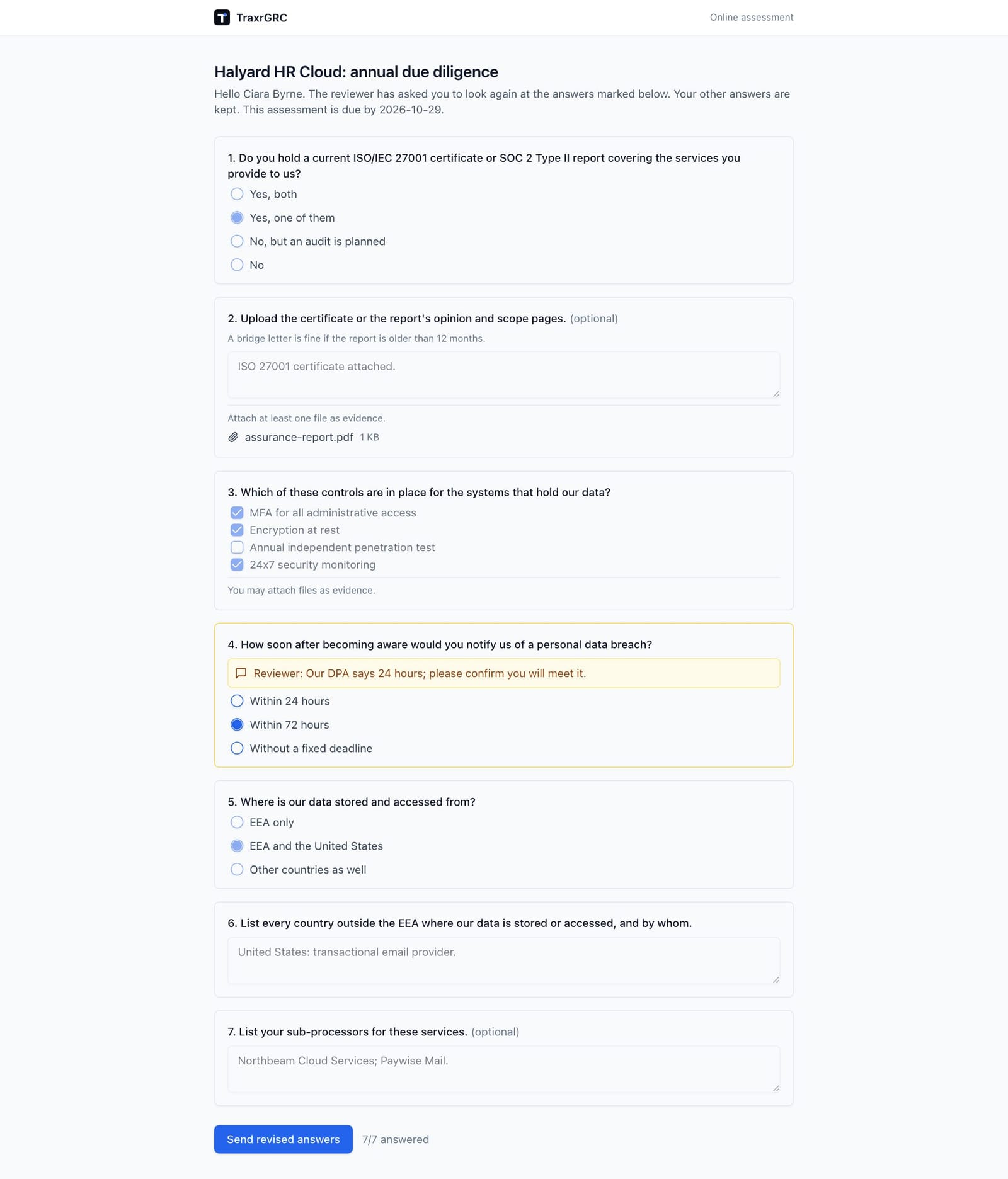
- Rework. When answers are sent back, the page explains that the reviewer has asked the contact to look again at the answers marked below, and shows the reviewer's comment ("Reviewer: ...") on each flagged answer. Only those answers can be changed, along with any question the changes reveal. Send revised answers resubmits.
- Thank-you screen. On submit, the page shows "Thank you!" and the contact's score as a percentage. Reopening the link shows "This assessment has been submitted" with the score and completion date.
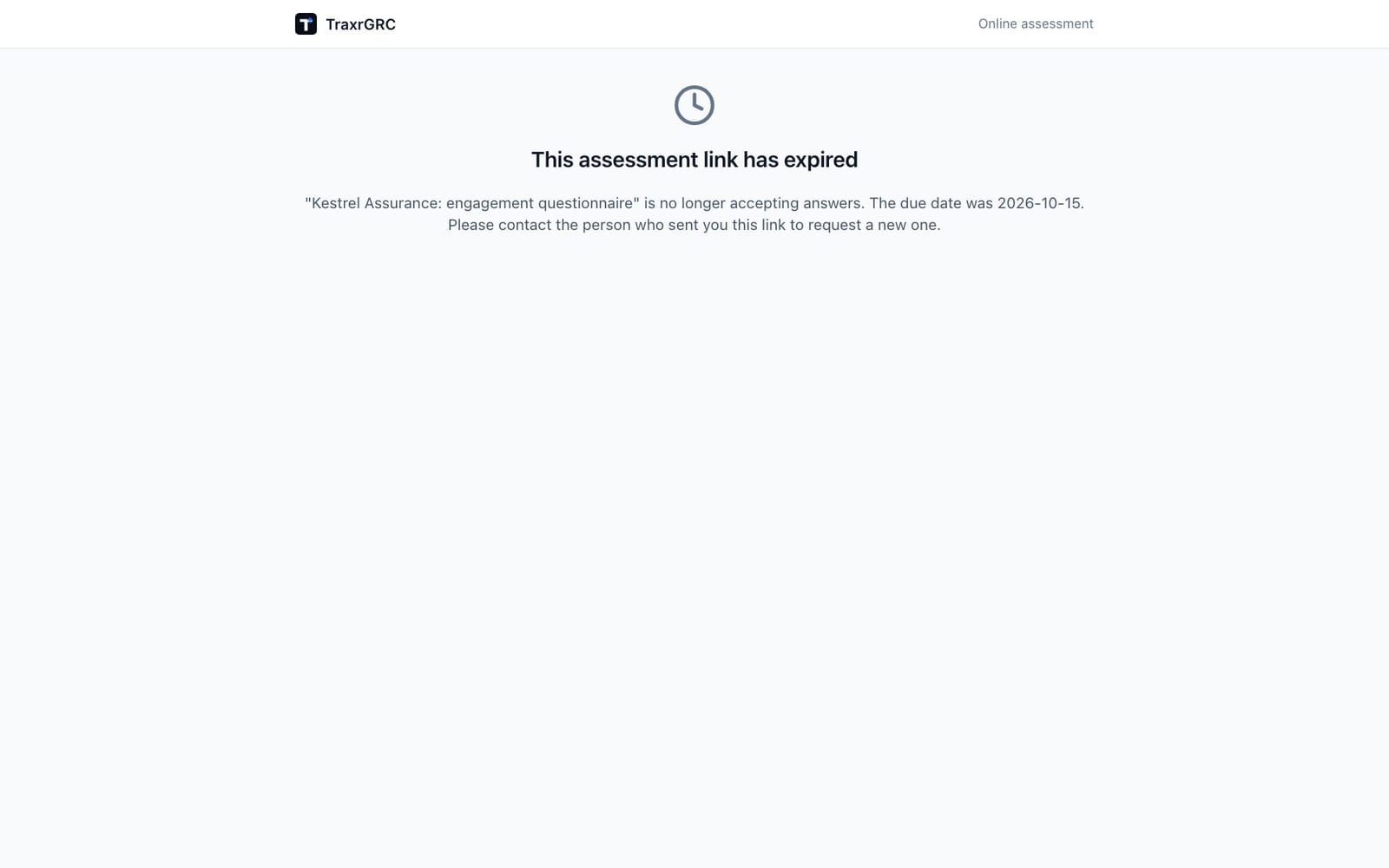
- Expired link. Past the due date, or after someone marks the request expired, the page shows "This assessment link has expired", states the due date, and asks the contact to request a new link from the person who sent it. Submissions and uploads are refused as well.
- Unknown links and rate limits. An unknown or mistyped link shows a generic "not found" page. The page and its uploads are rate-limited per address; an address that makes too many requests, or tries too many unknown links, sees "Too many requests" and is asked to wait a few minutes.
Evidence uploads and upload links. Evidence on the public assessment page
is uploaded by the external contact and stays attached to the answer. The
separate Upload files page (/upload/...) belongs to the AI assistant
feature: it attaches files to a record for a signed-in user whose assistant
issued the link, and it is never sent to external contacts. See
Administration & Settings, AI assistants.
14.7 Notifications and audit trail
When a contact submits (or resubmits after rework), the request's owner
receives an email notification with the title, contact and score. Where
TraxrGRC emails the contact, they receive the link (assessment.sent), a
reminder a week before the due date (assessment.reminder, once per due
date, never within a day of sending) and the rework notice
(assessment.returned). A reissued link is sent with the assessment.sent
template. If a request's due date passes unanswered, its owner is told once
(assessment.overdue), within a week of the date. The templates are under
Settings, Notifications, Templates. Emails to the contact carry the link, so
the delivery log (visible to notification administrators) shows it too.
The audit log records:
- the submission, and each upload or removal of a file, with the contact's email as the actor (the submitter holds no TraxrGRC account);
- every review decision, return, finished review and raised risk;
- each link reissue (without the new link);
- repeats sent by the sweep (as "system");
- all template and request changes.
14.8 Who can do what
| Action | Permission |
|---|---|
| See the Assessments page, templates and requests, and download the PDF | assessments:read (requests are additionally scoped: at the own level you see only requests you own) |
| Create templates and requests | assessments:create |
| Edit templates and questions; see, copy and reissue the public link; edit or expire requests; change repeats; review answers, send answers back, finish reviews | assessments:update (at the own level, on records you own) |
| Raise a third-party risk from a flagged answer | assessments:update on the request, risks:create, and read on the third party |
| Delete templates and unsubmitted requests | assessments:delete |
The public assessment page bypasses all of this by design: it is unauthenticated, and the link is the only credential.