12 Account Reviews
Account reviews are periodic attestations that the accounts on your systems should still exist, for example a quarterly privileged access review in which a manager confirms every administrator account on every system. An account review program groups the accounts that must be reviewed together. Reviewers work through the list, keeping the access that is still needed and disabling the rest, and TraxrGRC records the reviewer's name and the time on every decision.
The module is used by the people who run access reviews (typically the GRC team or IT security), by the system and team owners who make the decisions, and by auditors who read the result as evidence. This chapter covers creating programs, loading accounts one by one or from CSV, recording decisions, and exporting the evidence.
12.1 The programs list
Open Account Reviews from the navigation. The page lists every program you can see.
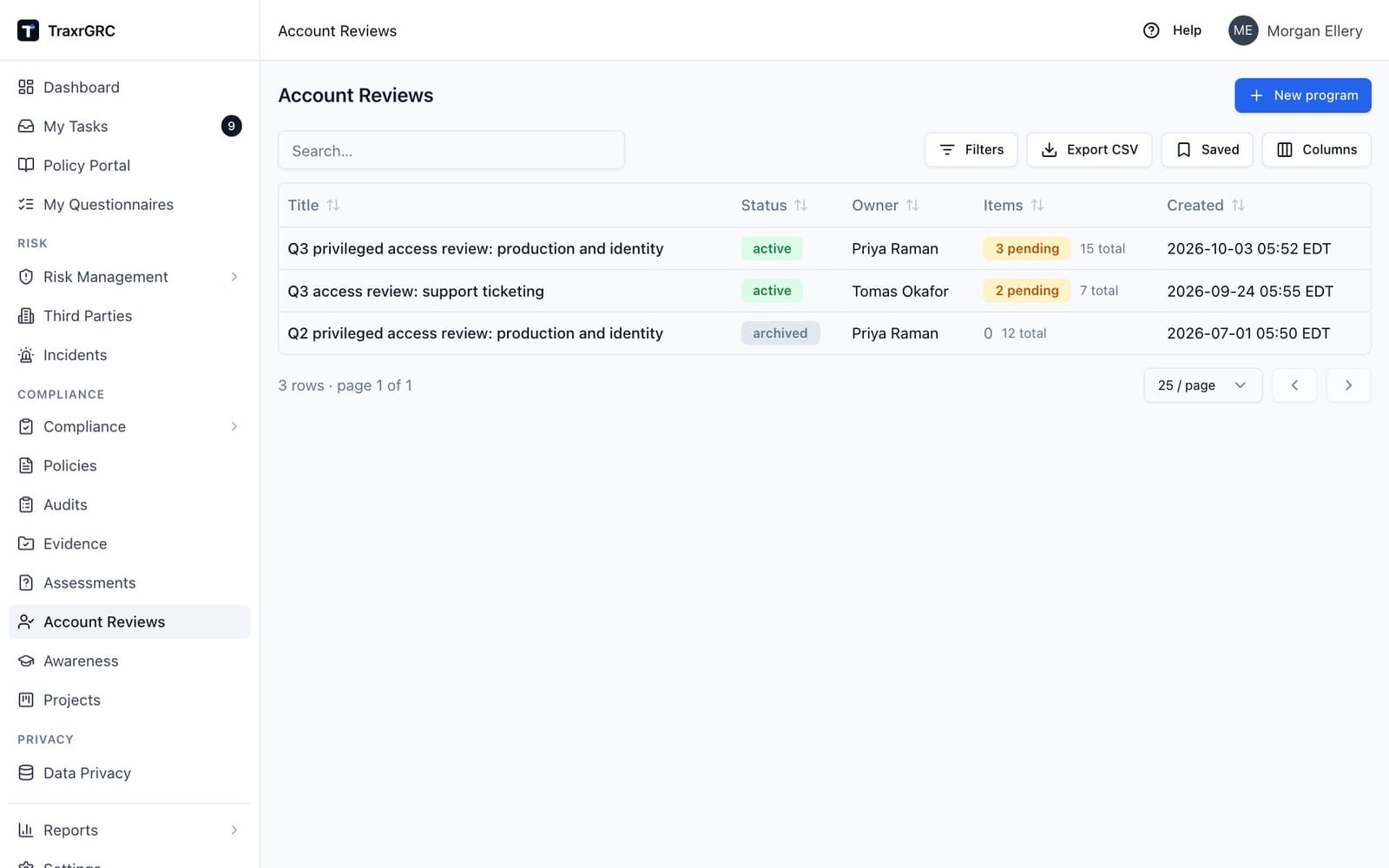
| Column | What it shows |
|---|---|
| Title | The program's name. Click it to open the program. |
| Status | Active (green badge) or Archived (gray badge). Filterable. |
| Owner | The owning person, or the owning group's name when no person is set. |
| Items | An amber N pending badge plus the total item count (for example "3 pending 15 total"). A zero pending count shows as a plain 0. |
| Created | The date and time the program was created. |
The search box filters by title or description. Export CSV downloads the programs that match your current filters, which is useful as review evidence. Saved stores and reapplies filter sets, as on every list in TraxrGRC.
The dashboard widget Account review items charts pending, kept and disabled items across all the programs you can see (see Getting Started, The Dashboard).
12.2 Creating a program
-
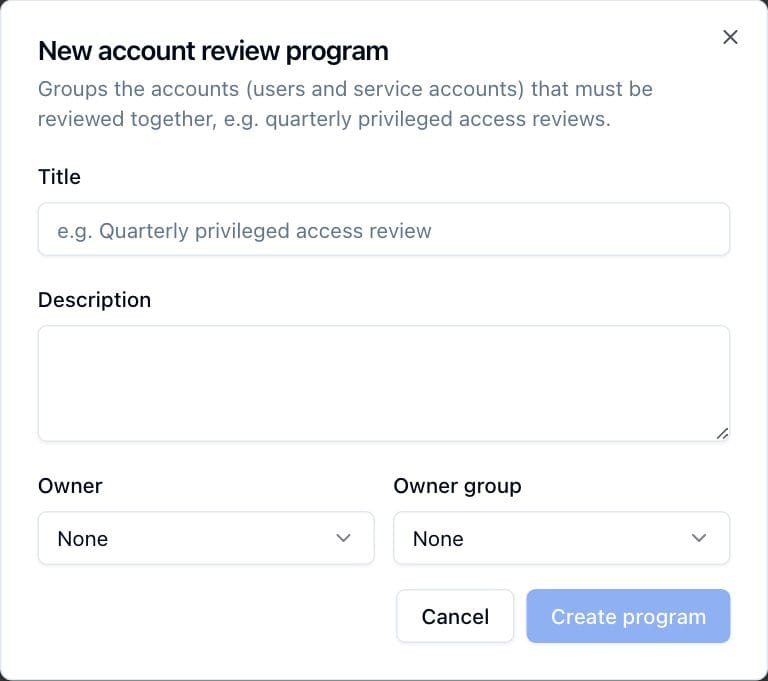
Click New program. The New account review program dialog opens.
-
Complete the fields:
Field What it means Title Required. The program's name, for example "Quarterly privileged access review". Description Free text explaining scope, frequency or method. Owner The person accountable for the review. Defaults to "None". Owner group A group accountable for the review. You can set either or both. -
Click Create program.
Creating, editing and deleting programs is recorded in the audit log (see Administration & Settings).
12.3 The program page
Open a program from the list.
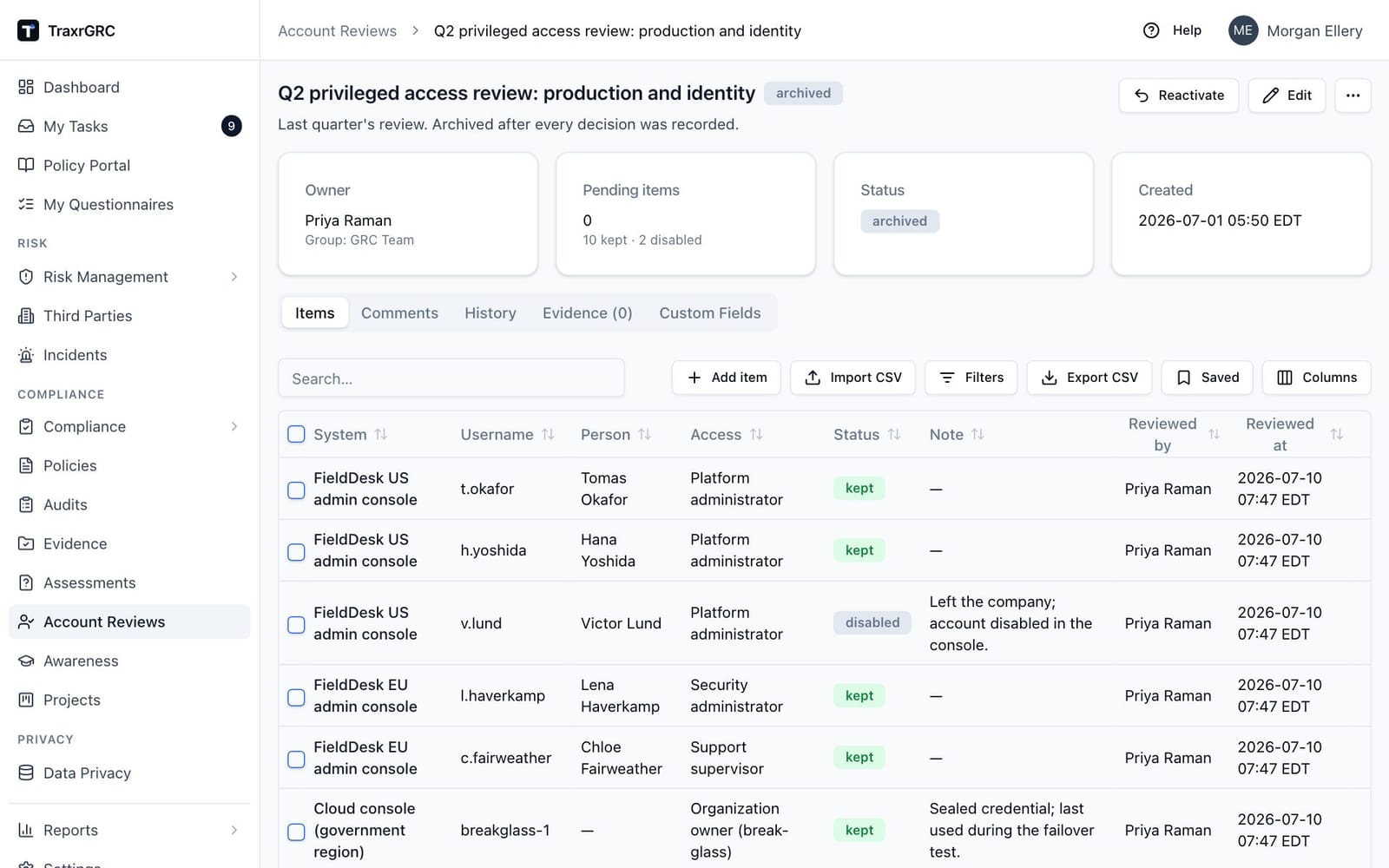
Under the title and status badge, four summary cards show:
| Card | What it shows |
|---|---|
| Owner | The owning person, with the owning group underneath. |
| Pending items | The number of items still to decide (amber when above zero), with the kept and disabled counts underneath. |
| Status | Active or Archived. |
| Created | When the program was created. |
Below the cards are the Items, Comments, Attachments and History tabs, followed by Custom Fields, which shows any custom fields your administrator has defined for review programs. Items opens by default.
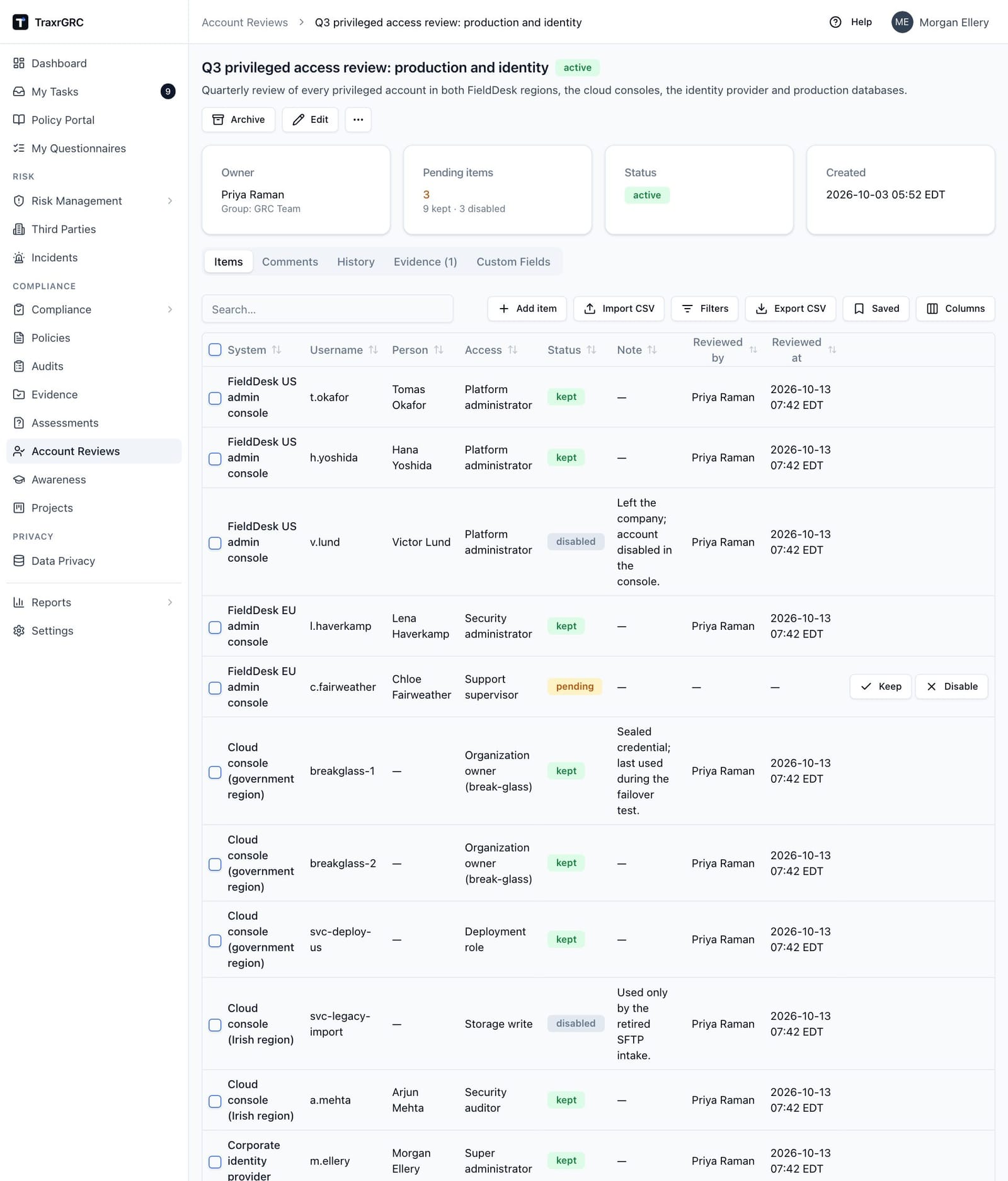
The item table has these columns: System, Username, Person, Access, Status, Note, Reviewed by and Reviewed at. With update rights you also see a selection checkbox on each row and, on pending rows, the Keep and Disable buttons. You can filter by status (Pending, Kept, Disabled) and search by system, username or person.
12.4 Adding items to a program
You need the accountReviews:update permission to add or import items. Both
buttons are in the toolbar above the item table on the Items tab.
12.4.1 Adding a single account
-
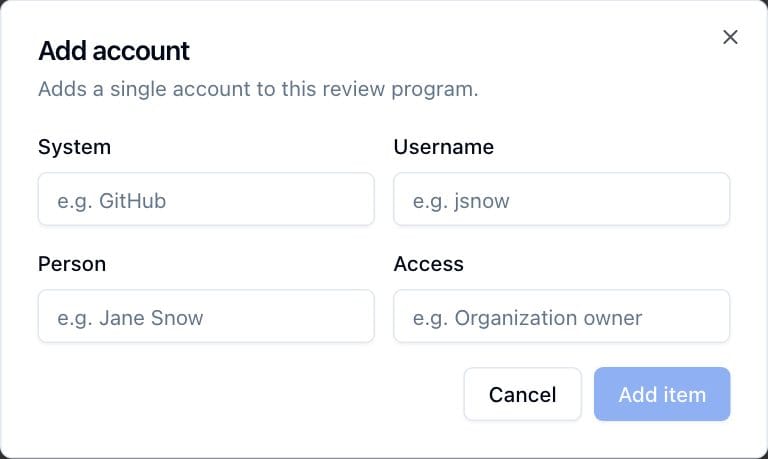
Click Add item. The Add account dialog opens.
-
Complete the fields:
Field What it means System Required. The system the account exists on, for example "GitHub". Username Required. The account's login, for example "jsnow". Person Optional. The person behind the account, for example "Jane Snow". Access Optional. A short summary of what the account can do, for example "Organization owner". -
Click Add item. The new item starts as Pending.
12.4.2 Importing accounts from CSV
- Click Import CSV. The Import accounts from CSV dialog opens.
- Either choose a
.csvfile or paste CSV text into the Or paste CSV here box. A chosen file's contents appear in the box, so you can check them before importing. - Click Import items. A successful import reports how many items were added; every imported item starts as Pending.
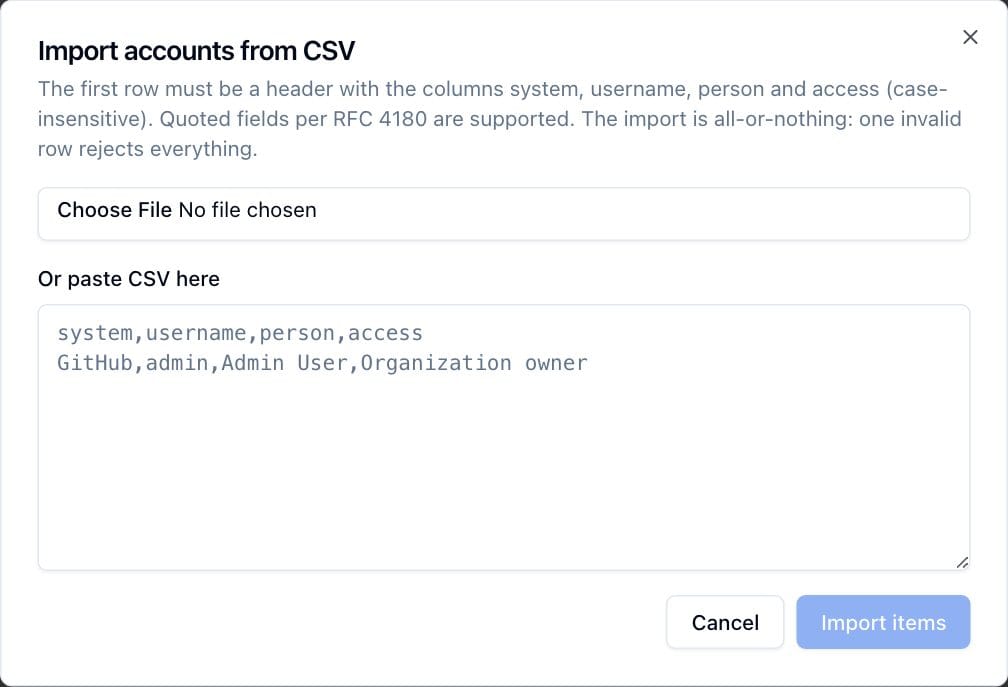
The format rules:
- The first row must be a header naming the columns
system,username,personandaccess. Matching ignores case, spaces and underscores, andpersonnameandaccesssummaryare also accepted. Other columns are ignored. systemandusernameare required on every data row;personandaccessmay be empty.- Quoted fields are supported (standard RFC 4180 CSV quoting).
- Completely blank lines are ignored.
- The import is all-or-nothing: every row must be valid or nothing is
imported. Problems are listed per line with 1-based line numbers, where the
header row is line 1 (for example
Line 4: username: ...). Fix every problem and try again.
12.5 Reviewing items: keep or disable
Each item is decided as kept (the access is still required) or
disabled (the access should be removed). You need accountReviews:update
to record either decision, per row or in bulk.
12.5.1 Deciding one item
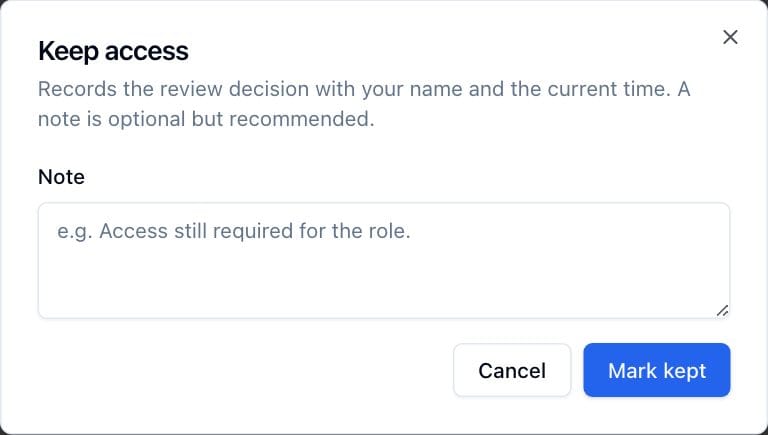
- On a pending row, click Keep or Disable. The Keep access or Disable access dialog opens.
- Optionally enter a Note. A note is recommended; the placeholders show the level of detail expected ("e.g. Access still required for the role." or "e.g. Left the team; access revoked in the IdP.").
- Click Mark kept or Mark disabled.
12.5.2 Deciding items in bulk
- Tick the checkboxes on the rows you want. The header checkbox selects every row on the current page.
- Click Mark kept (N) or Mark disabled (N) in the toolbar. A badge next to the buttons shows how many rows are selected.
Bulk decisions do not ask for a note. A bulk action applies to every selected row, including rows already decided: the new decision replaces the earlier one, with your name and the current time, and clears any earlier note.
12.5.3 What a decision records
Every decision records your name and the current time on the item, plus the
note if you entered one. The item's status badge changes to Kept (green) or
Disabled (gray), the Note, Reviewed by and Reviewed at columns
fill in, and the per-row buttons disappear (they appear only while an item is
pending). The decision is written to the audit log against the program, and
the pending counts on the program's summary card and on the programs list
update immediately.
Recording a decision in TraxrGRC does not change the account on the source system. Disabling the account in the system itself remains your team's task; the note is the place to record that it was done.
Export CSV above the item table downloads all items matching the current filters, including who reviewed each one and when. This file is the usual evidence artifact for an auditor.
The web interface has no button for deleting a single item. An item added by mistake can be removed through the REST API (see REST API), or decided with a note explaining the error.
12.6 Comments, attachments and history
Every program has three more tabs:
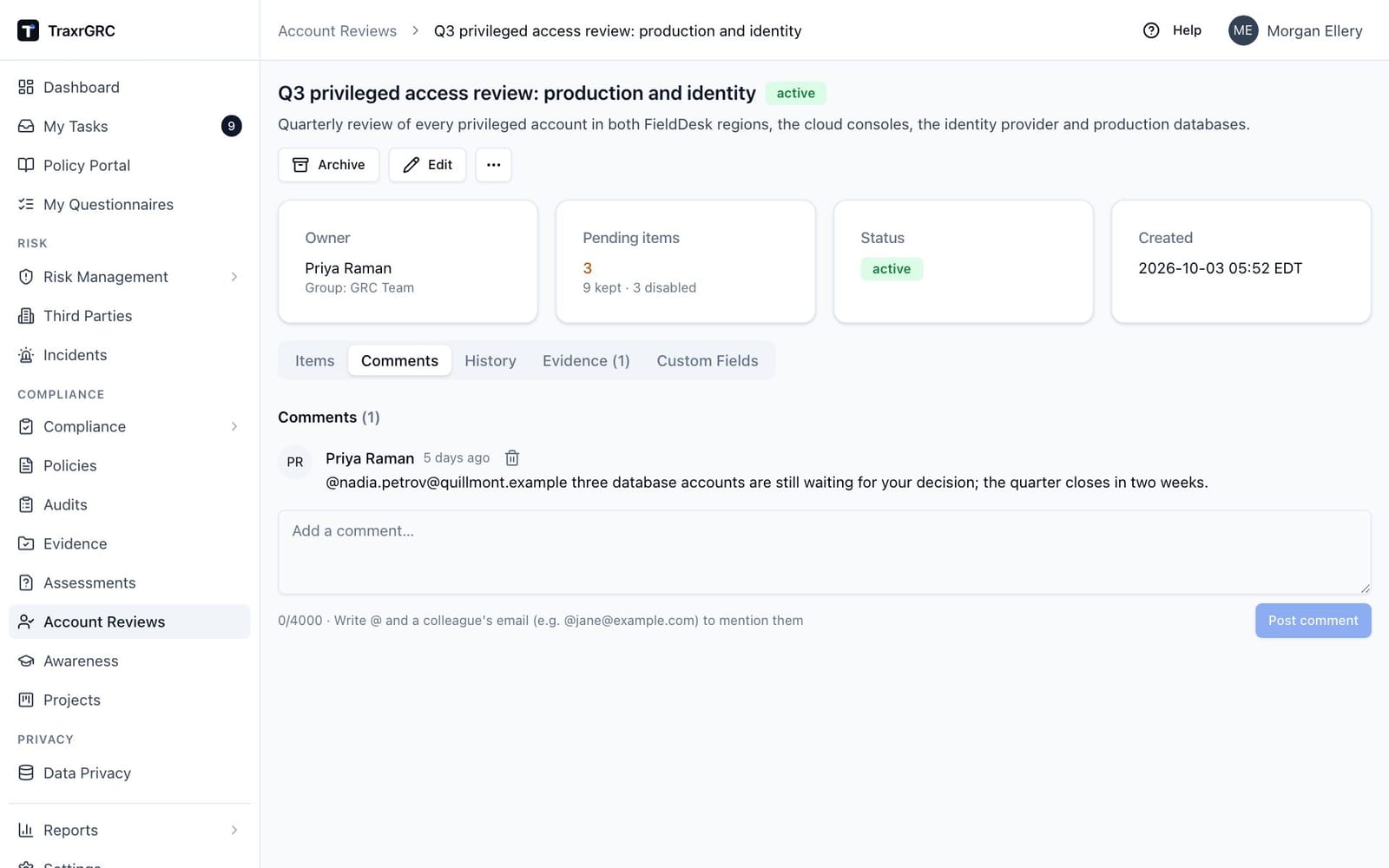
- Comments: a discussion thread on the program, for example to chase a reviewer for outstanding decisions. Adding comments requires update access to the program.
- Attachments: files such as exports from your identity provider or sign-off sheets. Uploading requires update access.
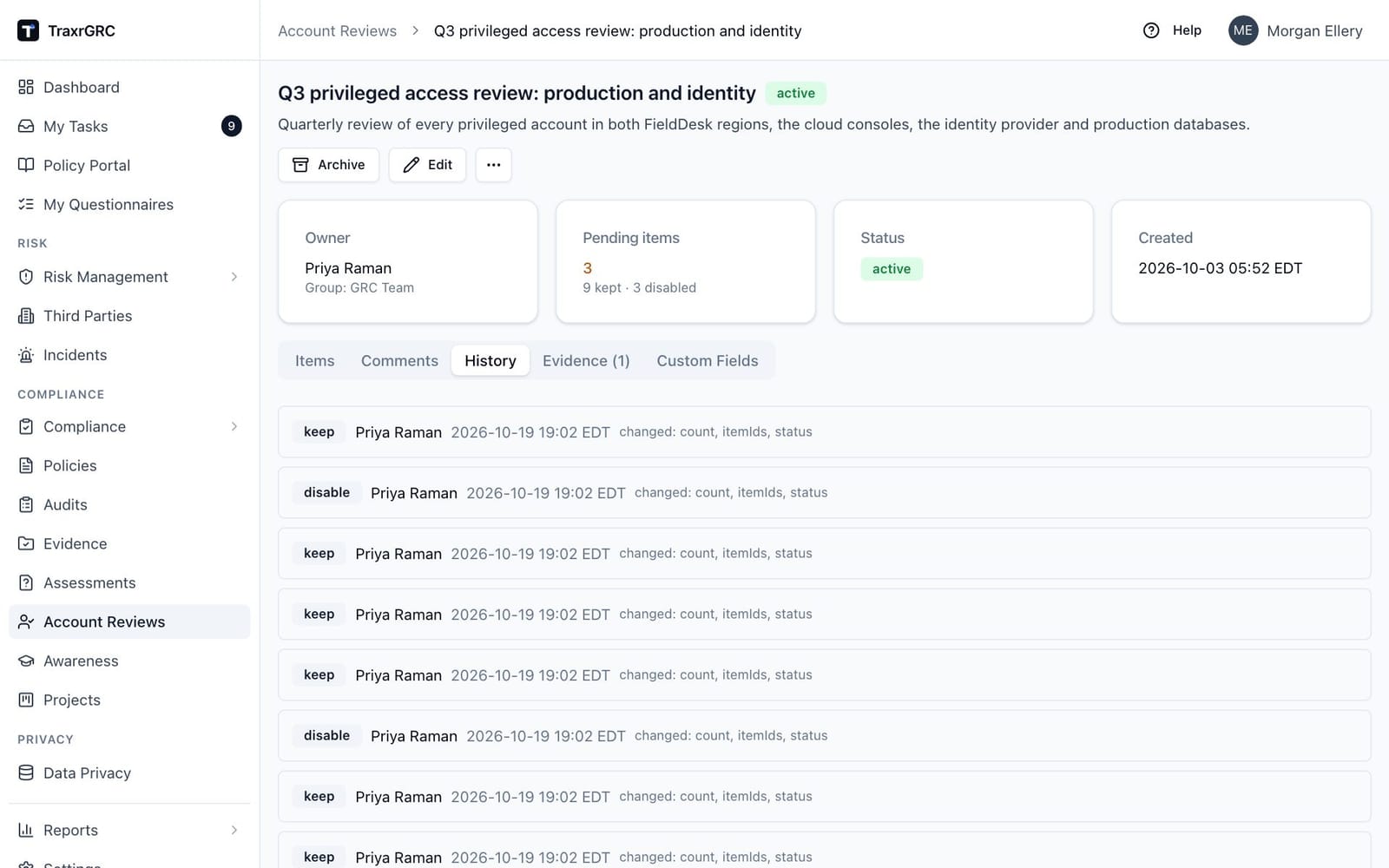
- History: the audit entries for this program, newest first. Each row
shows the action (
create,update,keep,disableand so on), who did it, when, and which fields changed.
12.7 Archiving, reactivating and deleting
The buttons at the top right of a program's page depend on your rights.
With accountReviews:update:
- Archive (on an active program) marks a finished program as archived;
its status badge turns gray. Nothing is deleted, and the program stays
visible in the list under the
Archivedstatus. - Reactivate (on an archived program) makes it active again.
- Edit opens the Edit review program dialog to change the title, description, owner or owner group. Click Save changes to apply.
Archiving does not lock a program: anyone with update rights can still add and decide items on it.
With accountReviews:delete, Delete in the More actions menu (…) asks for confirmation ("Delete
account review program?") and then permanently removes the program
together with all its review items. This cannot be undone.
12.8 Who can do what
| Action | Permission |
|---|---|
| See the programs list and a program's items | accountReviews:read (at the own level you only see programs owned by you or your groups) |
| Create programs | accountReviews:create |
| Add or import items, keep or disable items, comment, attach, edit, archive, reactivate | accountReviews:update (at the own level, on programs you own) |
| Delete programs | accountReviews:delete |
Administrators can do everything.