1 Getting Started
TraxrGRC is a self-hosted governance, risk and compliance platform. It gives your organization one place to manage risks and controls, track compliance against frameworks, maintain policies, oversee third parties, respond to incidents, run audits, deliver awareness training, and coordinate projects, data privacy records, account reviews and online assessments.
This chapter is for everyone who uses TraxrGRC. It explains how to sign in, how the application is laid out, how to read the Dashboard, where to find your own profile and the Policy Portal, and the on-screen conventions you will meet in every module. Administrators should continue with Administration & Settings afterward.
1.1 What you can manage
Each major area of GRC work has its own module, reached from the sidebar:
| Module | What it is for |
|---|---|
| Risk Management | Risk register, treatments, reviews and exceptions, plus the supporting controls, assets, business units and risk settings |
| Third Parties | Vendors and partners, their contacts, contracts and review lifecycle |
| Incidents | Security and operational incidents with response tracking, including personal data breaches |
| Compliance | Compliance analyses against requirement packages (for example NIST SP 800-53 or the GDPR), the packages themselves, and the gap view |
| Policies | Policy documents with owners, versions, approvals and periodic reviews |
| Audits | Audit plans and their findings |
| Assessments | Online questionnaires sent to internal or external respondents |
| Account Reviews | Periodic reviews of user accounts and their items |
| Awareness | Training programs and who has completed them |
| Projects | GRC-related projects (remediation, rollout) tracked by status |
| Data Privacy | Records of processing activities, DPIAs, transfers and periodic reviews |
| Reports | The Report Center, and report emails sent on a schedule |
| My Tasks | Everything waiting on you across the modules you can read: decisions, acknowledgements, training, questionnaires, reviews, control tests, findings, POA&M items and projects |
| Policy Portal | The published policies everyone can read, and the policies you are asked to acknowledge |
| My Questionnaires | For Data Liaisons: the data mapping questionnaires assigned to you |
User accounts, groups, roles, labels, custom fields, sign-in integrations, notifications, the audit log, API tokens and backups are administered from Settings (see Administration & Settings).
1.2 Signing in
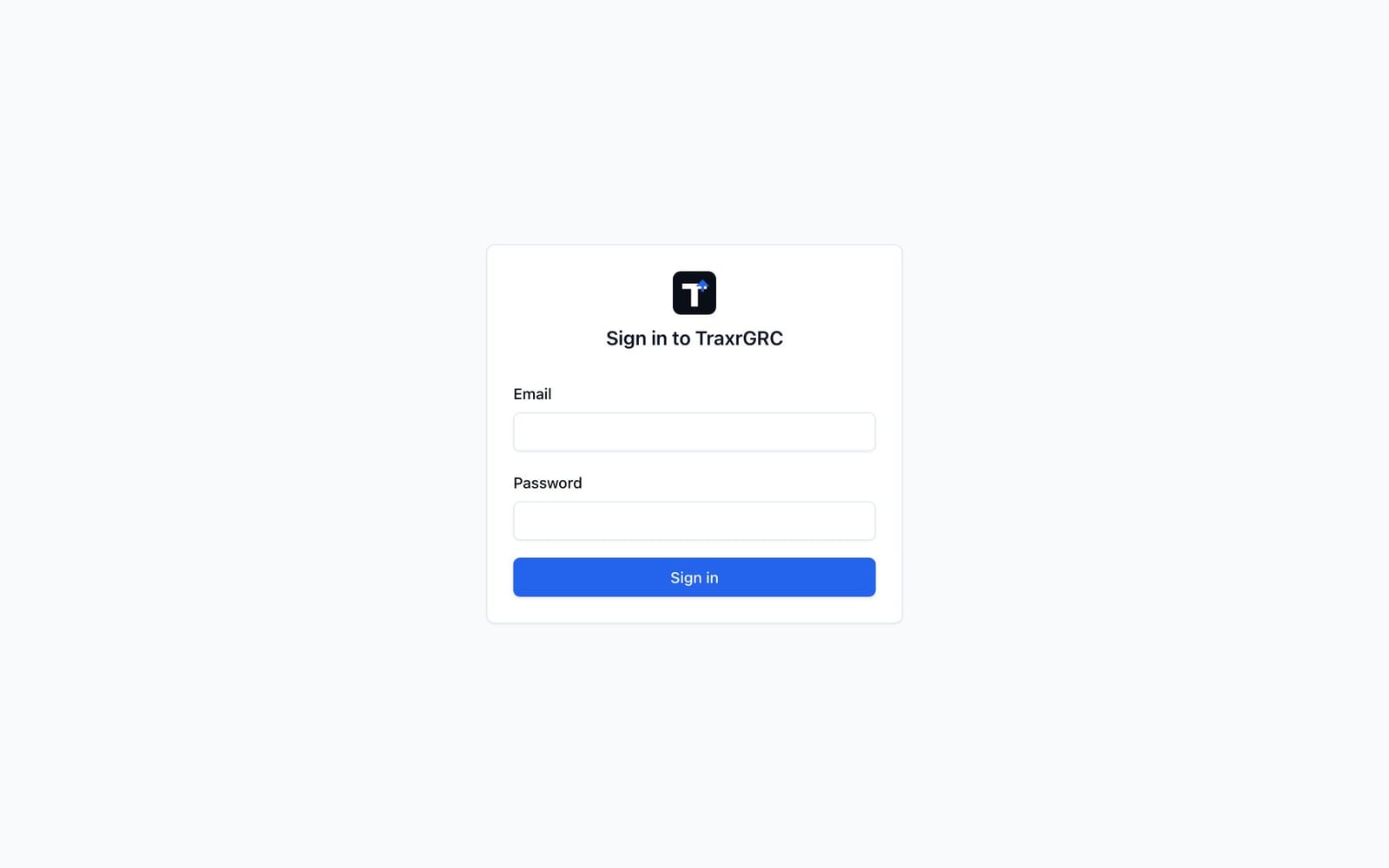
- Open TraxrGRC in your browser. If you are not signed in you are taken to
the
/loginpage, which shows the Sign in to TraxrGRC form. - Enter your Email and Password.
- Click Sign in. When your credentials are accepted you land on the page you originally asked for, or on the Dashboard if you opened the sign-in page directly.
Where you land depends on your rights: someone without Dashboard access is taken to the Policy Portal, and a Data Liaison with no Dashboard access to My Questionnaires.
When an administrator has turned on SSO only (see SAML single sign-on), the page shows just Sign in with SSO, and you sign in through your organization's identity provider. The Emergency administrator sign-in link below it opens the password form, which works only for break-glass administrators.
If sign-in fails, the form tells you why:
| Message | Meaning |
|---|---|
| Invalid email or password. | The email/password combination was not recognized. |
| Your account is inactive. Contact an administrator. | Your account has been deactivated; an administrator must re-enable it. |
| Sign-in is misconfigured. Contact an administrator. | The sign-in setup on the server is broken; report it to your administrator. |
| Single sign-on failed. Please try again or contact an administrator. | The identity provider's answer was refused (expired, for another service, not a reply to your sign-in, or the account cannot be linked). The administrator can see the reason in the audit log. |
| Sign-in failed. Please try again. | Any other failure, such as a lost connection. |
Repeated wrong passwords lock your address out of that account for 15 minutes after five failures, and an address out of every account after 30. The account itself is never locked: from another network you (or a colleague) can still sign in with the right password. After ten failures on one account in 15 minutes, every address that has failed against it is refused for the rest of the window and administrators are alerted.
Two directory options can be enabled by an administrator (see Administration & Settings):
- Single sign-on (SAML). When SAML is enabled, a Sign in with SSO button appears below the password form. Click it to authenticate with your organization's identity provider. You return to a page reading "Completing single sign-on…" and then to the page you asked for. If the identity provider's answer did not arrive within 10 minutes, the page says "The SSO sign-in window expired or no assertion was received. Please try again." and offers Back to sign in.
- LDAP. When LDAP is enabled, directory authentication happens invisibly: if your email and password do not match a local account, TraxrGRC automatically tries your directory account before reporting a failure. There is no separate LDAP button. The part of your email before "@" is the directory username, and your directory entry must have an email address: without one, sign-in is refused.
Two-step verification. If you have set up two-step verification (see Sign-in security under My profile), a correct password or directory password takes you to the Two-step verification page, which shows the email you are signing in as:
- Enter the Code from your authenticator app and click Verify. Each code works once; if one is refused as already used, wait for the next.
- Without your device, click Use a recovery code instead, enter one of your recovery codes and click Verify. That recovery code is then spent.
Cancel and sign out returns you to the sign-in page. The page waits 15 minutes for a code; after that, sign in again. After 10 wrong codes in 15 minutes (app codes and recovery codes together) the code step for your account is locked from every address: the page says "Too many wrong codes. Wait 15 minutes and try again.", signing in again with your password does not lift it, and administrators are alerted. A correct code resets the count. When your administrator requires two-step verification and you have not set it up, the same page asks you to set it up (Set up now) before you can continue, with the steps described under Sign-in security. Single sign-on never asks for a code; your identity provider handles its own verification.
An LDAP or SSO sign-in never takes over an existing account that has its own password, administrator rights or break-glass status, even with the same email. Such an account signs in through LDAP or SSO only once it is linked: an administrator allows the link for that user in Settings → Users, and the next directory or SSO sign-in makes it. Accounts created by a first LDAP or SSO sign-in link automatically.
1.2.1 Signing out and session length
To sign out, open the user menu in the top-right corner of any page (your initials and name) and click Sign out. You return to the sign-in page. Sign out everywhere in the same menu also ends your sessions on every other browser and device, within a minute; use it after signing in on a shared computer or if you think someone else has your session.
A session ends after the session length (12 hours unless your administrator changed it) or after a period without use (60 minutes unless changed), whichever comes first; you then sign in again. An administrator resetting your password or your two-step verification, deactivating your account, or changing your administrator rights or groups also ends your sessions within a minute. Changing your own password ends every session except the one you changed it from.
1.3 The app layout
Every screen after sign-in shares the same frame.
1.3.1 Sidebar
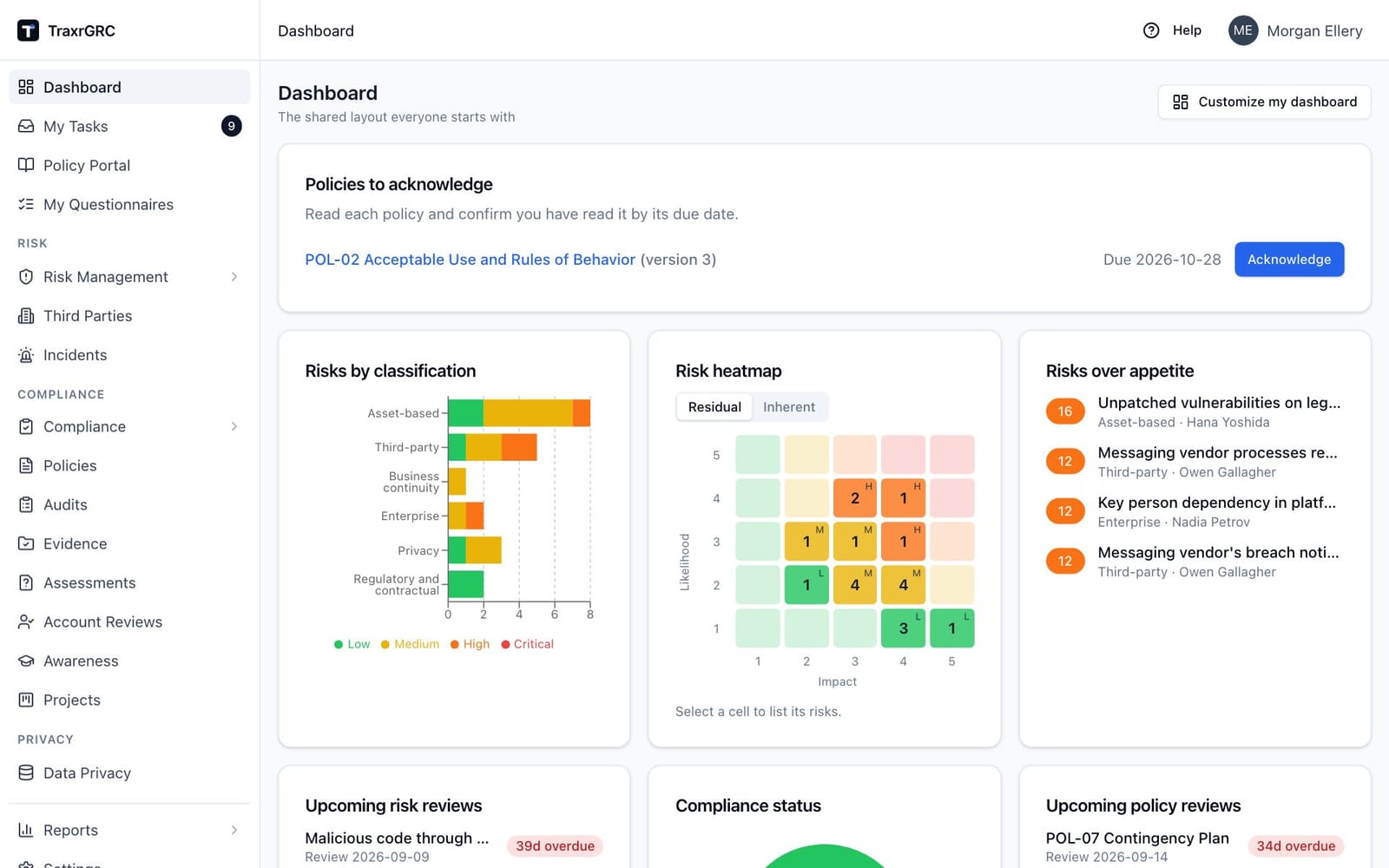
The sidebar on the left is the main navigation. Entries are grouped into sections:
| Section | Entries |
|---|---|
| (top) | Dashboard; My Tasks (every signed-in user); Policy Portal (every signed-in user); My Questionnaires (Data Liaisons) |
| Risk | Risk Management (with Risks, Controls, Assets, Business Units and Risk Settings); Third Parties; Incidents |
| Compliance | Compliance (with Analyses, Packages, Gaps, POA&M and Catalog); Policies; Audits; Assessments; Account Reviews; Awareness; Projects |
| Privacy | Data Privacy |
| (bottom) | Reports (with Report Center and Scheduled); Settings |
An entry with sub-pages opens automatically while you are on one of its pages; click its name to open or close it yourself.
The Collapse button at the bottom of the sidebar hides the labels and section headings and leaves only icons; hover an icon to see its name, and click the button again (now showing a right chevron) to expand.
You only see entries for modules you have access to. Access is controlled by permissions: each module grants rights such as read, create, update and delete, at the level all (every record), own (records owned by you or your groups) or none. Roles bundle these rights and are assigned to groups; you inherit the roles of every group you belong to. Administrators bypass all checks. If a module is missing from your sidebar, you do not have its read permission; ask your administrator.
1.3.2 Header, help and user menu
The header across the top shows where you are on the left, as a trail such as Risk Management > Controls > AC-02 Account management: each earlier step links back to its list. Help and your user menu are on the right.
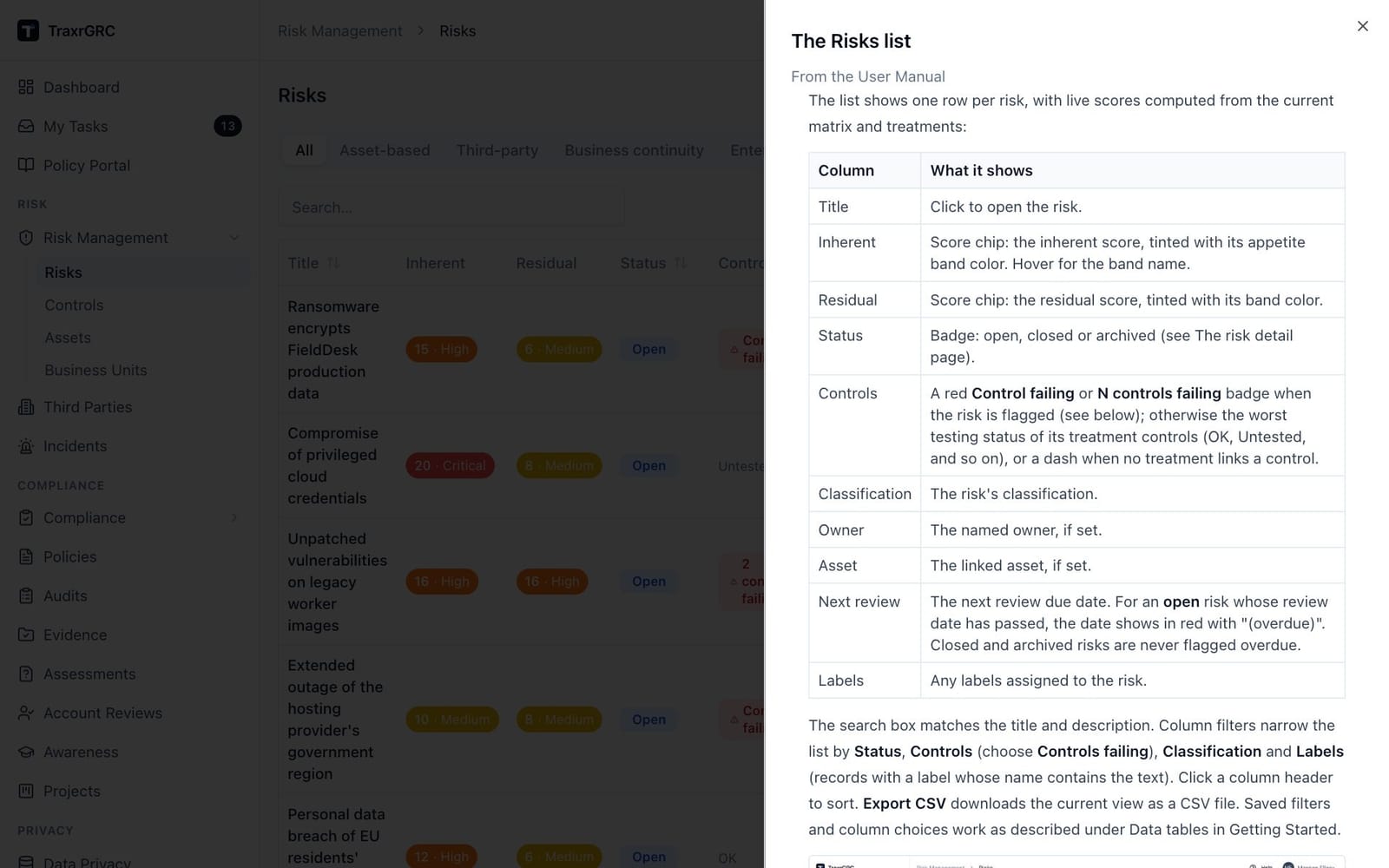
Help opens a panel beside the page with the part of this manual that
explains the page you are on, so the page and anything you have typed stay as
they are. The panel ends with Open in the full User Manual, which opens
the whole manual at that section in a new tab, with a contents list and links
to the Quick Start Guide and, for administrators and anyone with
settings:read, the Administrator's Guide. The help is this manual with your
product name, so it matches the version you are using.
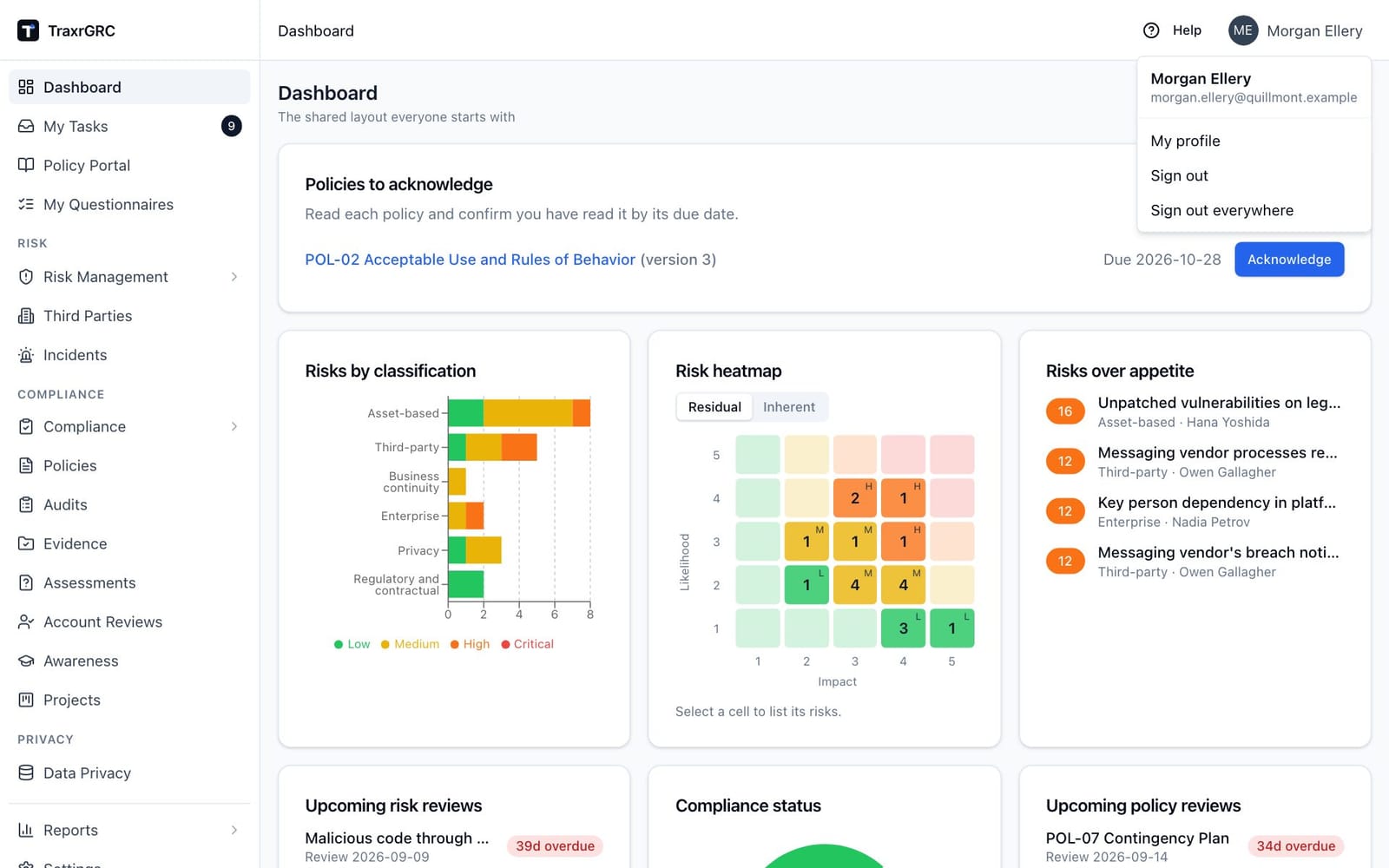
Click your initials and name to open the user menu. It shows your full name and email and contains:
| Item | What it does |
|---|---|
| My profile | Opens your profile: time zone, your policies and your notification choices (see My profile below). |
| Sign out | Ends this session and returns you to the sign-in page. |
| Sign out everywhere | Ends this session and every other session you have, on any browser or device, within a minute. |
1.4 The Dashboard
The Dashboard is the first screen after sign-in and gives a one-glance health check across the program. When you have policies to acknowledge, a Policies to acknowledge card sits above the widgets (see Policy portal and acknowledgements). Someone with no Dashboard read right is taken to the Policy Portal instead (a Data Liaison to My Questionnaires).
Everyone starts on the shared dashboard, the same set of widgets for every user, and can make their own (see Your own dashboard). Each widget only counts records you are allowed to see (widgets honor own-level permissions), and a widget is hidden entirely if you lack read access to its module.
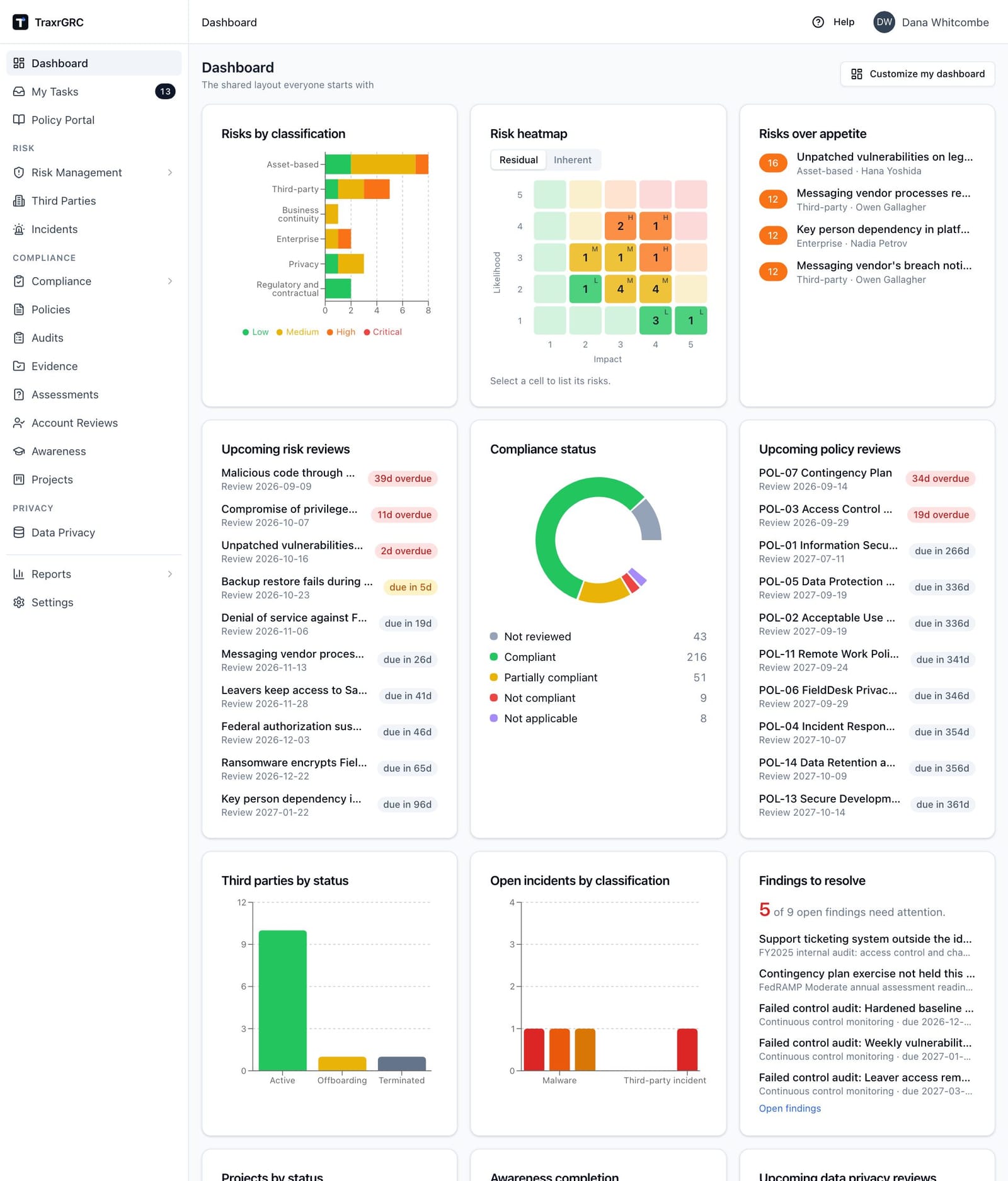
The default dashboard contains these widgets in this order. When an update ships a new default layout, it replaces the shared dashboard on the next deploy, unless an administrator has changed the shared dashboard (added, removed, moved or retitled a widget); a changed dashboard is never overwritten, and neither is anyone's own:
| Widget | What it shows | Needs |
|---|---|---|
| Risks by classification | Horizontal bar per risk classification counting your visible, non-archived risks, each bar split by the appetite band of the risk's residual score (lowest band first, in the band colors; "Not scored" in gray when a score falls in no band). Empty message: "No risks yet." | risks:read |
| Risk heatmap | The likelihood × impact matrix with the number of your visible open risks in each cell, colored by the cell's appetite band, with the band's first letter (for example L, M, H, C) in the corner of each occupied cell so the band does not rely on color alone. Likelihood runs up the side (highest on top), impact along the bottom; hover a number for the level's name. Residual (the default) and Inherent switch which scores place the risks. Click a cell to list its risks below the matrix, each linked to the risk; click it again to clear. Empty: "No open risks." | risks:read |
| Risks over appetite | Up to ten open risks whose residual score sits above your organization's risk appetite, highest score first. Each row shows a colored score chip, the risk title (click to open it) and, below it, its classification and owner. Empty: "No open risks currently exceed appetite." | risks:read |
| Upcoming risk reviews | The ten nearest incomplete risk reviews on risks that are not closed or archived, soonest first, with the scheduled date below the title and a due chip (see below). Click a title to open the risk. Empty: "No upcoming risk reviews." | risks:read |
| Compliance status | Donut of the compliance analyses you can read, by effective status (an inherited requirement counts with its provider's status): Not reviewed (gray), Compliant (green), Partially compliant (yellow), Not compliant (red), Not applicable (purple). Empty: "No compliance analyses yet." | compliance:read |
| Upcoming policy reviews | The ten nearest incomplete policy reviews for non-archived policies, soonest first. Empty: "No upcoming policy reviews." | policies:read |
| Third parties by status | Counts by status: Active (green), Offboarding (yellow), Terminated (gray). Empty: "No third parties yet." | thirdParties:read |
| Open incidents by classification | Bar chart of incidents currently open, grouped by incident classification. Empty: "No open incidents." | incidents:read |
| Audit findings by status | Counts of findings by status: Open (red), In remediation (orange), Closed (gray). Empty: "No audit findings yet." | audits:read |
| Findings to resolve | How many open findings need attention out of all open findings you can read, then up to ten of them, soonest deadline first, each with its plan, deadline and reason (see Open findings under Internal Audits), and a link to the filtered Open findings view. It replaces Audit findings by status in the default dashboard for new installations. Empty: "No open audit findings." or "Every open finding is on track." | audits:read |
| Projects by status | Counts by status: Planned (gray), In progress (orange), Completed (green). Empty: "No projects yet." | projects:read |
| Awareness completion | Stacked bar per active awareness program (earliest due date first) showing the share of active users who passed versus everyone else. Empty: "No active awareness programs." | awareness:read |
| Upcoming data privacy reviews | The ten nearest incomplete reviews on data privacy records that are not archived, soonest first. Empty: "No upcoming data privacy reviews." | dataPrivacy:read |
| Account review items | Counts of items in active account review programs by status: Pending (orange), Kept (green), Disabled (gray). Empty: "No account review items in active programs." | accountReviews:read |
| Assessment requests | Counts of online assessment requests by status: Sent (orange), Completed (green), Expired (gray). A request counts as expired once its due date has passed. Empty: "No assessment requests yet." | assessments:read |
| Control testing status | Counts of your visible controls by calculated testing status: Failed (red), Overdue (amber), OK (green), Untested (gray). Empty: "No controls yet." | controls:read |
| Compliance at risk | How many requirements are At risk (see Compliance Management), then up to ten of them, each a link to the requirement with its clause code, package and the reason below: a failed, overdue or retired control, or policy issues. Counts only analyses you can read. Empty: "No compliance claims are at risk." | compliance:read |
| Out-of-date documents | Published policies, procedures and other controlled documents past their next scheduled review (the Next review date the policy list shows). A document with no review scheduled falls back to its review interval, counted from the effective date (or the publish date) or from a later completed review with the result Approved. The count is how many are past due for reissue; documents due within 90 days follow. Up to ten rows, oldest due first, with the effective date below the title, an overdue chip (in days, or in months once 60 days or more late) or a due chip, and an upload button that opens Upload new version on that policy (shown only when outside approvals are on and you hold update and review on it). Empty: "Every published document is within its review interval." | policies:read |
| Personal data breaches | Open incidents marked as personal data breaches, undecided ones first and soonest deadline first, each with a chip for the 72-hour authority notification: time left (red under 24 hours), overdue, notified within 72 hours, notified after 72 hours, not required, or time of awareness not set. The count names how many are past the deadline. Up to ten rows. Empty: "No open personal data breaches." | incidents:read |
| Data mapping questionnaires outstanding | How many questionnaires are awaiting a Data Liaison's answers (and how many of those are overdue) and how many are awaiting review, then up to eight of them, overdue first, each with the Data Liaison and answer-by date or "to review". Click one to open its answers. Counts only questionnaires you can see (see Data mapping questionnaires). Empty: "No questionnaires outstanding." | dataPrivacy:read |
| Risks with failing controls | How many open risks are treated by failing or overdue controls (Controls failing, see The Risks list), then up to ten of them by title, each linked to the risk with the number of failing controls. Counts only risks you can read. Empty: "No open risks have failing controls." | risks:read |
| Evidence expiring | How many pieces of evidence you can read have expired and how many expire within 30 days, then up to ten of them, oldest first, each with its type, third party, valid-until date and status (see Evidence). A superseded report and a report about a terminated third party are left out. Empty: "No evidence is expiring." | evidence:read |
The "upcoming reviews" widgets use the same due-chip convention everywhere in the product:
| Chip | Meaning |
|---|---|
| Red Nd overdue | Past the scheduled date by N days. |
| Amber due in Nd | Due within 14 days. |
| Gray due in Nd | Due later than that. |
If a widget cannot load, it shows "This widget failed to load." The rest of the dashboard still renders.
1.4.1 Your own dashboard
Everyone starts on the shared dashboard. Under the Dashboard heading a line says which one you see: "The shared layout everyone starts with" or "Your own layout".
To make the dashboard your own, click Customize my dashboard. Your copy of the shared layout is made, and a My widgets card at the bottom of the page lists its widgets. Changing it needs only Dashboard read and affects nobody else:
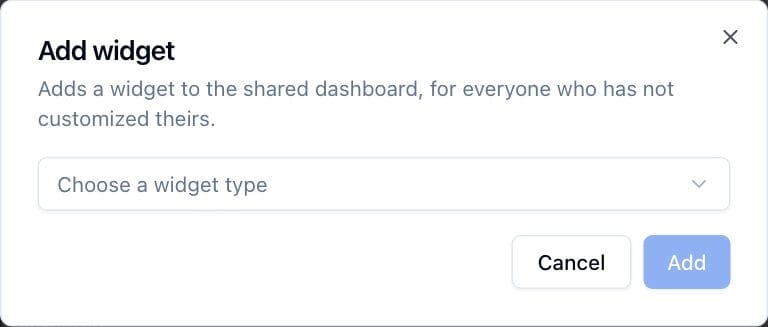
- To add a widget, click Add widget, choose the widget type from Choose a widget type and click Add. It is appended at the end.
- To rearrange, use the up and down arrow buttons beside each widget.
- To remove a widget, click its trash button and confirm with Remove.
Your own dashboard is never replaced by later default layouts. When the default gains widgets you do not have, a New widgets available on the default dashboard note appears above your widgets with an Add button for each; Dismiss hides the note. A widget you removed, added or dismissed is not offered again. Your edits are your own preference and are not written to the audit log.
Reset to default removes your own layout after you confirm, and you see the shared dashboard again, including the default changes that come with future updates.
1.4.2 Managing the shared dashboard
The shared dashboard is the default for everyone who has not customized theirs. Changing it requires the dashboard:update permission at the all level (the built-in GRC Manager role has it). If you have it, a Shared dashboard (the default for everyone) card at the bottom of the Dashboard lists its widgets, with the same Add widget, arrow and trash buttons as above. Changes reach everyone on the shared dashboard immediately and are recorded in the audit log.
Once the shared dashboard has been changed, later default layouts no longer replace it, so your organization's arrangement is kept; people who customized their own see the new defaults in their New widgets available note either way.
1.5 My Tasks
My Tasks in the sidebar (right under Dashboard) lists everything waiting on you, from every module you can read, on one page. Every signed-in user has it. When you have tasks, the sidebar entry shows a dark badge with the number (99+ above 99; on the collapsed sidebar the badge sits on the icon).
Under the My Tasks heading a summary line reads either "Nothing is waiting on you." or, for example, "5 tasks waiting on you, 2 overdue. Reviews and control tests appear here 14 days before they are due."
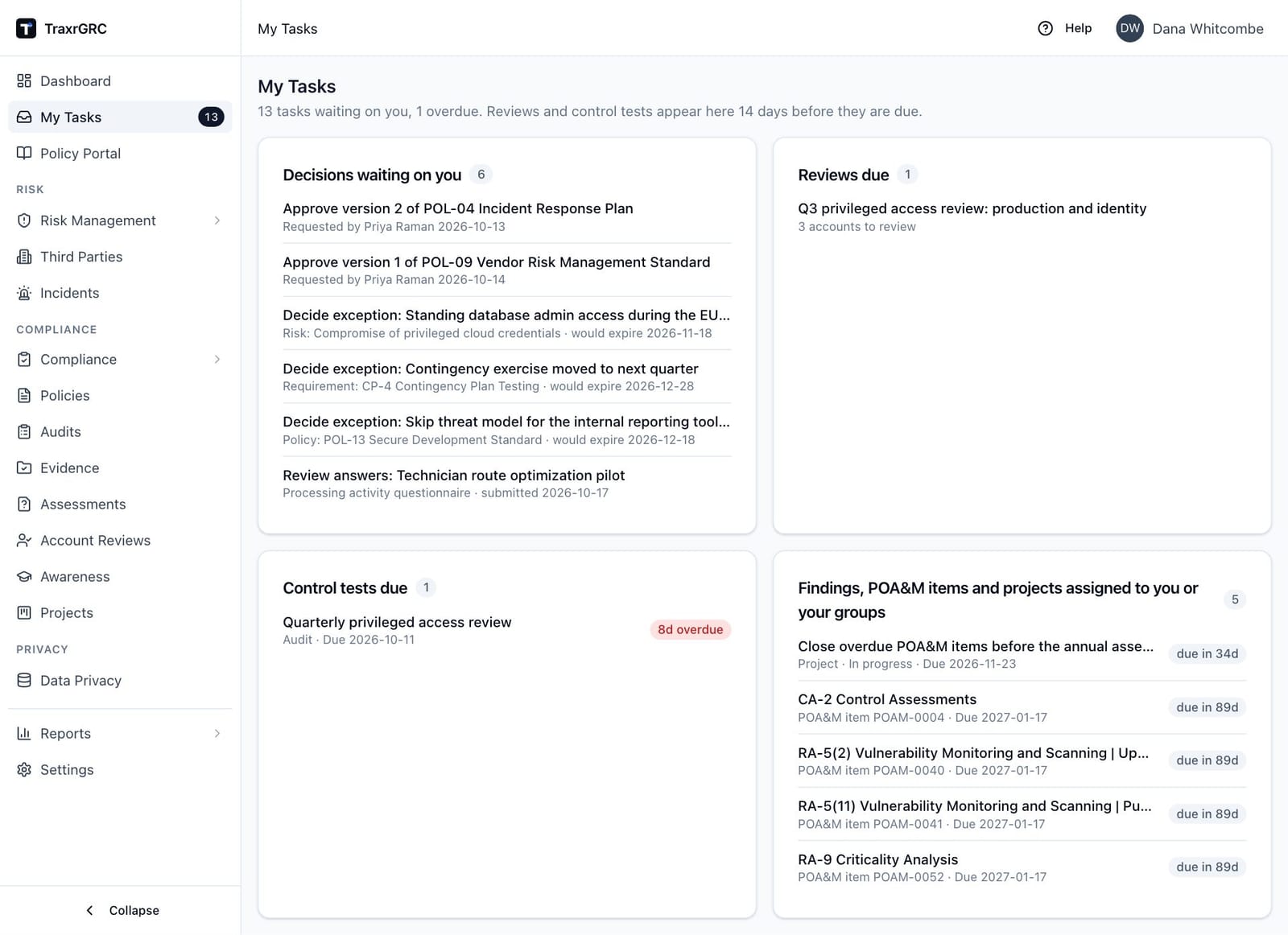
Tasks are shown in cards, one per group, each titled with the group name and a count. A group with nothing in it is not shown. Each row's title is a link to the page where you act on the task, opened at the tab for it (a risk's or policy's Reviews or Exceptions, a policy's Approvals, a control's Maintenance, a record of processing's Reviews); the line below says what it is and, when it has one, "Due date". The chip on the right follows the due-chip convention (see The Dashboard): red Nd overdue, amber due in Nd or due today within 14 days, gray beyond that. Within each group, overdue tasks come first, then the soonest due, then tasks without a date.
| Group | What it lists |
|---|---|
| Decisions waiting on you | Policy approvals you can decide ("Approve version N of policy"; needs policies:update on the policy, and never your own request unless separation of duties is relaxed); risk, compliance and policy exceptions awaiting your decision (you are the named approver, or none is named and you hold the review right; never your own request under the default separation of duties); DPIAs awaiting your approval (needs dataPrivacy:approve, respects the second-person setting, and waits for the DPO's advice when it is required) and, for the named DPO, DPIAs awaiting your advice; submitted Data Liaison answers you can accept or send back ("Review answers: activity"; needs dataPrivacy:review and update on the record, never answers you gave yourself); and personal data breaches you own whose authority decision is still pending, with the 72-hour deadline (overdue once it passes). |
| Policies to acknowledge | The same items as the Policies to acknowledge card on the Policy Portal and the Dashboard. |
| Training to complete | Active awareness programs with a test that you can open and have not passed (needs awareness:read). The link opens the test. |
| Questionnaires to answer | Data mapping questionnaires sent to you as a Data Liaison and not yet submitted. |
| Reviews due | Risk reviews on open risks you own, directly or through an owner group, policy reviews on published policies you own, and periodic reviews of records of processing you own that are not archived, when the review date is within 14 days or past; transfer impact assessment reviews (the assessment's owner, or the vendor's owner when it has none) and signed DPAs of vendors you own, from when their reminders start (30 and 60 days ahead) and once overdue or expired; and account review programs you own that still have pending items ("N accounts to review"). |
| Control tests due | Audits and maintenance scheduled within 14 days or overdue on controls you own that are not retired. |
| Findings, POA&M items and projects assigned to you or your groups | Open or in-remediation audit findings, open POA&M items (with their due date) and projects not yet completed that you own, directly or through an owner group, with their deadline. |
Every group includes only records you can read.
1.6 My profile
Open the user menu (your name, top right) and choose My profile. Every signed-in user has a profile page; it holds your personal settings and nothing anyone else can see.
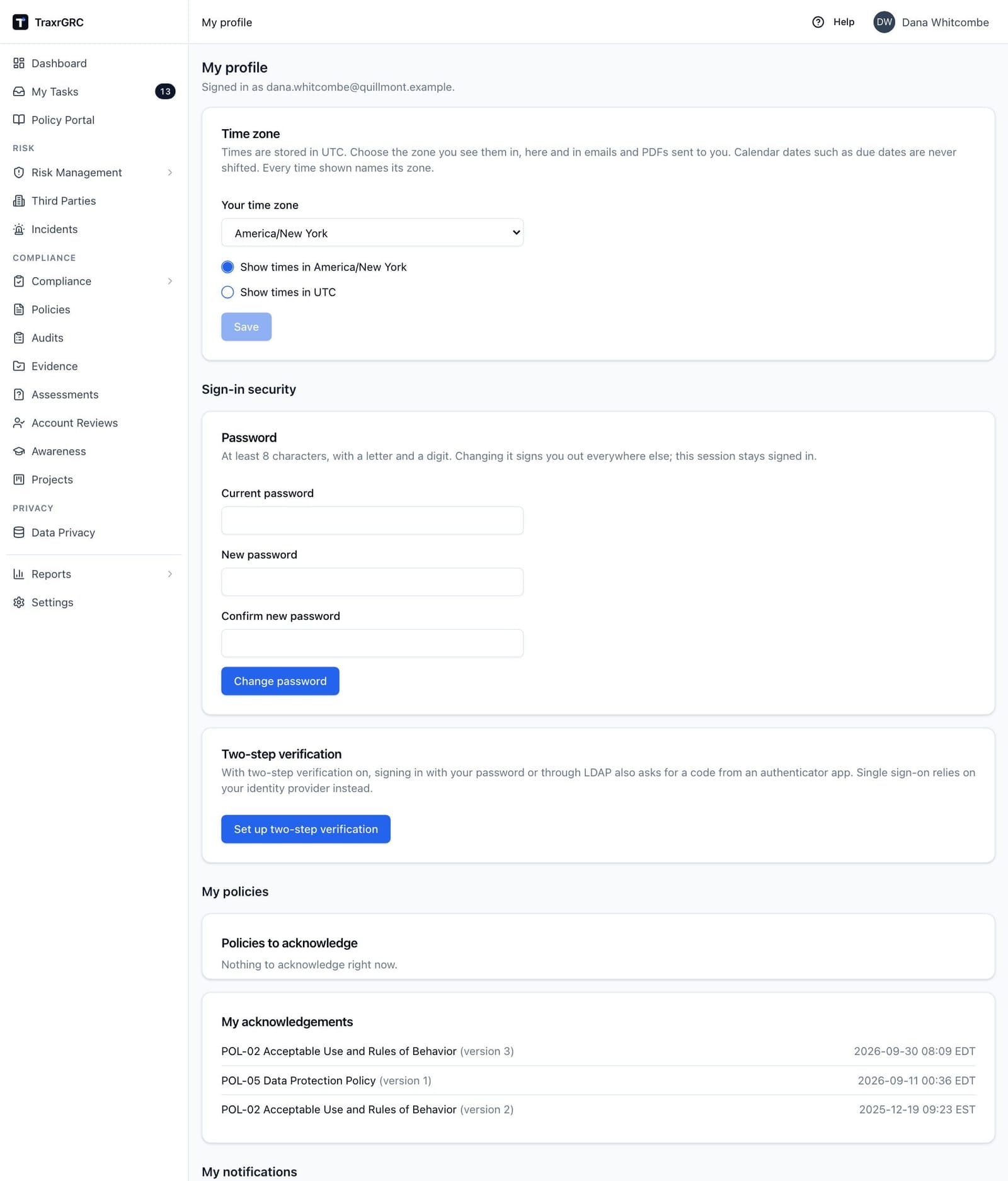
The page has up to four parts:
| Part | What it holds |
|---|---|
| Time zone | The zone you see times in, and whether you see them in that zone or in UTC (see Times and time zones). |
| Sign-in security | The Password card, if you sign in with a TraxrGRC password, and the Two-step verification card, if you sign in with a password or through LDAP (see Sign-in security). Accounts that sign in only through single sign-on do not see this part. |
| My policies | Policies to acknowledge (the same list as on the Policy Portal) and My acknowledgements: every policy version you have acknowledged, newest first, with the time in your zone. |
| My notifications | Notification rules and Scheduled reports you can switch off for yourself (see My notifications). |
1.6.1 Sign-in security
Changing your password. The Password card is shown when your account has a TraxrGRC password:
- Enter your Current password.
- Enter the new one in New password and again in Confirm new password. It needs at least 8 characters, with a letter and a digit, and must differ from the current one.
- Click Change password.
A "Password changed" message confirms it. Your sessions on every other browser and device are signed out; this one stays signed in. You receive an email saying when the password was changed; if you did not change it, tell your administrator straight away. After too many wrong current passwords the card says "Too many wrong passwords. Wait 15 minutes and try again." If you sign in through your directory or single sign-on, change your password there. There is no "forgot password" link: if you have forgotten your password, an administrator sets a new one.
Setting up two-step verification. Two-step verification adds a code from an authenticator app (Microsoft Authenticator, Google Authenticator, 1Password and others) to password and directory sign-in. Your administrator may require it; the card then says "Your administrator requires it."
- In the Two-step verification card, click Set up two-step verification.
- In your authenticator app, add an account and scan the QR code shown. If you cannot scan it, type the setup key shown under it, or click Open in authenticator app on the device that has the app.
- Enter the six-digit code the app shows and click Confirm. The key expires if you do not confirm within 15 minutes; Get a new key starts again.
- Ten recovery codes appear. Save them somewhere safe, such as a password manager: each works once in place of a code from your app, and they are not shown again. Click I have saved my recovery codes.
From then on the card shows since when two-step verification has been on and how many of the 10 recovery codes are left, and every password or directory sign-in asks for a code. You cannot turn it off or get new recovery codes yourself: if you lose your device or run out of codes, ask an administrator to reset two-step verification, then set it up again here. You receive an email when an administrator resets it.
1.6.2 My notifications
Under My notifications, the Notification rules card lists every enabled notification rule your administrators have set up, with what triggers it. Each has a switch: turn it off and that rule stops emailing you; turn it on again to resume. Reminders about your own reviews and tasks (the fixed notifications) and the security alerts sent to administrators are not rules and cannot be switched off here.
Below the rules, Scheduled reports lists every scheduled report that names you (directly, through one of your groups, or through a role one of your groups carries). Turn one off to unsubscribe; turn it on to receive it again. If none names you, the card says "No scheduled reports are sent to you."
1.7 The Policy Portal
Policy Portal in the sidebar is open to every signed-in user, whatever their role. It is where staff read the policies in force and acknowledge the ones they are asked to. A person whose only access is the portal sees just that entry and lands on the portal after signing in.
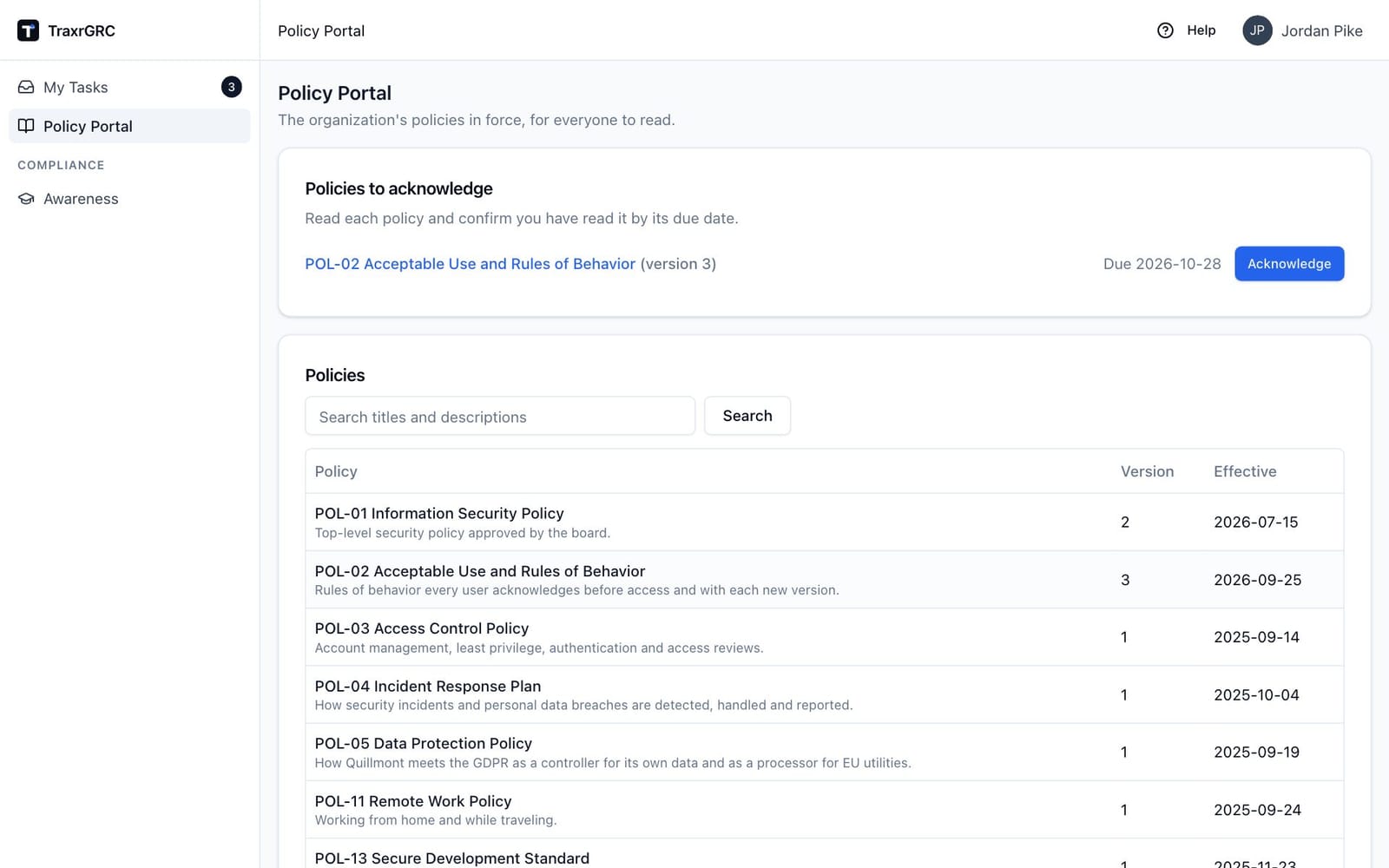
The portal page shows:
- Policies to acknowledge: each policy version you have been asked to acknowledge, with its due date (red "Overdue, was due ..." once late). Click a title to read it, or Acknowledge (red once overdue) to go straight to the acknowledgment below the policy text. When there is nothing to do, the card says "Nothing to acknowledge right now."
- Policies: every policy published to the portal, with its Version and Effective date. Type in Search titles and descriptions and click Search to narrow the list. Click a title to read the policy.
- My acknowledgements: your most recent acknowledgements, once you have made any.
Reading and acknowledging a policy, and how policies reach the portal, are described in Policy portal and acknowledgements (Policy Management).
1.8 Shared UI conventions
The same building blocks appear on every list page and record page. Learning them once covers all modules.
1.8.1 Data tables
Module list pages use a consistent table:
- Global search. A Search… box above the table matches text across the searchable columns at once.
- Column filters. Filters in the toolbar opens a panel with one filter per column, each labeled with its column: free-text boxes ("Contains…"), dropdown lists (starting with All) for fixed-choice columns, and date pickers for date columns. Filters apply as you enter them and the list jumps back to page 1. The button shows how many filters are active, and each one appears as a chip under the toolbar: click a chip's cross to remove that filter, or Clear all to remove them all (the search text stays).
- Sorting. Click a column heading to sort ascending; click again for descending. The arrow beside the heading shows the current direction. Sorting also returns to page 1.
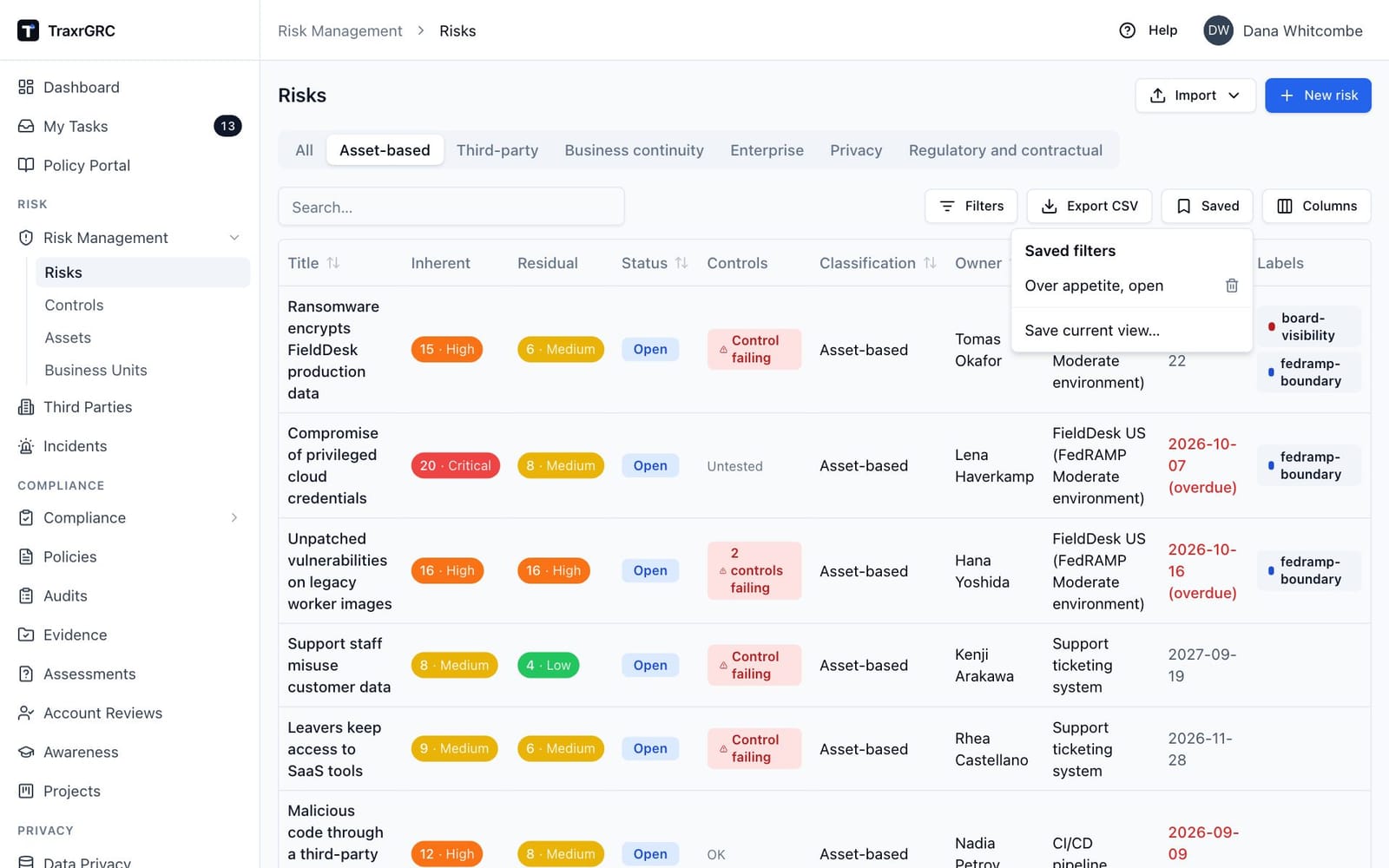
- Pagination. The footer shows "N rows · page X of Y". Choose 10 / page, 25 / page (the default), 50 / page or 100 / page, and step with the chevron buttons.
- Column visibility. The Columns button opens a checklist to show or hide individual columns (the actions column always stays).
- Saved filters. The Saved button (bookmark icon) lists the views you have stored for that table, or "No saved filters". Click Save current view…, give it a name, and the current search text, column filters, sorting, page size and column visibility are stored on your account. Click a saved name to reapply it, or its trash icon to delete it. Saved filters are personal: other users do not see them.
- CSV export. Export CSV downloads a comma-separated file of all
rows matching your current filters and sort, up to the first 5,000 rows, in
place of just the visible page; when there are more, a notice says how many
were left out, and narrowing the filters exports the rest. Any text cell that
starts with
=,+,-,@or a tab is written with a leading apostrophe ('), so a spreadsheet shows it as text instead of running it as a formula; numbers are written as they are. - Your page, page size, sort and filters are kept in the browser address bar, so you can bookmark a filtered view or share the link with a colleague (they still need permission to see the records).
While data loads, placeholder rows shimmer; a failure shows "Failed to load data" with a Retry link. When a search or filter matches nothing, the table shows "No matching records" with a Clear all button that clears the search and every column filter; a list with no records at all says so: the main lists (risks, controls, policies, incidents, third parties, evidence, audit plans and projects) explain what the list is for and, if you may create one, offer the same New button as the page header; other tables show "Nothing here yet."
1.8.2 Importing from CSV
Risks, controls, assets, policies, third parties, incidents, projects and audit findings can be created and updated in bulk from a CSV file, and risk, policy and compliance exceptions created. Click Import beside the list's New button (on Risks, Policies and Compliance a menu offers the record type; audit findings are on the Audits page). The button appears only when you may create or update those records, or, for exceptions, update their parent records.
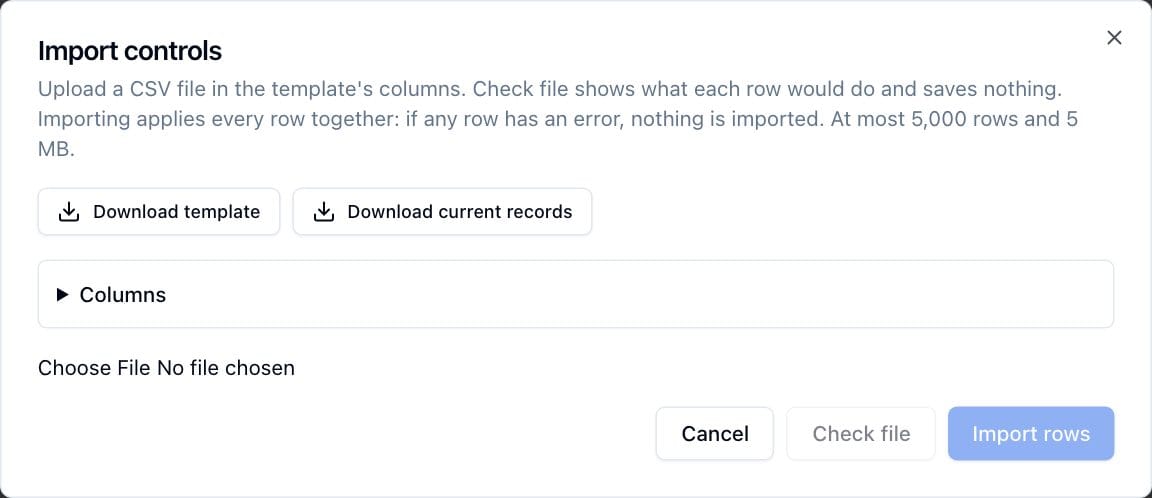
- Click Import (and choose the record type if a menu opens). The Import dialog for that record type opens.
- Download template gives the columns for that record type, including its
active custom fields (headed
Custom: <field name>), with one example row. Download current records gives the records you can see in the same columns with their ids filled in (at most 5,000): edit it and import it back to change many records at once. The Columns panel in the dialog explains each column. - Choose your file and click Check file. Every row is run through the same checks as the forms, and the table shows what each row would do: Create, Update (with the columns that change), Unchanged, or Error with every reason, by line number. Nothing is saved by a check.
- When no row has an error, click Import (the button shows how many rows it will write). All rows are applied together: if anything fails at that moment, nothing is imported and the table shows why.
- Click Done to reload the list.
Rules:
- A row with an
idupdates that record; a blankidcreates one. Third parties without an id are matched by name, which is unique. Records are never deleted. Exceptions are only created; decide them in the app as usual. - A blank cell leaves an existing record's value unchanged, so a file can carry only the columns you want to change. Values cannot be cleared by import.
- Owners and approvers are active users, named by email address or full name (use the email when two people share a name). Owner groups, classifications, business units and the risk scale levels are named as they appear in the app. Linked records (a risk's asset, an incident's asset or third party, a finding's control, an exception's risk or policy) are given by name or id and must be records you can read; a name that matches several records asks for the id. Compliance exceptions name the package and the requirement code.
- Dates are written
YYYY-MM-DD; checkbox custom fields take yes or no; multi-select custom fields separate options with a semicolon. - You can update only records you could edit in the app: with "own" access, only your own. An id you cannot read is reported as not found.
- Policies import their title, description, owners and review frequency only; content and approvals stay in the app. Personal data breach details on incidents and the data map fields on assets are not imported. Risks' and controls' other details (treatments, testing schedules) are edited in the app.
- Files are limited to 5,000 rows and 5 MB. Text that a spreadsheet would treat as a formula is stored as plain text, and exports still neutralize it; a value exported with a leading apostrophe imports without it.
- Each created or updated record's History tab shows the change as usual, marked as coming from the import, and one summary entry records the import itself. Imports send no notification rule emails unless an administrator has turned on Notify on API changes and CSV imports.
1.8.3 Status badges and overdue highlighting
Status values are shown as small colored pills so you can scan a list quickly:
| Color | Used for | Examples |
|---|---|---|
| Green | Live or complete states | Active, Compliant, Completed |
| Red | Negative states | Not compliant, Open findings |
| Amber | In-between states | In remediation, Pending, Sent, Partially compliant |
| Gray | Inactive end states | Terminated, Closed, Expired, Not reviewed |
Exact colors per status are listed in each module chapter.
Dates that matter are emphasized: in the risk register, the Next review date of an open risk turns red and gains "(overdue)" once it has passed, and the Dashboard due chips described above flag overdue and soon-due reviews the same way.
1.8.4 Labels
Labels are colored tags for grouping records across modules. Eight record types carry them: risks, controls, assets, third parties, incidents, policies, audit findings and projects. The record pages of risks, controls, third parties, incidents, policies and projects offer a Labels control (a tag icon) below the description:
- Click Labels. A panel opens with every label and a Search or create… box; labels already on the record show a checkmark.
- Click a label to attach or detach it. The change saves immediately.
- To create a label on the fly, type a name that does not exist yet and choose Create "name"; it is created with a default gray color and attached at once.
The button shows up to three attached labels, then "+N" for the rest. If you only have read access to the record, labels appear as read-only colored badges instead of the picker. Assets and audit findings have no record page, so the asset list and an audit plan's Findings tab show the same picker in each row's Labels column, where you may update that row.
Every list of these eight record types has a Labels column showing each record's labels as colored badges. Type in its filter to list only records carrying a label whose name contains that text. Export CSV writes the label names, separated by "; ". Label definitions (names and colors) are maintained under Settings → Labels (see Administration & Settings).
1.8.5 Attachments
Record pages carry an Attachments section listing supporting files, with an Upload file button when you have permission to add files to that record:
- Click Upload file and pick a file. The limit is 25 MB.
- Allowed file types: PDF, PNG, JPG, JPEG, GIF, WEBP, BMP, TXT, CSV, LOG, DOC, DOCX, XLS, XLSX, PPT, PPTX and ZIP.
- If the upload is rejected you are told why: the file is empty, exceeds the 25 MB limit, is not an allowed type, its type does not match its extension, its contents do not match its extension (a PDF must start like a PDF, a Word or Excel file like one, and a text or CSV file must be text), or it would take your attachments past your storage limit (2 GB per person unless an administrator changed it under Settings → Sessions).
The list shows each file's name (click to download), size, who uploaded it and when. A file can be deleted by anyone with delete permission on the record, and by whoever uploaded it for as long as they can still edit the record; deletion asks for confirmation and permanently removes the file. A document a published policy version was made from (Upload new version) is kept with that version and cannot be deleted, by administrators either. Deleting a record removes its files with it. Uploads and deletions are both recorded in the audit log (see Administration & Settings).
Files can also arrive through an AI assistant's upload link (see AI assistants under Administration & Settings); they appear in the same list.
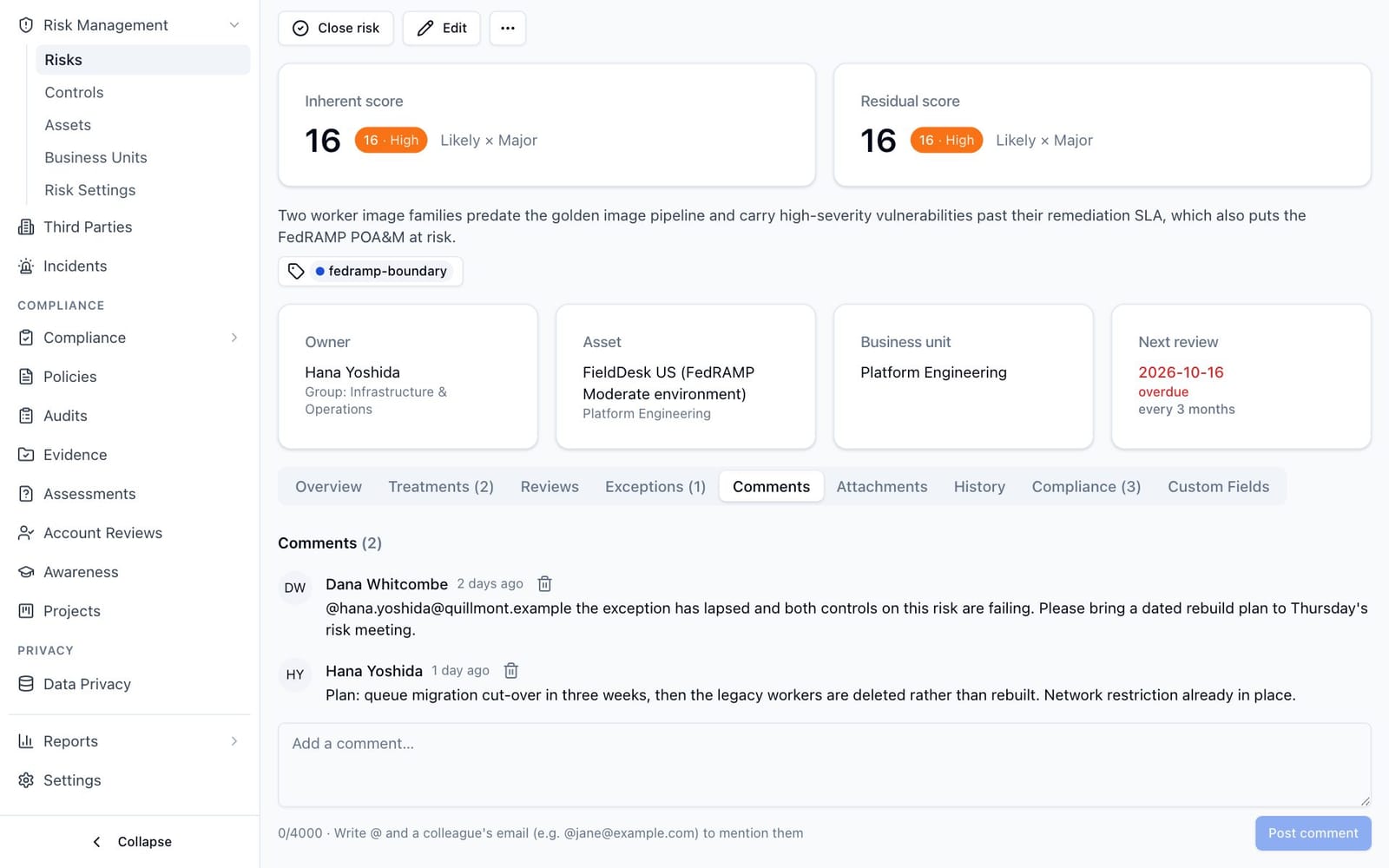
1.8.6 Comments
Record pages include a Comments thread:
- Type in the Add a comment… box (up to 4,000 characters; a live counter shows your usage).
- Click Post comment.
Comments appear oldest first with the author's name and how long ago they were posted. You can delete your own comments; administrators can delete any. If a former user's account has been removed, their old comments show "Deleted user" as the author.
To bring a colleague into the conversation, write @ followed by their email
address, for example @jane@example.com. When an administrator has set up a
notification rule for comments that includes mentioned people (see Notification
rules under Administration & Settings), the colleague gets an email saying they
were mentioned, with a link to the record, provided they are allowed to see
that record. The email never contains the comment itself.
1.8.7 Times and time zones
Every time is stored in UTC. Each person chooses whether to see times in UTC or
in their own time zone, and every time on screen, in emails sent to them and in
PDFs they download names its zone, for example 2026-10-14 09:05 EDT or
2026-10-14 13:05 UTC. Until you choose a zone you see UTC.
Calendar dates are never shifted: a due date, review date, deadline, expiry or effective date is the same day for everyone, whatever their zone. Only moments (created, updated, sent, signed off, completed) move with the zone.
Which day it is today comes from the organization's time zone (set by an
administrator under Settings, Notifications; US Eastern unless changed), the
same for everyone. Something due today is overdue only once that day is over
there, an exception or certificate is valid through its expiry or valid-until
date, a new review date counts from today there, and a POA&M item's opened
date is the day it opened there. Form defaults such as "today" and the dates
in exported file names use the same day. CSV
exports, the CSV import templates, the REST API and the AI assistant connection
keep UTC (ISO timestamps, YYYY-MM-DD dates).
To choose your zone:
- Open the user menu (your name, top right) and choose My profile.
- In the Time zone card, pick Your time zone from the list (IANA names
such as
Europe/London). - Choose Show times in your zone, or Show times in UTC.
- Click Save.
If your organization's directory, single sign-on or SCIM provisioning supplies your zone, the list is grayed out with "From the LDAP directory", "From the SSO identity provider" or "From SCIM provisioning", updated at each sign-in: the zone is changed there, not here. You can still choose to see times in UTC. An administrator can set the zone of an account that signs in with a password (Settings → Users). Every change of zone is recorded in the audit log.
1.8.8 History tabs
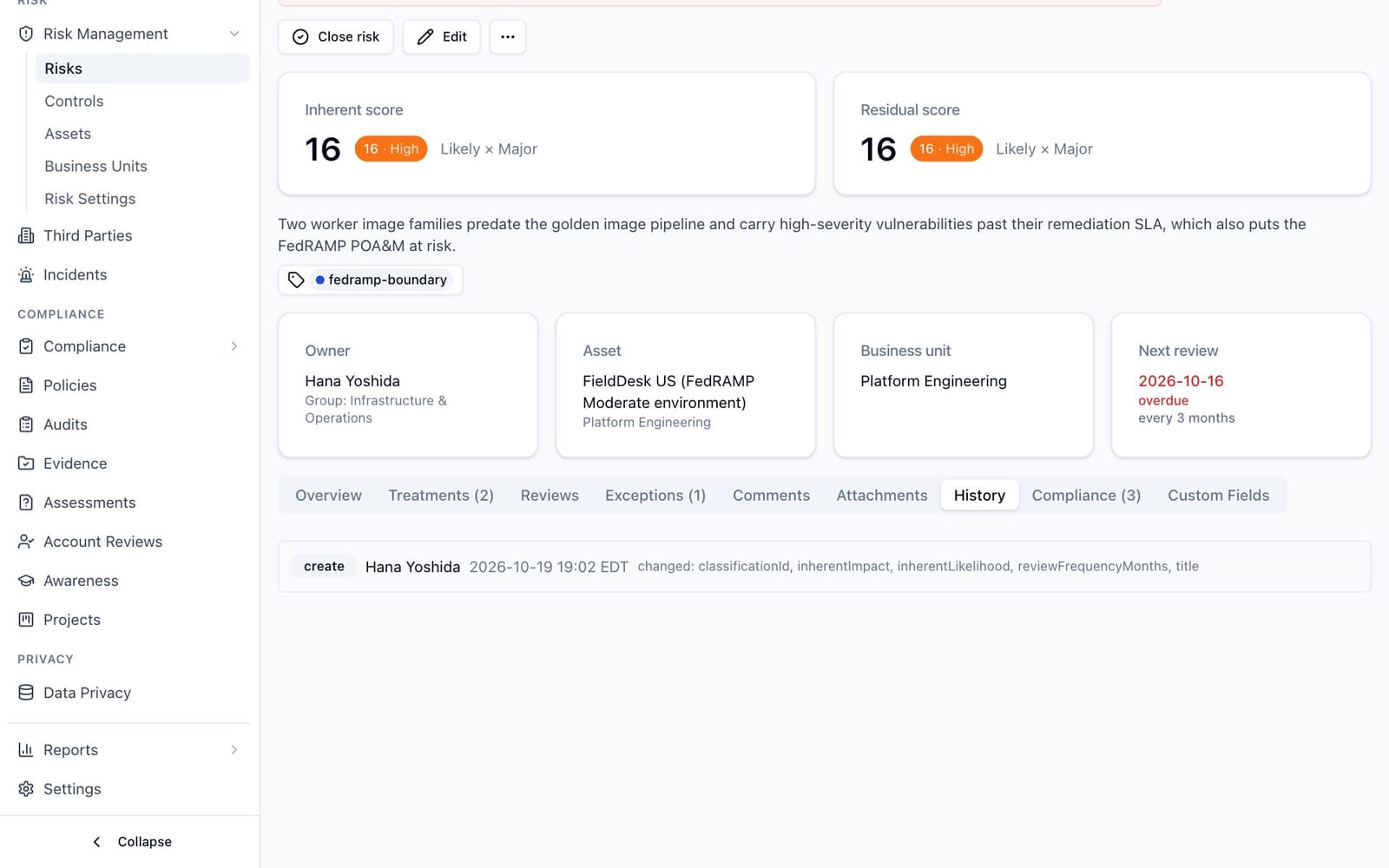
Every record page has a History tab: the audit trail for that single record. Each entry shows what happened (for example created, updated, deleted), who did it, when, and which fields changed. It answers "who touched this record and what did they change" without leaving the page. The organization-wide audit log for all modules lives under Settings → Audit Log (see Administration & Settings).
1.8.9 Deleting a record
On a record's page, Delete is not among the action buttons. It sits in the More actions menu (the … button at the end of the button row), in red, so it cannot be clicked by mistake next to Edit. The menu appears only when you hold the delete right on the record. Every record delete then asks you to confirm, and says what goes with the record. This applies to risks, policies, third parties, incidents, audit plans, projects, awareness programs, DPIAs, records of processing, account review programs, evidence and assessment templates. Rows inside a record (contacts, treatments, attachments and the like) keep their own trash icons.
1.8.10 When a page is off limits
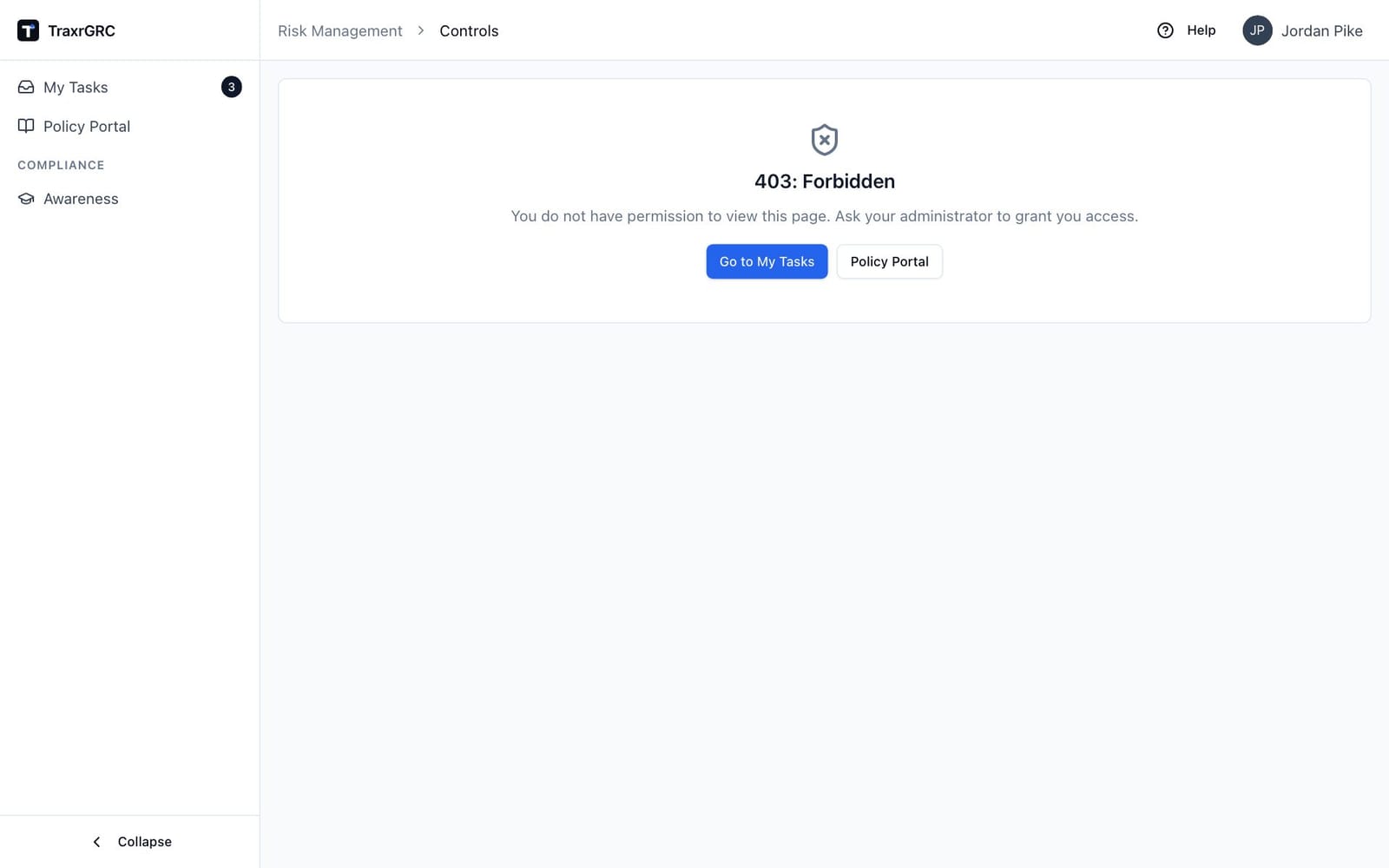
If you open a page you do not have permission for, you see a page headed 403: Forbidden stating "You do not have permission to view this page. Ask your administrator to grant you access." Go to My Tasks and Policy Portal take you back to pages everyone can open; you can also use the sidebar, or ask your administrator for the missing permission. If you are signed out entirely you are sent to the sign-in page instead, and returned to the page after signing in.
A link to something that does not exist shows Page not found with a Back to dashboard button.