8 Internal Audits
Internal Audits tracks your audit program: what is planned, what is under way, and what each audit found. Each audit plan carries its schedule and a list of findings, the gaps the audit identified, and every finding can be linked to a remediation project so that follow-up work is visible in one place. Plans move through planned, in progress and completed; findings move between open, in remediation and closed.
Internal auditors and the GRC team create plans and record findings; finding owners move their findings through remediation; the CISO and audit committee read the results.
8.1 Who can do what
Access is controlled by the audits module rights. Administrators bypass all of them.
| Action | Permission |
|---|---|
| See the audits list and plan pages | audits:read |
| Create an audit plan | audits:create |
| Edit a plan, change its status, add, edit and transition findings, comment, upload, edit custom fields | audits:update, "all" for every plan or "own" for plans you or your groups own |
| Delete an audit plan | audits:delete (all or own) |
| Create a remediation project from a finding | audits:update on the finding and projects:create |
| Import audit findings from CSV | audits:create or audits:update |
8.2 The audit plans list
The Audits page lists every plan you can read. Click a column heading to sort; the Status column has a filter dropdown.
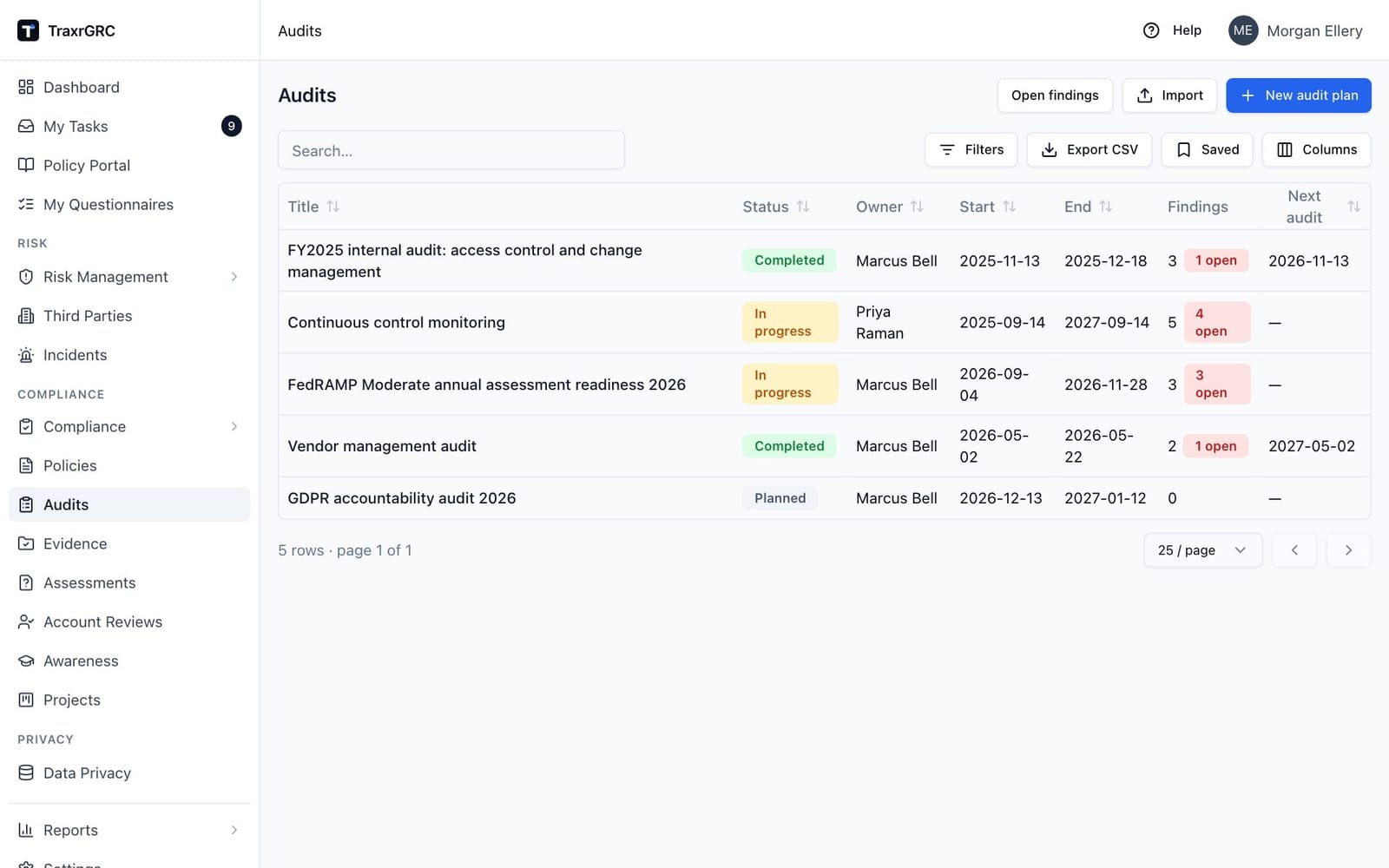
| Column | What it shows |
|---|---|
| Title | The plan's title. Click it to open the plan. |
| Status | Planned, In progress or Completed (see below). |
| Owner | The owner user, or the owner group when no user is set. |
| Start / End | The audit window. |
| Findings | Total number of findings. When some are not yet closed, a red badge shows how many are open (findings in Open or In remediation). |
| Next audit | The scheduled date of the next audit. Shown in red when it lies in the past and the plan is Completed, a signal that the next cycle is overdue. |
Plan statuses:
| Status | Badge | Meaning |
|---|---|---|
| Planned | Gray | Scheduled but not started. New plans start here. |
| In progress | Amber | The audit is under way. |
| Completed | Green | The audit is done. |
The Import button beside New audit plan creates or updates audit findings in bulk from a CSV file, each row naming its audit plan (see Importing from CSV under Getting Started). Plans themselves are created in the app.
8.3 Creating an audit plan
-
On the Audits page, click New audit plan.
-
Complete the dialog (only the title is required):
Field What it means Title Name of the audit, e.g. "ISO 27001 internal audit, 2026". Description Scope, domains covered, reference standards. Owner The user running the audit. Owner group The team responsible for the audit. Start date When fieldwork begins. End date When fieldwork ends. Next audit date When the next cycle of this audit is due; drives the red overdue highlight on the list. -
Click Create audit plan.
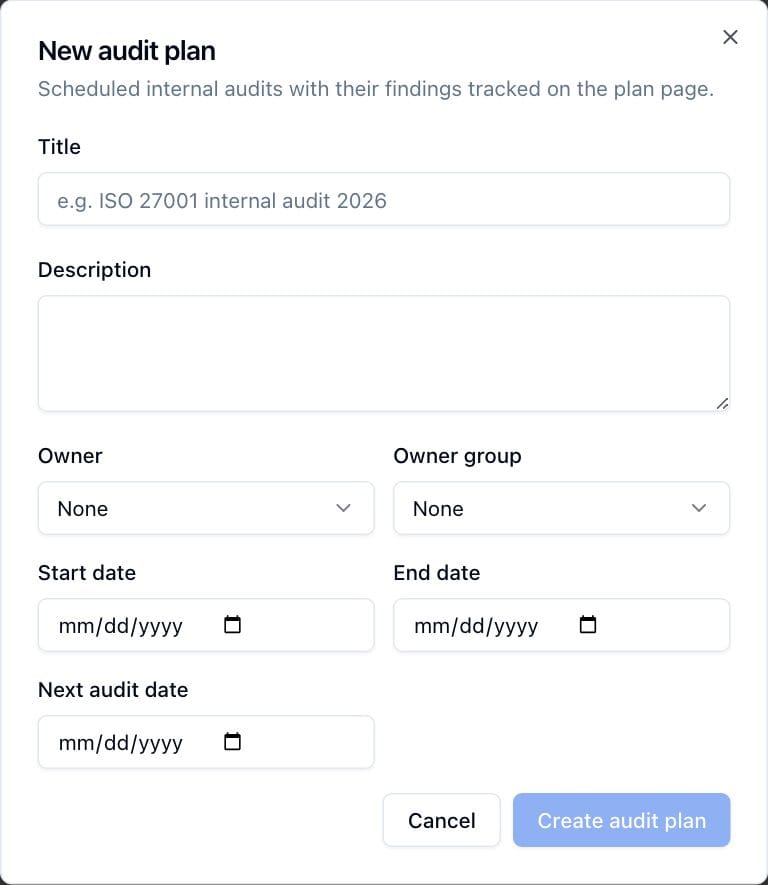
The plan is created with status Planned, and the creation is recorded in the audit log.
8.4 The plan detail page
Click a plan's title to open it.
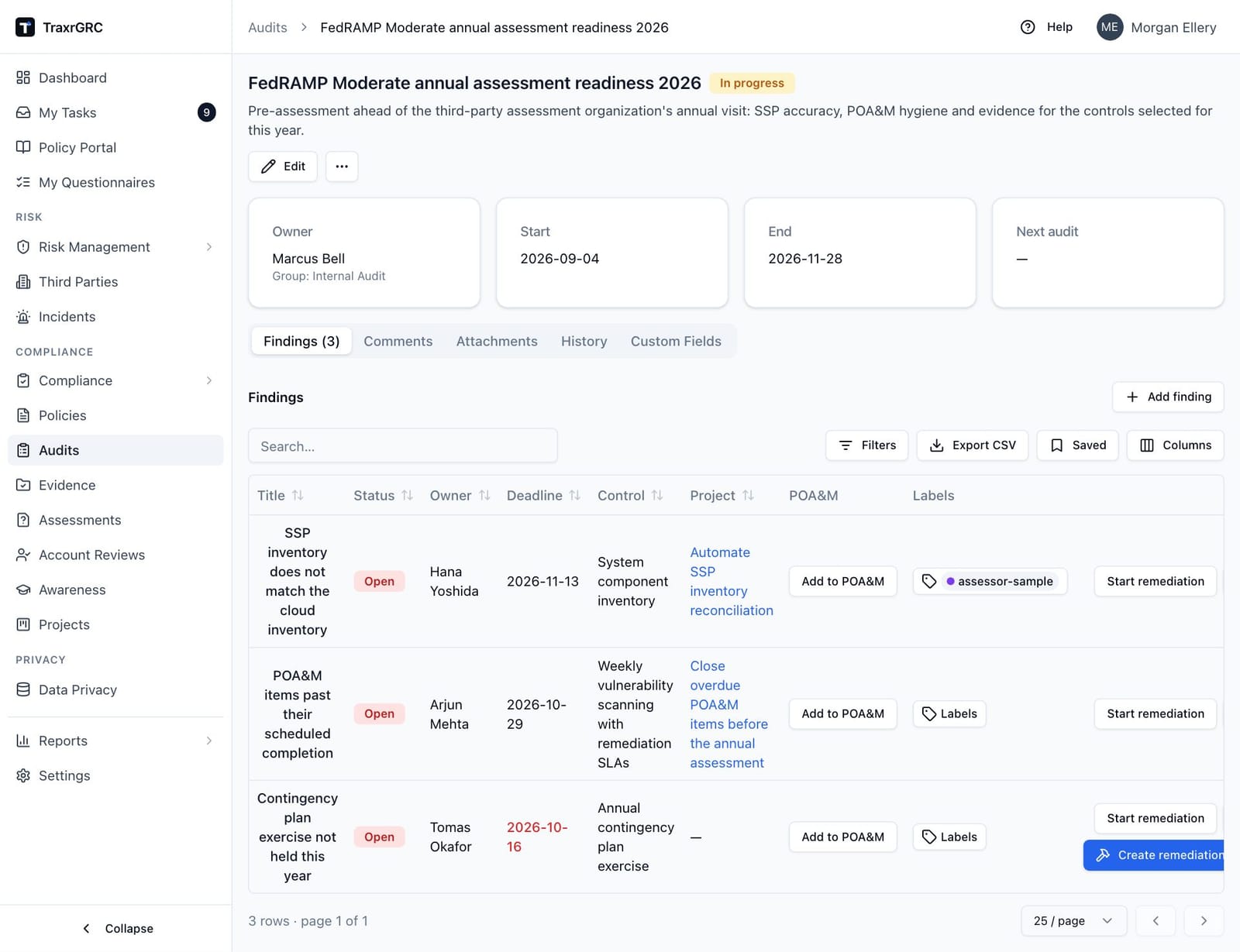
The page shows the title, status badge and description, the Edit button and the More actions menu (…, with Delete), and cards for Owner, Start, End and Next audit. Below them are the Findings (n), Comments, Attachments, History and Custom Fields tabs.
8.4.1 Editing a plan and changing its status
- Click Edit.
- Change the title, description, owner, owner group or dates, or pick a new Status. The status field appears only when editing.
- Click Save changes.
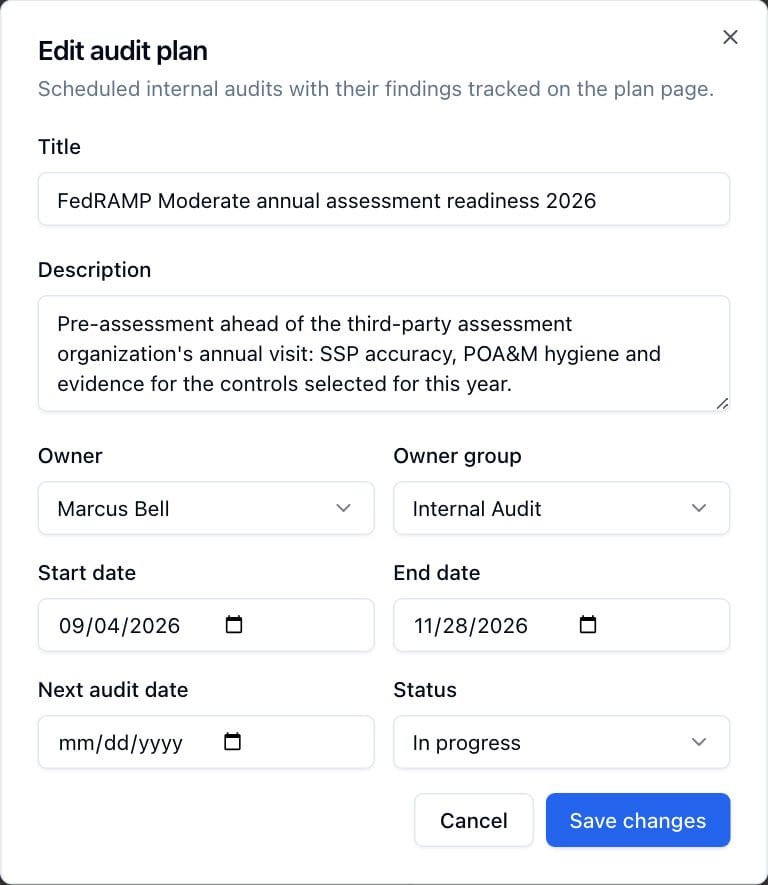
Status moves strictly forward. The allowed transitions are:
- Planned → In progress: start the audit.
- In progress → Completed: finish it.
There is no way back: a completed plan cannot be reopened, and a planned plan cannot be marked complete without first moving it to in progress. If you try, the save fails with a message such as Cannot move from "planned" to "completed". Dates and other details can be edited at any stage.
8.4.2 Deleting a plan
Open More actions (…), click Delete and confirm with Delete. This deletes the plan
together with all its findings and their comments, attachments and
labels. Remediation projects linked to findings are kept: they stay in
Projects but lose the link to the deleted finding. Deleting requires
audits:delete and cannot be undone.
8.5 Working with findings
Open the Findings tab on a plan (it opens by default). The tab label
shows the total count, and users with audits:update see an Add finding
button.
8.5.1 Adding or editing a finding
-
Click Add finding, or click a finding's title in the table to edit it.
-
Complete the dialog (only the title is required):
Field What it means Title Short name for the gap found, e.g. "Privileged access review gaps". Description Details: what was found, the evidence, the risk. Owner The user responsible for remediation. Owner group The team responsible for remediation. Deadline Target date for closing the finding. Linked control The control from your control catalog that the finding relates to, or None. -
Click Add finding (for a new finding) or Save changes.
Editing a finding's title, description, owner, linked control or status is for whoever can update its audit plan. A finding's owner (or a member of its owner group) who cannot update the plan sees the finding's details as text, with one change open to them: Deadline. Moving it asks for a reason, and the move and the reason are posted to the finding's comments.
Comments. An existing finding's dialog ends with its comment thread. Whoever can update the plan and the finding's owner can comment; anyone who can read the finding reads the thread. Comments the app records (a repeat audit result, a deadline move, the POA&M item it is tracked on) are marked Recorded by the app and cannot be deleted.
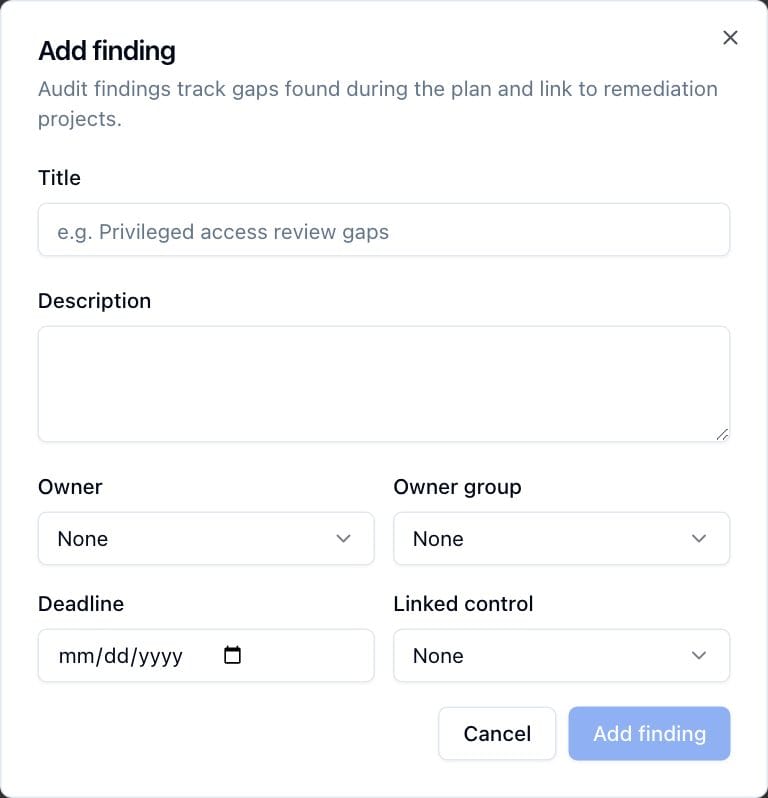
New findings start with status Open.
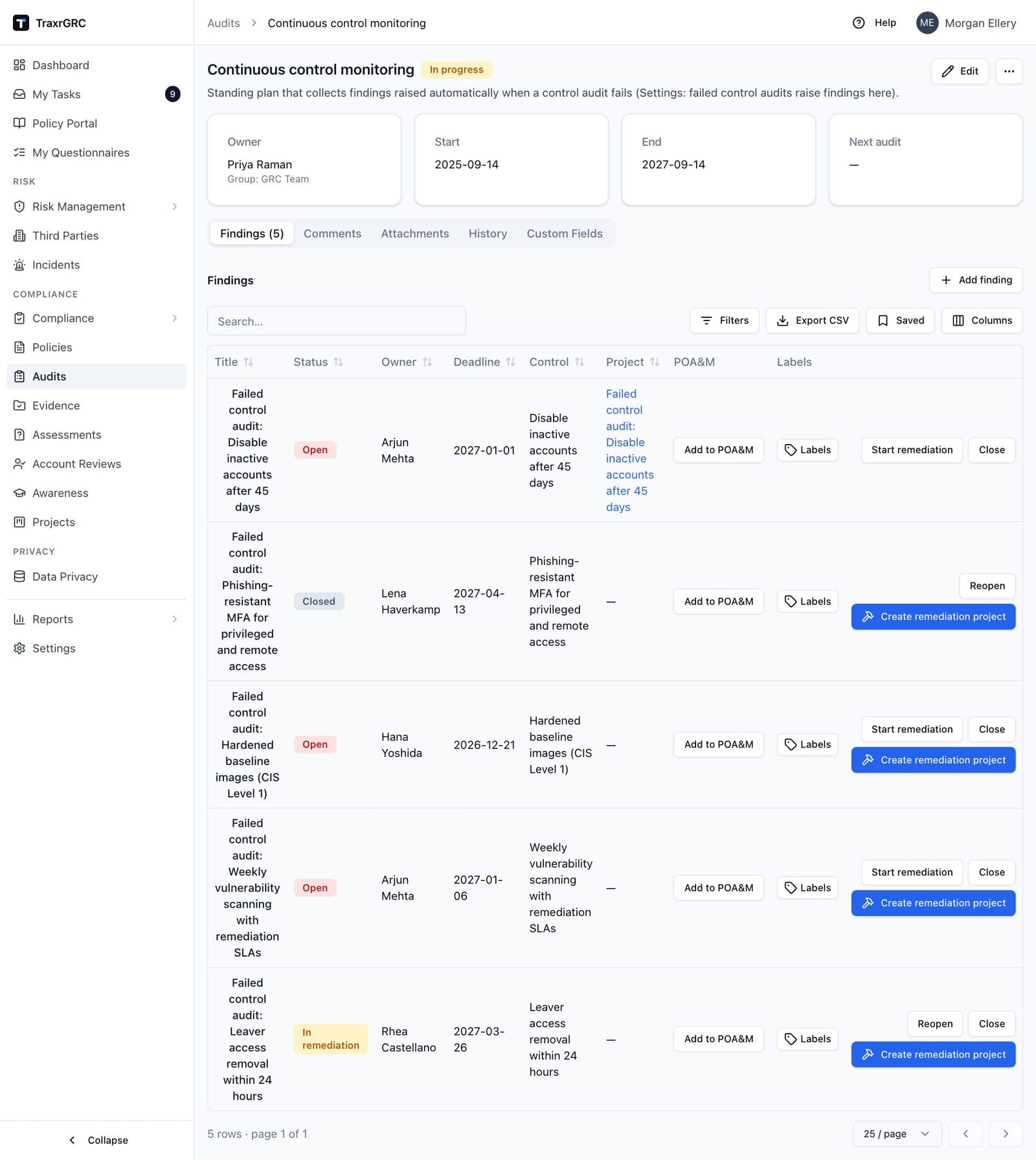
The findings table shows Title, Status (filterable), Owner,
Deadline, the linked Control, the linked remediation Project (a
link, when there is one), POA&M, Labels and the action buttons. A
Requirements column is hidden by default; turn it on from the table's
column choices. It lists the compliance requirements the finding's control is
mapped to: the first three codes as links to the requirement, then "+N more";
requirements you cannot read are counted ("1 you cannot see"). The list is
worked out each time from the control's current mappings. A deadline in the
past is shown in red while the finding is not closed. Findings have no page of
their own, so their labels are attached in the table: with audits:update on
the finding, its Labels cell is the label picker (see Labels in Getting
Started); otherwise it shows the labels read-only. Type part of a label name
in the column's filter to list only findings carrying it.
8.5.2 Finding status workflow
Each finding row carries buttons for the moves allowed from its current
status. You see them on a finding you can update: anyone who can update the
plan sees them on every finding, and a finding's owner (or a member of its
owner group, with audits:update at the own level) sees them on their own
finding, except Close: closing verifies the fix, so it is for those who
can update the plan. Create remediation project is also theirs. Clicking a
finding's title opens it for editing for those who can update the plan; its
owner sees the details with the deadline to move, and anyone else sees them
read-only. Closing or reopening a finding also closes or reopens its POA&M
item (see The POA&M register).
| Current status (badge) | Button | Moves to |
|---|---|---|
| Open (red) | Start remediation | In remediation |
| Open (red) | Close | Closed |
| In remediation (amber) | Reopen | Open |
| In remediation (amber) | Close | Closed |
| Closed (gray) | Reopen | Open |
Moving back is always allowed: a finding closed too early can be reopened, and one in remediation can be returned to open. Every transition is written to the audit log against the finding.
The app has no button for deleting a finding; findings are removed with their plan, or individually through the REST API. A finding cannot be deleted while a remediation project is linked to it; unlink the project first (see Projects).
8.5.3 Creating a remediation project
Findings with no linked project offer a Create remediation project button. Clicking it:
- Creates a new project in the Projects module, pre-filled with the finding's title, description, owner and owner group, with status In progress and a link back to the finding.
- Links the finding to that project, so the finding row shows the project and the project shows the finding.
- Takes you straight to the new project's page.
This requires audits:update on the finding and projects:create; if
you lack either, the action fails with a permission message. A finding can
have at most one linked project, so the button is hidden once a link exists.
8.5.4 Findings raised by failed control audits
A user with settings:update can name an audit plan that receives a finding
every time a control audit fails (Controls → Settings, see Risk
Management). Each such
finding is titled Failed control audit: <control name>, is owned by the
control owner, is due by the re-audit date and is linked to the control. It
is worked like any other finding. A control has at most one open finding of
this kind: later failures and a passing re-audit are noted on it (see
Control testing under Risk Management).
Because the finding names its control, it reaches the requirements that control is mapped to: the requirement page lists it under Open audit findings on mapped controls, and Add to POA&M fills in the requirement codes (see The POA&M register). Nothing opens a POA&M item for it automatically; a person decides, and until then the finding is flagged.
8.6 Open findings
Open findings (the button at the top of the Audits page) lists every open or in-remediation finding across
the audit plans you can read, soonest deadline first. Each row shows the
finding (a link to its plan), the Audit plan, Status, Needs
attention, Owner, Deadline, Control, Requirements and the
POA&M item or remediation project answering it, with Add to POA&M when
there is neither and you hold compliance:create.
A finding that needs attention shows one badge, for its most urgent reason:
| Reason | When |
|---|---|
| Overdue | Its deadline has passed. |
| Not tracked | It is not overdue, and neither a POA&M item nor a remediation project answers it. |
Filter Needs attention on one reason, or on Needs attention (any reason) for the list to work through. The Requirements column filters on Affects requirements or Affects requirements, no POA&M item (its control is mapped to at least one requirement, counted even when you cannot read it). The Findings to resolve dashboard widget links here with the Needs attention filter set, and the notice on the POA&M page with the Requirements filter set.
8.7 Comments, attachments and history
The plan's Comments, Attachments and History tabs work like the
incident ones: comments up to 4,000 characters, file uploads up to 25 MB
with download links, and the audit trail of changes to the plan (create,
edits and status changes, delete). Finding changes (creation, edits, status
transitions, remediation projects) are recorded in the audit log against
each finding, where administrators see them under Settings → Audit Log.
Commenting and uploading require audits:update on the plan.
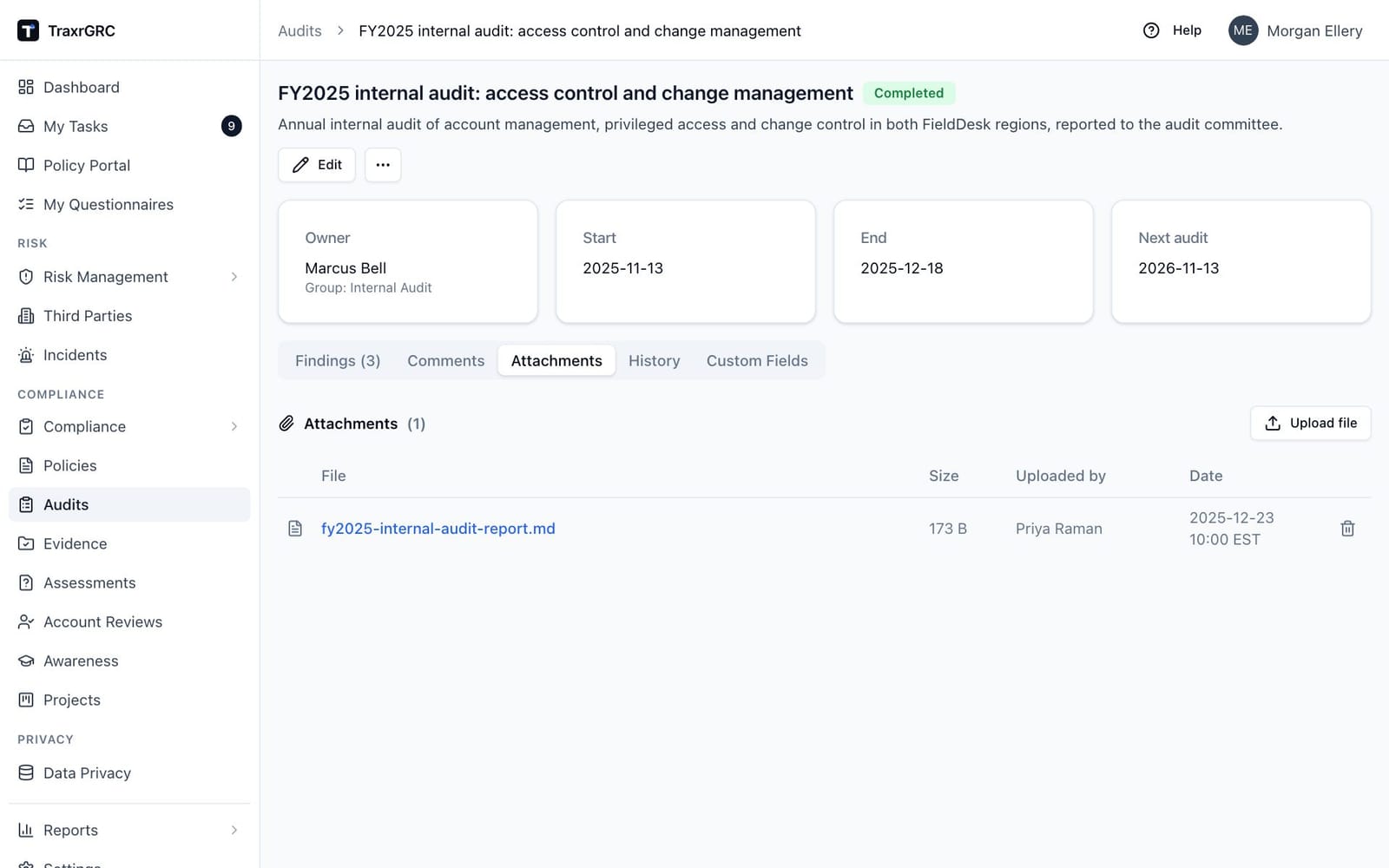
The Custom Fields tab, last in the row, holds organization-defined fields for audit plans (see Custom Fields).