6 Platform Settings
This chapter describes every page where an administrator configures GRC Platform itself: the Settings area, the settings that live inside a module (risk scoring, control testing, incident classifications), and the shared vocabulary records use (labels and custom fields). Accounts, groups and roles are described in Users, Groups and Roles; sign-in, LDAP, SAML, SCIM and session length in Authentication and Single Sign-On; the Audit Log in Audit Log and Evidence Integrity; snapshots in Backup and Restore. Email and notifications have their own chapter (Notifications and Email), and API tokens and AI assistants are in API Access and Integrations.
6.1 How settings are stored and applied
Settings changed on these pages are stored in the database, in the setting
table, and travel with every backup snapshot. The three integration secrets
(SMTP password, LDAP bind password, SAML private key) are stored encrypted
with the instance's settings key (see Configuration Reference). Nothing on
these pages is read from environment variables, with one exception: the
product name falls back to APP_NAME until a name is saved under Branding.
Each application process (web and worker) caches a setting for 30 seconds. A change you save takes effect at once for the page you are on and within 30 seconds everywhere else, including in the background worker that sends email. The daily sweep schedule is applied to the job queue when you save it (see Scheduler in Notifications and Email).
Every save on these pages writes an Audit Log entry with the values before and after. Saves that change security posture (integrations, session and token limits, separation of duties, SSO only, AI assistant access, SCIM) also email every administrator a security alert.
6.2 Map of the settings pages
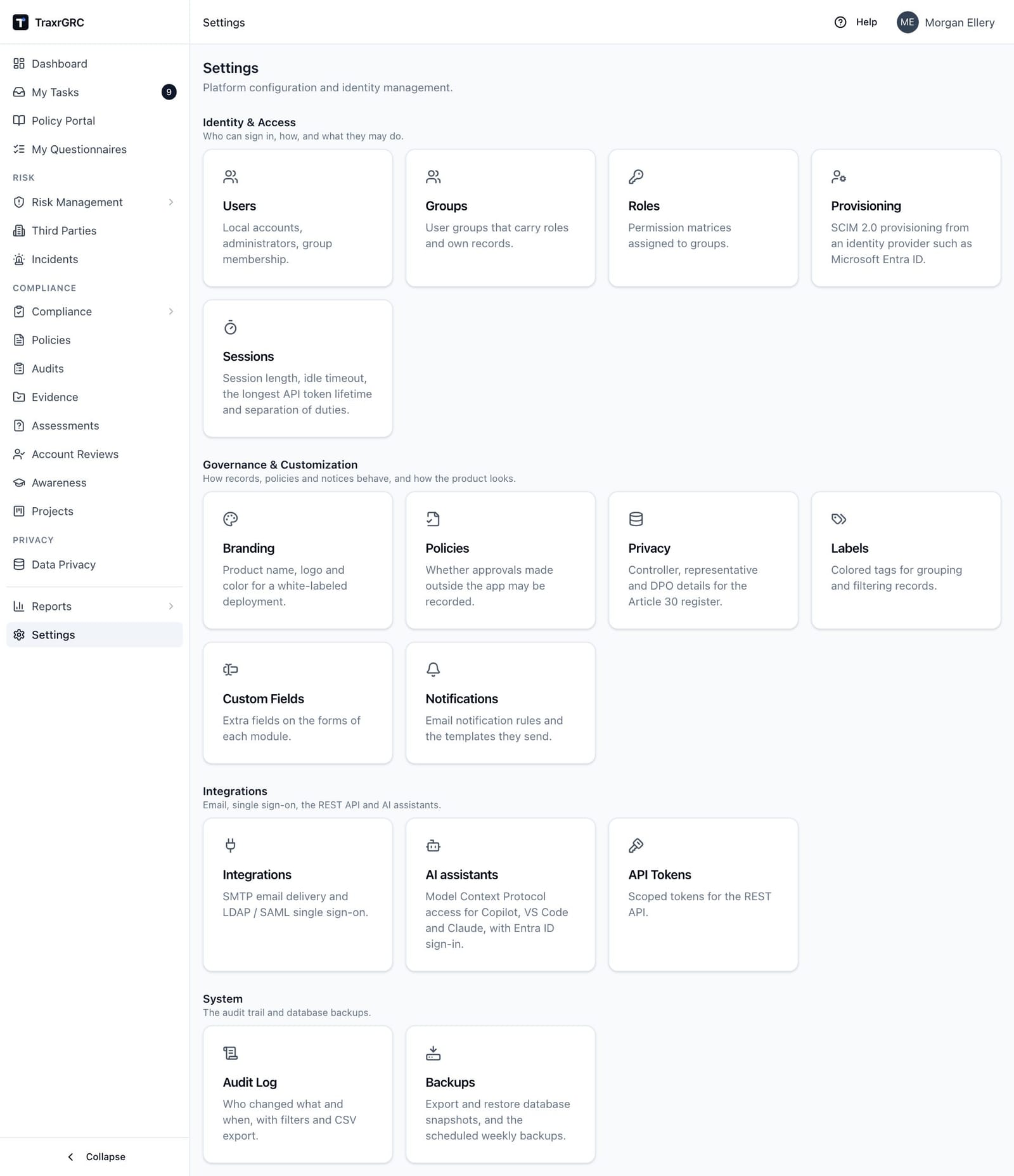
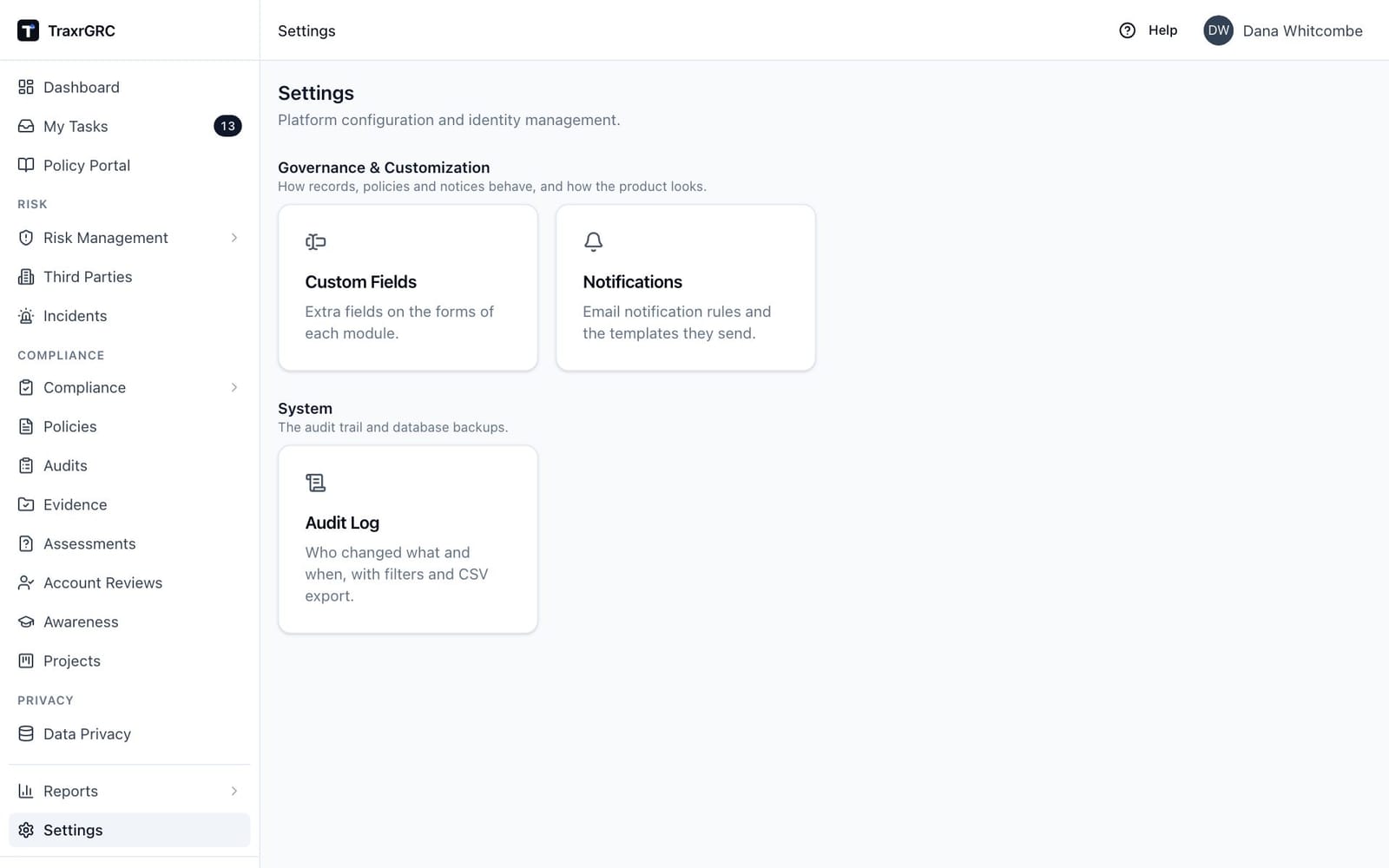
The Settings page has a card for each of the sixteen pages below, grouped under Identity & Access (Users, Groups, Roles, Provisioning, Sessions), Governance & Customization (Branding, Policies, Privacy, Labels, Custom Fields, Notifications), Integrations (Integrations, AI assistants, API Tokens) and System (Audit Log, Backups); a group with no card for you is hidden. Each card is shown only to people the page itself admits (the Opens with column), so no card leads to a Forbidden page. The Settings entry at the foot of the sidebar is shown to anyone who sees at least one card. An administrator sees all sixteen. Of the built-in roles, a GRC Manager sees Custom Fields, Notifications and Audit Log; an Auditor sees Custom Fields and Audit Log; a Risk Owner sees Custom Fields. A Data Liaison sees no Settings entry.
| Page | Address | Opens with | Changes need | Linked from | Described in |
|---|---|---|---|---|---|
| Settings | /settings | Any one of the rights below | Sidebar Settings | This chapter | |
| Users | /settings/users | settings:read | See that chapter | Settings card | Users, Groups and Roles |
| Groups | /settings/groups | settings:read | See that chapter | Settings card | Users, Groups and Roles |
| Roles | /settings/roles | settings:read | See that chapter | Settings card | Users, Groups and Roles |
| Integrations | /settings/integrations | settings:read | Administrator | Settings card | SMTP: Notifications and Email. LDAP and SAML: Authentication and Single Sign-On |
| Provisioning | /settings/provisioning | settings:read | Administrator | Settings card | Authentication and Single Sign-On |
| Sessions | /settings/security | settings:read | Administrator | Settings card | Sessions page below; session length in Authentication and Single Sign-On |
| Branding | /settings/branding | settings:read | settings:update | Settings card | Branding below |
| Policies | /settings/policies | settings:read | Administrator | Settings card | Policy settings below |
| Privacy | /settings/privacy | settings:read | settings:update (header); administrator (DPIA approval) | Settings card | Privacy settings below |
| AI assistants | /settings/mcp | settings:read | Administrator | Settings card | API Access and Integrations |
| Labels | /settings/labels | settings:read | settings:create, settings:update, settings:delete | Settings card | Labels below |
| Custom Fields | /settings/custom-fields | customFields:read | customFields:create, update, delete at all | Settings card | Custom fields below |
| Notifications | /settings/notifications | notifications:read | notifications:update; rules: administrator | Settings card | Notifications and Email |
| Audit Log | /settings/audit-log | auditLog:read | Integrity and Retention: administrator | Settings card; security alert emails | Audit Log and Evidence Integrity |
| API Tokens | /settings/api-tokens | apiTokens:read | apiTokens:create (issue); apiTokens:update (revoke) | Settings card | API Access and Integrations |
| Backups | /settings/backups | Administrator | Administrator | Settings card | Backup and Restore |
Three groups of settings live inside a module instead:
| Settings | Where | Opens with | Changes need |
|---|---|---|---|
| Risk Settings (classifications, magnitudes, matrix, appetite bands) | /risks/settings, sidebar Risk Management → Risk Settings | settings:read | settings:update; adding and removing entries also settings:create and settings:delete |
| Control testing settings (findings for failed audits) | Settings button on Risk Management → Controls | settings:read (the button is hidden without it) | settings:update |
| Incident classifications | Classifications button on Incidents | incidents:update at all | incidents:update at all |
"Administrator" in these tables means an account with the Administrator
flag. Some changes check the flag whatever a role grants, so a custom role with
settings:update can view those pages and still cannot save them; the page
shows the controls disabled or hides the Save button.
6.3 Branding
Settings → Branding white-labels the platform. Out of the box the product
is called "TraxrGRC", uses the standard blue theme and a shield icon, and
names no vendor anywhere. Viewing needs settings:read; saving needs
settings:update.
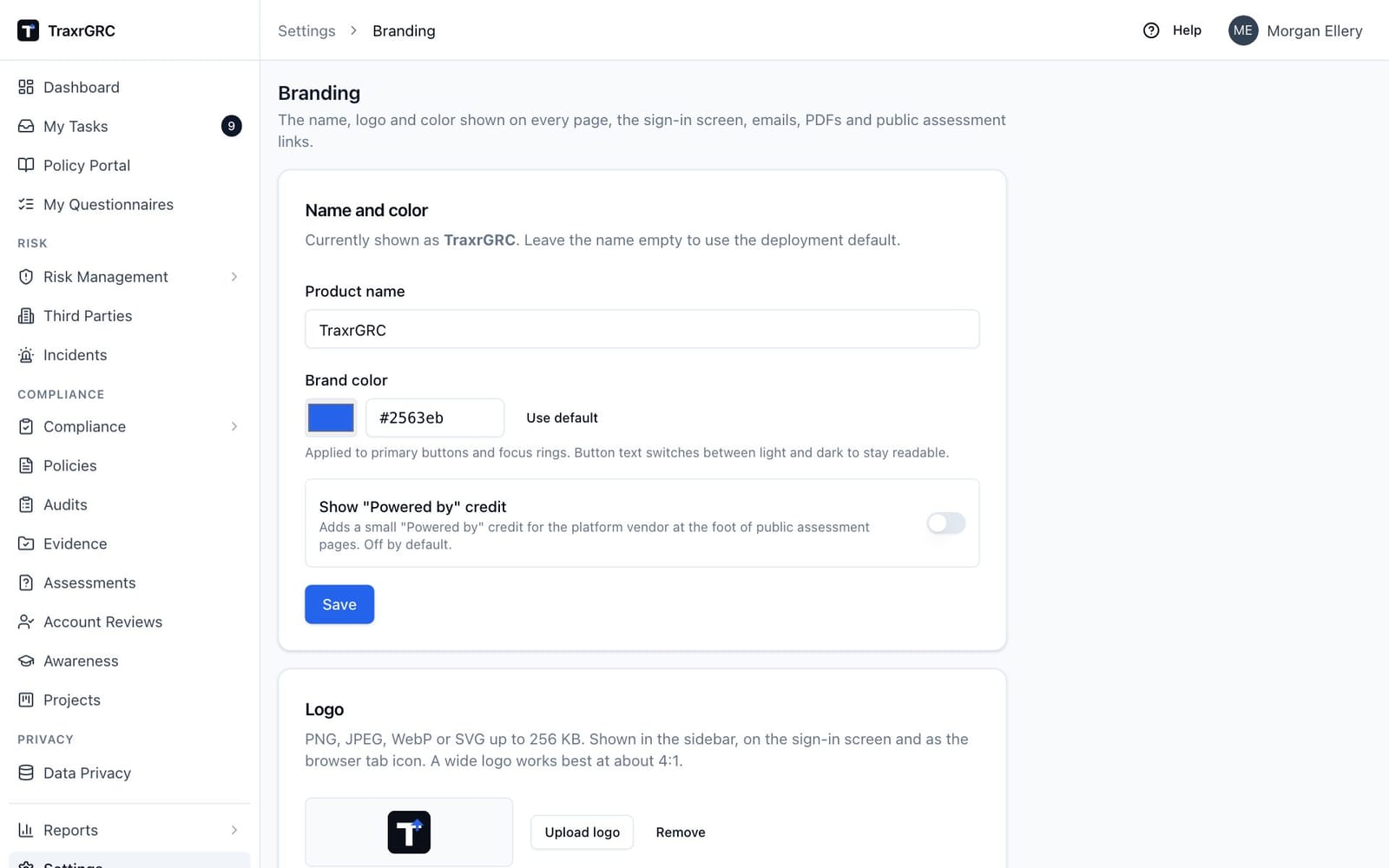
The Name and color card has its own Save button:
| Setting | Effect |
|---|---|
| Product name | Up to 60 characters. Shown in the sidebar, browser tab titles, the sign-in page, public assessment pages, PDF exports, the SMTP test email, the title of the OpenAPI document and the in-app help (the Help button), which shows the User Manual, the Quick Start Guide and, to administrators and anyone with settings:read, this guide, each with the product name in place of "TraxrGRC". The help is read from the guides shipped in the application image, so it matches the installed version. Email templates show it through the {{app.name}} variable. Leave it empty to fall back to APP_NAME from the deployment, and to GRC Platform when that is unset too. The card states the name currently in effect ("Currently shown as ..."). |
| Brand color | A #rrggbb color, typed or picked. Applied to primary buttons, focus rings and links. Button text switches between light and dark to stay readable, and a color too light to read as link text on white is darkened (same hue) until it meets WCAG AA contrast. Use default clears it. |
| Show "Powered by" credit | Off by default. When on, public assessment pages (the ones outside contacts open from an assessment email) end with "Powered by TraxrGRC". No other page shows a vendor name. |
The Logo card has Upload logo and Remove:
- The file may be PNG, JPEG, WebP or SVG, at most 256 KB. The type is checked from the file's content, so a renamed file is refused.
- The logo replaces the shield in the sidebar, on the sign-in page and on public assessment pages, and becomes the browser tab icon. A wide logo works best at about 4:1.
- The logo is stored in the database (and so in backups) and served from
/api/branding/logoto anyone, since the sign-in page shows it before sign-in. An SVG is served with a policy that stops any script inside it from running. - Remove returns to the shield.
Every save and every logo change is recorded in the Audit Log (module
settings, entity branding or branding.logo).
To brand a new instance:
- Open
/settings/branding. - Enter the Product name your users know the service by.
- Enter the Brand color as
#rrggbb, or pick it. - Leave Show "Powered by" credit off unless your agreement asks for it.
- Click Save.
- Click Upload logo and choose the file.
- Open the sign-in page in a private window to check the result. Other open sessions pick up the change within 30 seconds.
Set APP_NAME in the deployment as well (see Configuration Reference) when you
want the right name to appear before anyone has signed in to set it, for
example on the first sign-in page after installation.
6.4 Labels
Labels are short colored tags, such as board-visibility or quick-win, used
to group records across modules and classifications. Settings → Labels
(address /settings/labels) manages the list. Labels can be attached to eight
record types: risks, controls, assets, third parties, incidents, policies,
audit findings and projects.
- The record pages of risks, controls, third parties, incidents, policies and projects have a Labels picker below the description.
- Assets and audit findings have no record page of their own, so the asset list and an audit plan's Findings tab edit labels inline, in the Labels column of each row.
- Every one of these lists has a Labels column. Its filter finds records carrying a label whose name contains the text you type, and Export CSV writes the label names separated by "; ".
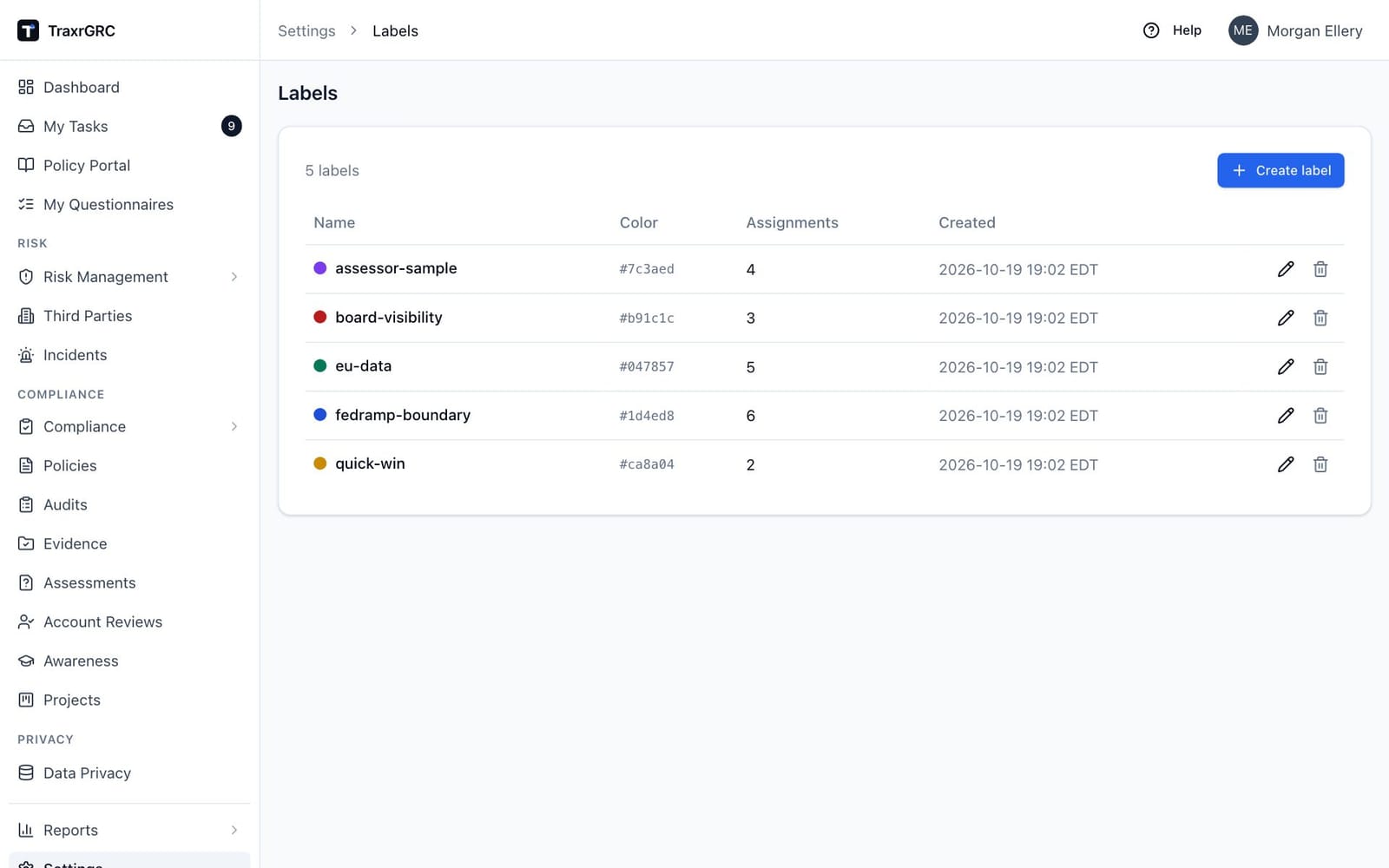
The page lists each label's Name (with its color), Color (hex value), Assignments (how many records carry it), Created and actions.
| Action | Needs |
|---|---|
| Open the page | settings:read |
| Create label, or create one from a record's picker by typing a new name | settings:create at all |
| Rename or recolor (pencil) | settings:update at all |
| Delete (trash, then Delete label?) | settings:delete at all |
| Attach or detach a label on a record | Update on that record in its own module (for example controls:update on a control), at own or all as the role grants; without it the labels show read-only |
Rules for a label:
- Name: lowercase letters, digits and single dashes, up to 60
characters, for example
critical-vendor. Names are unique. - Color: one of the preset swatches or any hex color (
#0ea5e9). - Deleting a label removes it from every record. It cannot be undone, and the Audit Log keeps the deletion.
Because creating a label from a record's picker needs settings:create,
record owners without Settings rights can only choose labels that already
exist. Create the vocabulary up front.
6.5 Custom fields
Custom fields add your own attributes to records, such as a cost center on
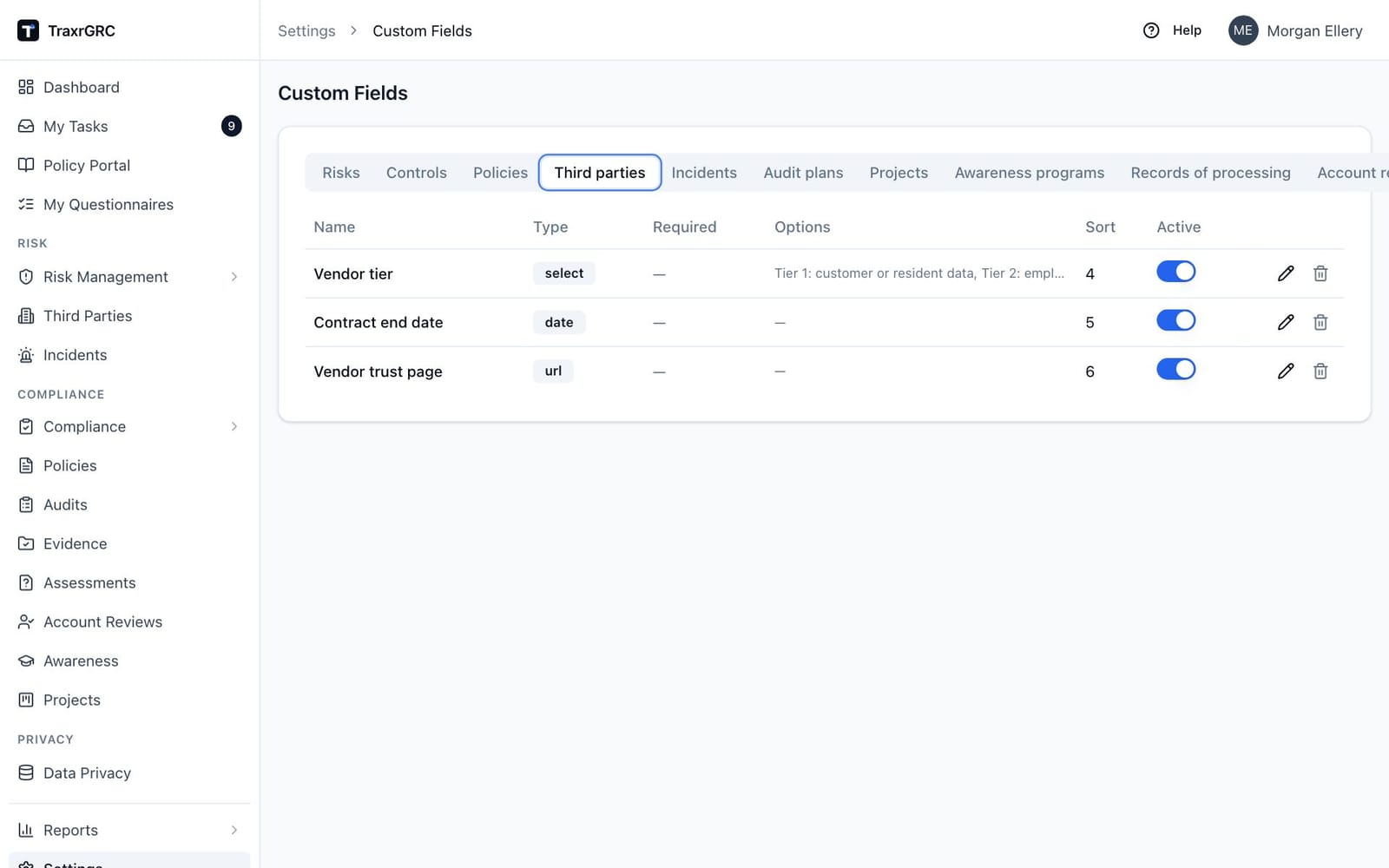
projects or a vendor tier on third parties. Settings → Custom Fields
(address /settings/custom-fields) defines them.
6.5.1 Where custom fields apply
The page has one tab per record type. A field belongs to one record type for good; it cannot be moved to another.
| Tab | Records | Module whose rights govern the values |
|---|---|---|
| Risks | Risks | Risks |
| Controls | Controls | Controls |
| Policies | Policies | Policies |
| Third parties | Third parties | Third parties |
| Incidents | Incidents | Incidents |
| Audit plans | Audit plans | Audits |
| Projects | Projects | Projects |
| Awareness programs | Awareness programs | Awareness |
| Records of processing | Records of processing | Data privacy |
| Account review programs | Account review programs | Account reviews |
| Compliance analyses | Compliance requirements (their analysis) | Compliance |
| Assessment requests | Assessment requests | Assessments |
Assets, business units, audit findings and exceptions have no custom fields.
6.5.2 Field types
| Type | Stored value | Limits and checks |
|---|---|---|
| Text | One line of text | Up to 2,000 characters. |
| Textarea | Multi-line text | Up to 100,000 characters. |
| Number | A number | Rounded to two decimal places. |
| Date | A calendar date | YYYY-MM-DD, a real date. |
| Select | One option | Must be one of the field's options. |
| Multi-select | Several options | Each must be one of the options. |
| Checkbox | Yes or no | |
| URL | A web address | http:// or https:// only. |
Select and Multi-select fields need at least one option; options are unique, up to 200 characters each and up to 100 per field.
6.5.3 Creating and changing fields
Opening the page needs customFields:read. Creating, changing and deleting
fields need the matching right at the all level. The built-in GRC Manager
role holds all four; Risk Owner and Auditor can read.
- Open the tab for the record type and click Create field.
- In the Create custom field dialog, enter the Name (unique within the record type, up to 200 characters), choose the Type and set the Sort order (lower numbers first).
- For Select and Multi-select, add the Options with Add option.
- Tick Required if every record of this type must have a value.
- Click Create field.
In the list, the Active switch hides a field from records without deleting it or its values; turn it back on to show them again. The pencil opens Edit custom field (save with Save changes); the trash deletes the field after the Delete custom field? confirmation, together with every value stored for it. Deleting cannot be undone.
Points to know before changing a field in use:
- Required is checked when someone saves the field values on a record. It does not stop a record from being created without a value, by a form, a CSV import or the API. A required checkbox must be ticked to save.
- Changing a field's Type does not convert values already stored. Create a new field and retire the old one instead.
- Removing an option does not change records that already hold it.
- Renaming a field changes its CSV import column (
Custom: <field name>), so update any saved import files.
6.5.4 How custom fields appear
- On the record's page, in a Custom Fields tab or card listing the active fields in sort order, with required ones marked. Edit opens the values dialog. Viewing needs read on the record; editing needs update on it.
- In CSV imports for risks, controls, policies, third parties, incidents and
projects, as extra columns headed
Custom: <field name>(see Loading and Importing Data). - In the REST API, at
/api/v1/custom-fields(definitions) and/api/v1/custom-fields/values(values per record).
Custom fields are not shown as list columns and are not part of the Report Center reports.
6.6 Risk Settings
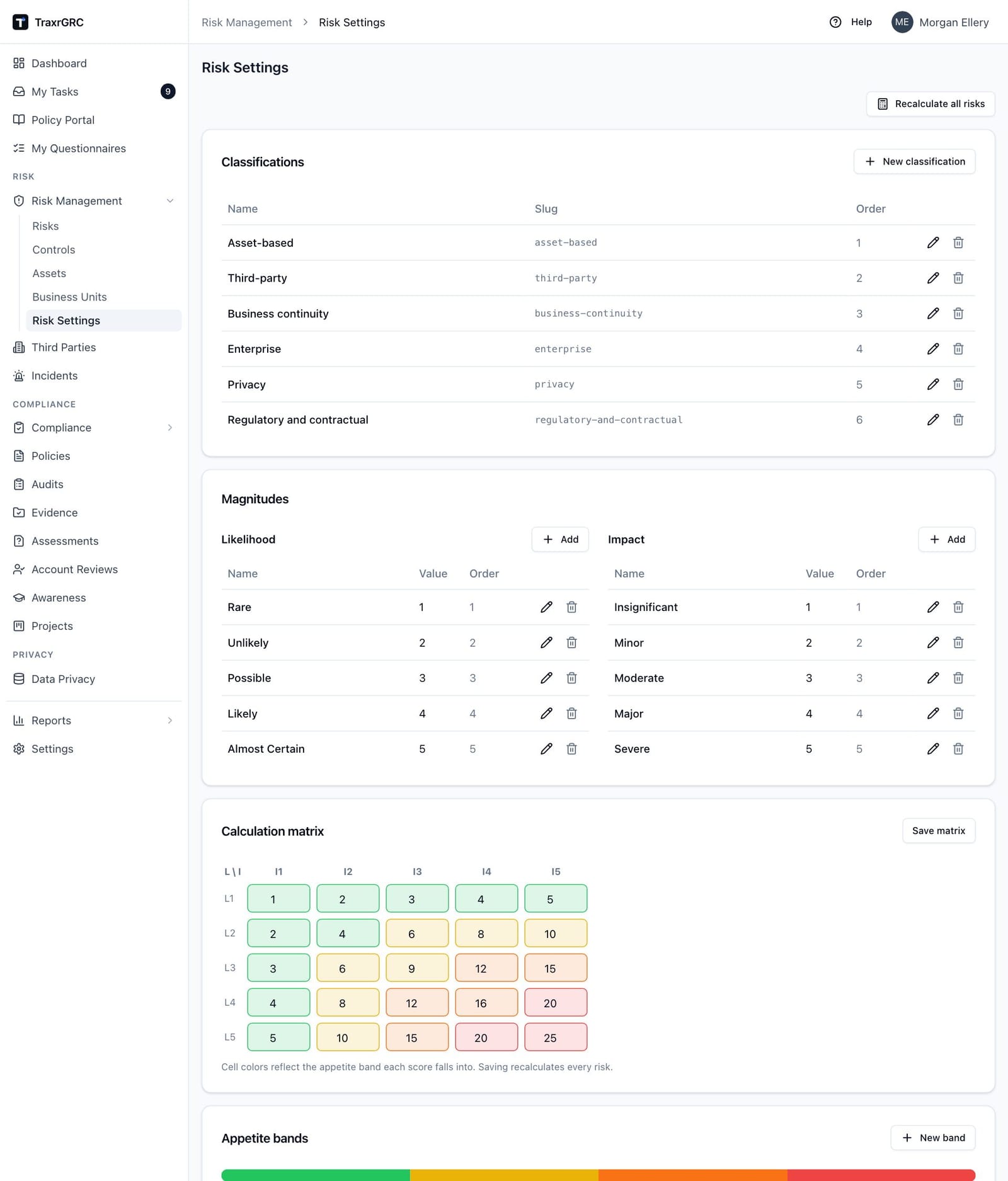
Risk Management → Risk Settings (address /risks/settings) holds the
scoring engine every risk uses. It opens with settings:read; changing it
needs settings:update, and adding or removing entries also needs
settings:create or settings:delete, all at the all level. The User
Manual chapter Risk Management explains how scores are calculated; this
section covers what an administrator decides and what each change does to
existing risks.
6.6.1 What a new installation contains
| Part | Default |
|---|---|
| Classifications | Asset-based, Third-party, Business continuity, Enterprise |
| Likelihood | Rare 1, Unlikely 2, Possible 3, Likely 4, Almost Certain 5 |
| Impact | Insignificant 1, Minor 2, Moderate 3, Major 4, Severe 5 |
| Matrix | Score = likelihood value × impact value (1 to 25) |
| Appetite bands | Low from 1, Medium from 6, High from 12 (over appetite), Critical from 19 (over appetite) |
These are created only when the tables are empty. An upgrade never puts back a classification or band you deleted.
6.6.2 Classifications
Classifications are the tabs of the risk register. Each has a Name, a
Slug (lowercase, unique; built from the name when left blank), a Sort
order and an optional Description. Add one with New classification.
A classification cannot be deleted while any risk uses it; move those risks
first. The Third-party classification's slug (third-party) cannot be
changed, because attaching risks to vendors depends on it; its name can. A
risk moved out of it is detached from its vendor, and both the risk's and the
vendor's history record that.
6.6.3 Magnitudes
The Likelihood and Impact scales, each with its own Add button. Each level has a Kind, a Name, a numeric Value, a Sort order and an optional Description. Values are unique within a scale, and risks store the value. A level's value cannot be changed, and the level cannot be deleted, while a risk or a matrix cell uses it; the refusal says how many records refer to it. Renaming a level is always allowed.
6.6.4 Calculation matrix
One score per likelihood and impact pair, labeled L1 to L5 and I1 to
I5 by value. Cells are tinted with the band their score falls in. Click
Save matrix to store all cells at once; every risk is recalculated
immediately.
A pair with no cell scores 0, which no band covers, so its risks show as unscored. After adding a level, fill in its new row or column and click Save matrix before anyone rates a risk with it.
6.6.5 Appetite bands
Each band has a Name, a Min score, a Color, an Over appetite
switch and a Sort order. A band covers scores from its minimum up to the
next band's minimum. Bands marked over appetite drive the red banner on risks,
the Risks over appetite dashboard widget and the risk.appetite.breach
email. Creating, editing or deleting a band recalculates every risk.
6.6.6 Recalculate all risks
Recalculate all risks recomputes every risk's residual score from the current matrix, bands and treatments, and sends the over-appetite email for any risk that crosses into an over-appetite band. Use it after changing data outside the normal screens, for example after a database restore.
6.6.7 Changing the scale on a live register
Every save on this page rescores all risks at once, and a risk that moves into an over-appetite band emails its owner. Before changing a scale in use:
- Agree the new scale with the risk owners and write down how old ratings map to new ones.
- Add the new levels first, then fill the matrix and click Save matrix.
- Re-rate the affected risks (by CSV import with
inherent_likelihoodandinherent_impact, or in the app). - Delete the old levels once nothing uses them.
To replace levels, matrix and bands in one step, use the bundle loader's
riskScale or PUT /api/v1/risk-scale (see Loading and Importing Data). That
route refuses the change while any risk uses a level the new scale drops.
6.7 Control testing settings
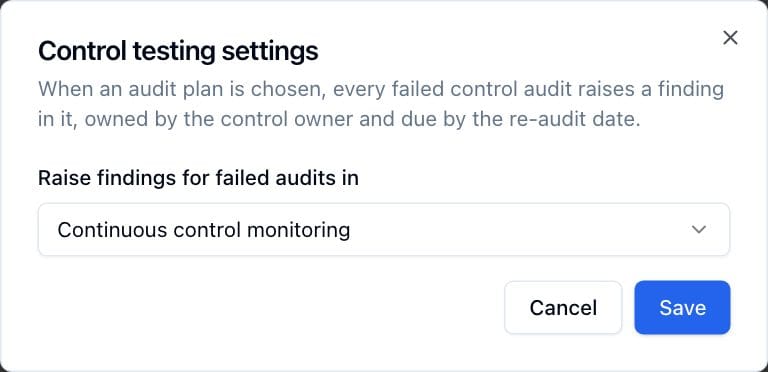
On Risk Management → Controls, the Settings button (shown with
settings:read) opens Control testing settings, a single choice:
| Setting | Effect |
|---|---|
| Raise findings for failed audits in | Off: do not raise findings (the default), or an audit plan. When a plan is chosen, every failed control audit raises a finding in that plan, owned by the control owner and due by the re-audit date. |
Create the audit plan first (for example "Control testing findings"); until a
plan exists the dialog says so. Saving needs settings:update. The schedules,
metrics and success criteria of individual controls are set on each control
(see the User Manual, Risk Management).
6.8 Incident classifications
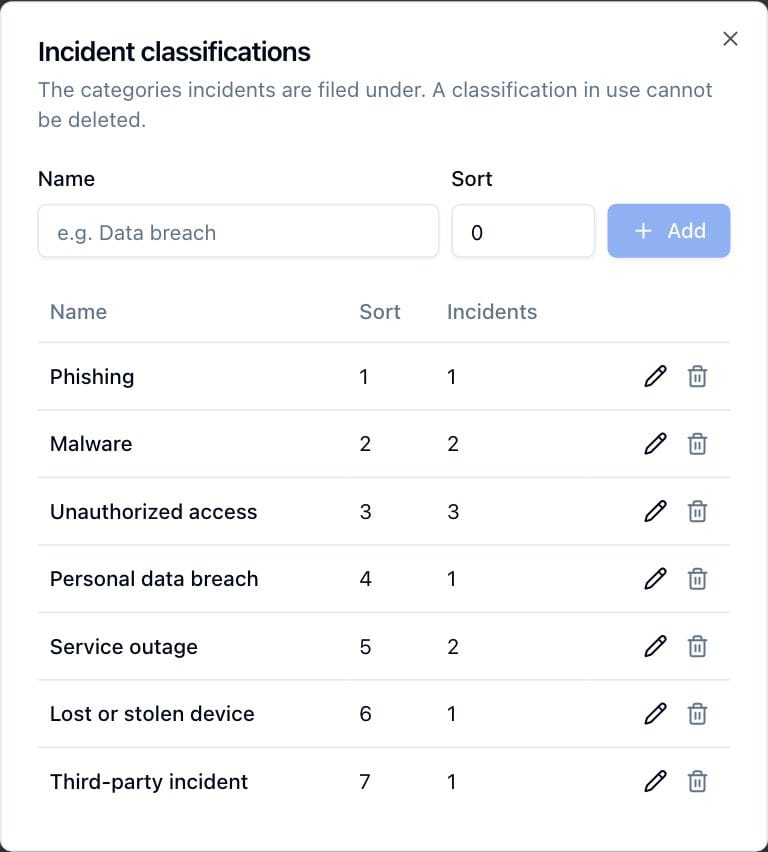
Incident classifications are the categories incidents are filed under (for
example Phishing or Data breach). The Classifications button on the
Incidents page opens the Incident classifications dialog; it appears for
people with incidents:update at the all level. Add a classification with a
Name and a Sort number, rename or reorder it with the pencil, and
delete it with the trash. A classification cannot be deleted while incidents
use it. A new installation has none.
6.9 Policy settings
Settings → Policies has one card, Approvals made outside the app, with one switch:
| Setting | Effect |
|---|---|
| Allow recording outside approvals | Off by default. When on, people with update and Review on Policies can record an approval made outside the app (for example by a board or a controlled-document process), or upload a reissued document with one, and publish it without a second person approving in the app. |
Only an administrator can change it; the change is recorded in the Audit Log.
Turn it on before loading policies through the bundle loader with
effectiveDate and signatories (see Loading and Importing Data).
6.10 Privacy settings
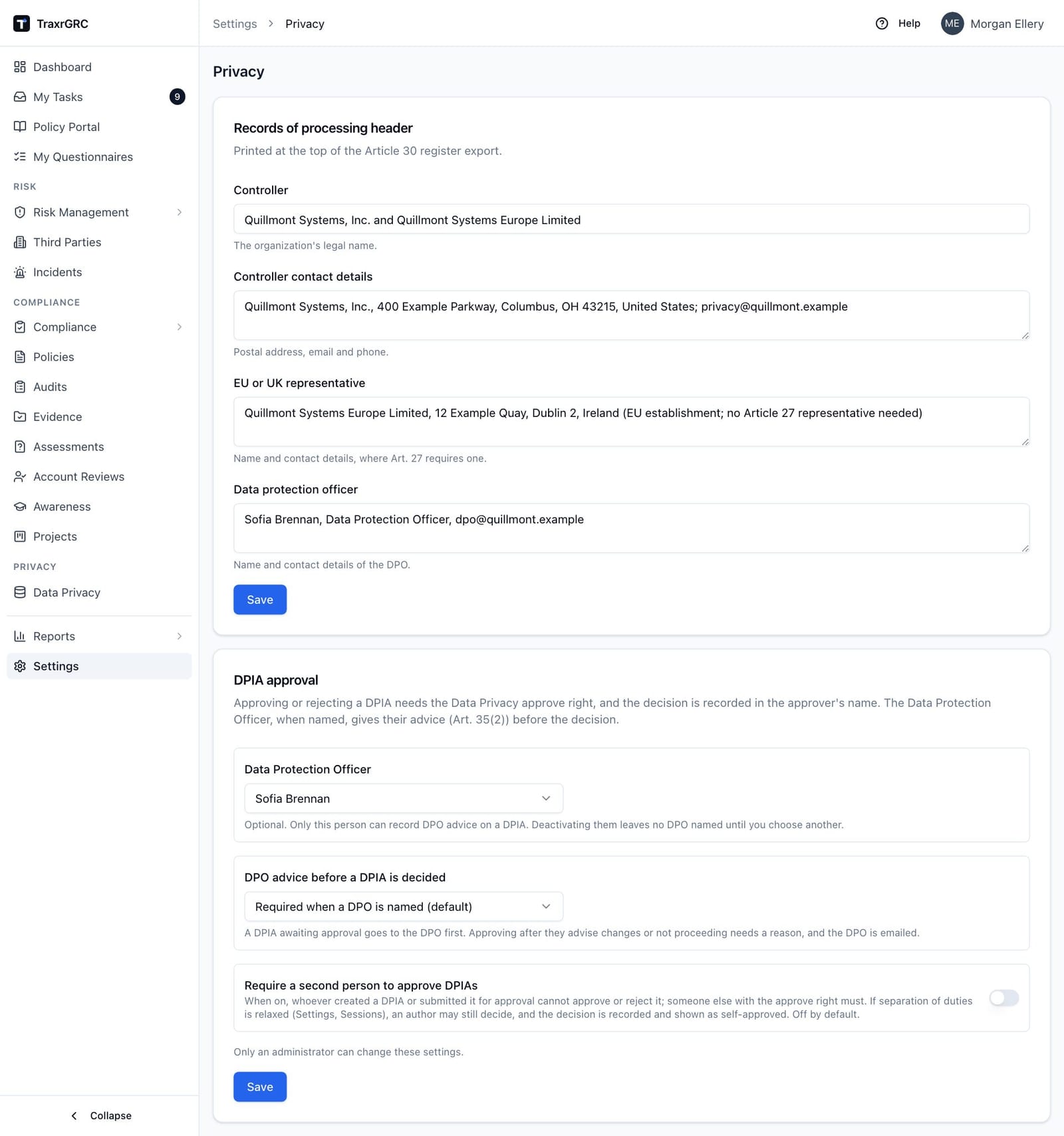
Settings → Privacy has two cards.
Records of processing header is printed at the top of the Article 30
register export. Viewing needs settings:read; saving needs settings:update.
| Field | What to enter |
|---|---|
| Controller | The organization's legal name. |
| Controller contact details | Postal address, email and phone. |
| EU or UK representative | Name and contact details, where Article 27 requires one. |
| Data protection officer | Name and contact details of the DPO. |
Empty fields print empty.
DPIA approval has its own Save and is changed only by an administrator:
| Setting | Stored as | Effect |
|---|---|---|
| Data Protection Officer | privacy.dpoUserId | Optional. The one user who gives DPO advice (Art. 35(2)) on DPIAs; only active users can be chosen. If that user is deactivated, no DPO is in effect (the card says so, advice stops being required, and nobody can advise) until you choose another. Independent of the DPO contact details in the header above. |
| DPO advice before a DPIA is decided | privacy.requireDpoAdvice | Required when a DPO is named (unset, the default), Required (refused unless an active DPO is named) or Optional. While required, a submitted DPIA cannot be approved or rejected until the DPO has advised; approving after a recommendation of Proceed with changes or Do not proceed needs a written reason, is shown as approved against DPO advice, and emails the DPO (dataprivacy.dpia.approvedAgainstAdvice). When optional, the DPO may still advise and the same reason rule applies to advice given. |
| Require a second person to approve DPIAs | privacy.separateDpiaSignOff | Off by default, so the person who wrote a DPIA may decide it (a one-person privacy office needs this). When on, whoever created the DPIA or submitted it for approval cannot approve or reject it; another holder of the Approve DPIAs right must. |
Saving audits each changed setting and, when any value changes, emails every administrator ("DPIA approval settings changed").
6.11 Sessions page: token lifetime, storage and separation of duties
Settings → Sessions (address /settings/security) holds three cards.
Anyone with settings:read can view them; only an administrator can save.
The Two-step verification card is described under Two-step verification
in Authentication and Single Sign-On.
The Sign-in sessions, API tokens and storage card:
| Field | Range | Default | Effect |
|---|---|---|---|
| Session length (hours) | 1 to 168 | 12 | See Authentication and Single Sign-On. |
| Idle timeout (minutes) | 5 to 1440 | 60 | See Authentication and Single Sign-On. |
| API token lifetime (days) | 0 to 3650 | 365 | The latest expiry a new API token or SCIM token may have. A token created with no expiry date gets this lifetime. 0 removes the maximum, and a token created with no date then never expires. Existing tokens keep their expiry. |
| Attachment storage per user (MB) | 0 to 1,048,576 | 2048 | The total size of files one person may upload, through the app, upload links or AI assistants. 0 means no limit. Lowering it keeps existing files and refuses new uploads past the limit. |
Saving the card is audited and emails every administrator.
The Separation of duties card has one switch, Relax separation of duties, off by default. By default:
- the person who requested a risk, compliance or policy exception cannot decide it;
- the person who requested an in-app policy approval cannot approve it;
- a Data Liaison cannot review their own questionnaire answers;
- when Require a second person to approve DPIAs is on, a DPIA's author cannot approve or reject it.
Turning the switch on lifts only the "same person" condition, for teams too small to have a second person decide. The person still needs the right the decision always needs. Every decision that succeeds only because of the switch is stored and audited as self-approved, and the record shows a Self-approved badge (Self-decided for a rejection). Turning the switch off stops new self-approvals; past ones keep their badge. Naming yourself as the approver of your own exception stays refused either way.
The card warns that auditors usually expect a second person on these decisions. Saving is audited and, when the value changes, emails every administrator. Leave it off unless the team genuinely has one person in the role, and record the decision in your control documentation.
6.12 Settings checklist for a new instance
Work through these in order after the first administrator signs in (see Installation for the steps before this):
- Branding: product name, color and logo.
- Integrations → SMTP, then Send test email (see Notifications and Email).
- Authentication: LDAP or SAML, SCIM if used, and break-glass administrators (see Authentication and Single Sign-On).
- Sessions: session and idle limits, API token lifetime, storage per user, separation of duties.
- Users, groups and roles (see Users, Groups and Roles).
- Risk Settings: classifications, scales, matrix and appetite.
- Incident classifications, Labels and Custom fields.
- Policies and Privacy settings.
- Notifications: templates, scheduler, rules.
- Load or import your data (see Loading and Importing Data).
- AI assistants and API tokens, only when an integration needs them.