11 Backup and Restore
TraxrGRC has two backup mechanisms. Use both; they protect against different failures.
Server backup (deploy/backup.sh) | In-app snapshot (Settings → Backups) | |
|---|---|---|
| Contents | A full PostgreSQL dump (every table, the audit log with its hash chain, the job queue) and an archive of the uploads volume (every uploaded file and the in-app snapshots). | Every application table as signed JSON, and with Include files in backups on (the default) every uploaded file beside it in a gzipped tar (.tar.gz). |
| Run by | The server operator, from cron. | An administrator in the browser, and the worker every Sunday at 03:00 UTC. |
| Stored | Wherever you point it, typically copied off the server. | Downloaded to the administrator's computer, or kept in the uploads volume (newest four). |
| Restores onto | A new, empty deployment, with deploy/restore.sh. | The running instance, replacing its data in place. |
| Use it for | Disaster recovery: lost server, lost disk, failed upgrade. | Rolling the data back to a known point, or moving data between instances that share a signing key. |
The server backup is the one your recovery plan should rest on. It is the only mechanism that includes the job queue, and it does not depend on the application running.
11.1 Server backups
deploy/backup.sh backs up one instance. Run it from the installation
directory:
cd /srv/grc
./deploy/backup.sh /var/backups/grc 14
The first argument is the target directory (created if missing). The second is how many days to keep (default 14). The script:
- Finds the Compose project name the running stack uses (from
COMPOSE_PROJECT_NAME,.envor the directory name), so it archives the uploads volume that the stack actually mounts. It stops if it cannot determine the name. - Runs
pg_dumpinside thedbcontainer as the database owner, in PostgreSQL's custom format, todb-<stamp>.dump. The dump is a consistent snapshot; the application can keep running. - Archives the uploads volume, read-only, through a temporary
alpine:3.20container touploads-<stamp>.tar.gz. - If
BACKUP_AGE_RECIPIENTSis set, encrypts each file to*.ageand removes the plain-text file. - Deletes backup files in the target directory older than the retention period.
<stamp> is the UTC time, for example 20261016T020000Z. Files are created
with mode 600. The script exits with an error and writes nothing further if
any step fails, so a failed run is visible in its exit status and log.
The db container must be running, and pg_dump needs no other access. Run
the script as an account that can use docker.
11.1.1 Scheduling
Run the backup nightly from cron, for example at 02:00:
0 2 * * * cd /srv/grc && ./deploy/backup.sh /var/backups/grc 14 >> /var/log/grc-backup.log 2>&1
Cron runs with a short PATH. If docker (or age) is not in /usr/bin or
/bin on your server, set PATH at the top of the crontab. Check the log
after the first scheduled run, and alert on a missing or failed run as you
would for any other backup job.
11.1.2 Encrypting backups
To make the off-site copies unreadable without a key that never needs to be on the server, encrypt them with age:
-
On a machine other than the server, create a key pair:
age-keygen -o grc-backup-key.txtThe command prints the public key (
age1...). Storegrc-backup-key.txt, the private key, in your password vault. Without it the backups cannot be restored. -
On the server, put the public key in a file, for example
/srv/grc/backup-recipient.txt. List that file in.deploy-keepso upgrades leave it alone (see Upgrades). -
Install
ageon the server and run the backup with the recipient file:BACKUP_AGE_RECIPIENTS=/srv/grc/backup-recipient.txt ./deploy/backup.sh /var/backups/grc 14
The script encrypts as a separate step after each file is complete, so a failure in either step stops the run.
11.1.3 Copying backups off the server
A backup on the same disk as the database does not survive losing that disk or the server. Copy the backup directory to another machine or to object storage after each run, with the tool your organization already uses (rsync, restic, a cloud storage client). Keep the copy's retention at least as long as the local one, and restrict who can read it: an unencrypted dump holds every record, password hashes and the encrypted integration secrets.
11.1.4 What else to keep
A restore needs more than the backup files:
.env, in particularAUTH_SECRET,POSTGRES_PASSWORD,APP_DB_PASSWORDand, if set,BACKUP_SIGNING_KEYandSETTINGS_ENCRYPTION_KEY. Keep it in the vault.- The release the backup was taken with, or a later one.
- The age private key, if backups are encrypted.
- Any
Caddyfile.*,docker-compose.override.ymland certificates you added.
11.2 Restoring a server backup
deploy/restore.sh restores one backup onto a new, empty deployment. It
refuses to run over a database that already has tables.
-
Prepare the target: unpack the release into a new directory, put the original
.envthere, and do not start the stack. -
Copy the two backup files from the same run (
db-<stamp>.dumpanduploads-<stamp>.tar.gz, or their.ageversions) to the server. -
Run the restore from the new installation directory:
./deploy/restore.sh /var/backups/grc/db-<stamp>.dump /var/backups/grc/uploads-<stamp>.tar.gzFor encrypted files, pass the
.agefiles and the private key:BACKUP_AGE_IDENTITY=/root/grc-backup-key.txt ./deploy/restore.sh \ /var/backups/grc/db-<stamp>.dump.age /var/backups/grc/uploads-<stamp>.tar.gz.age -
Start the stack:
docker compose --profile tls up -d --build -
Verify the result as in steps 6 to 9 of the restore drill below.
The script:
- Checks that both files exist and finds the project's uploads volume the
same way
backup.shdoes. - For
.agefiles, requiresBACKUP_AGE_IDENTITY, decrypts into a temporary directory and removes it when done. - Starts only the
dbservice and waits for it to be healthy. - Counts the tables in the database and stops with
The database already has <n> tables. Restore only onto a new, empty deployment.if there are any. - Restores the dump as the owner with
pg_restore --no-owner --no-privileges --exit-on-error. Grants are left out on purpose: the application role does not exist yet, andmigratecreates it and reapplies its grants on the first start. - Unpacks the uploads archive into the project's uploads volume.
The audit log, its hash chain and the prune anchors are restored exactly as
they were, so the restored trail verifies as the original did. Users keep
their passwords. Sessions do not carry over if AUTH_SECRET differs.
Keep AUTH_SECRET (and SETTINGS_ENCRYPTION_KEY, if set) the same as on the
original instance. With a different key, everyone has to sign in again and
the SMTP password, LDAP bind password and SAML private key read as empty
until an administrator enters them again under Settings → Integrations.
11.2.1 Restoring in place on the same server
restore.sh never overwrites data, so to restore over a damaged instance on
the same server you first remove its volumes. This destroys the current data:
take a backup of what is there first, even if it is damaged.
cd /srv/grc
./deploy/backup.sh /var/backups/grc-before-restore 3650
docker compose --profile tls down
docker volume rm grc_pgdata18 grc_uploads
./deploy/restore.sh /var/backups/grc/db-<stamp>.dump /var/backups/grc/uploads-<stamp>.tar.gz
docker compose --profile tls up -d
Replace grc in the volume names with your project name. The uploads volume
must be removed too: the archive is unpacked over whatever the volume holds.
11.3 In-app snapshots
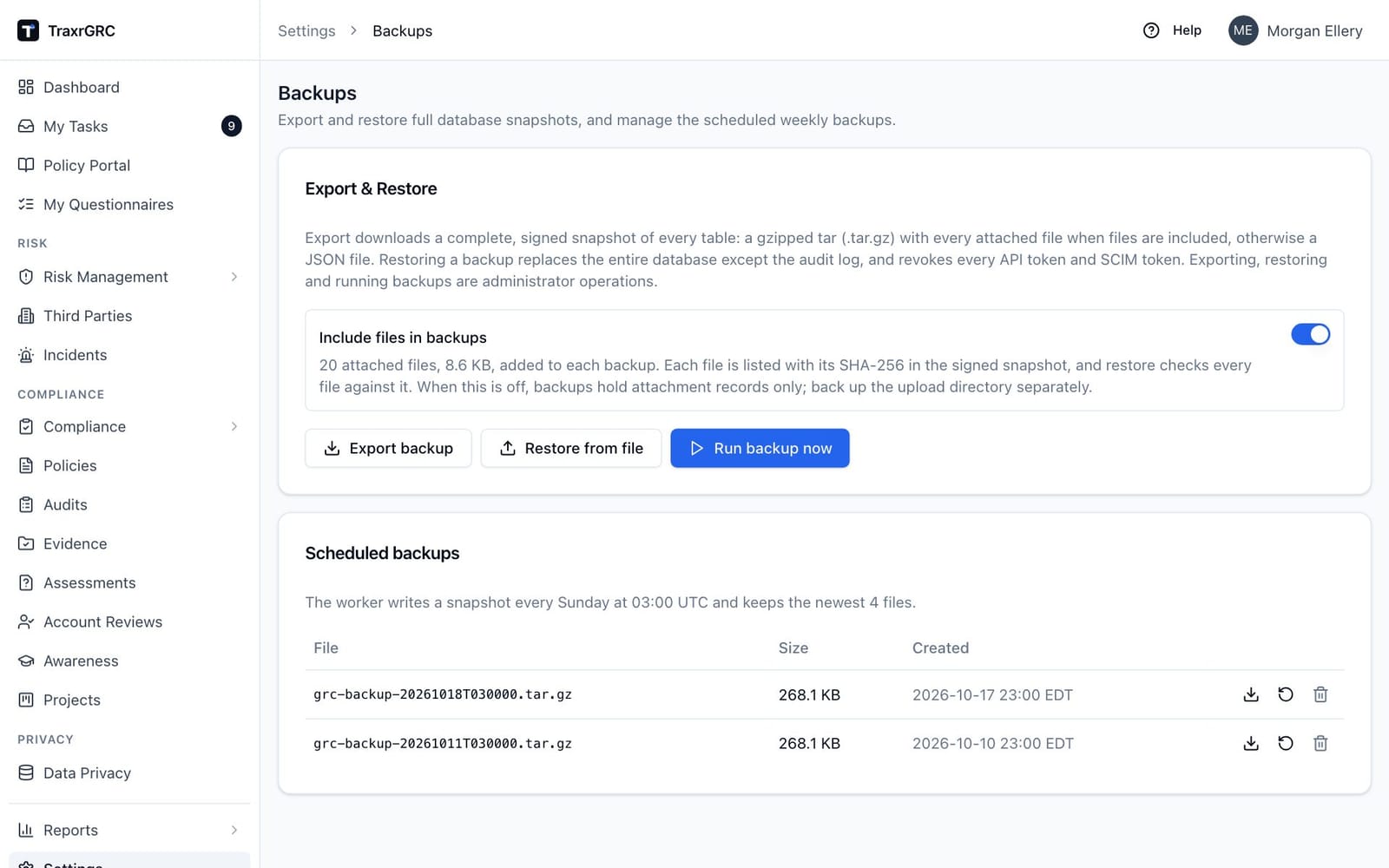
Settings → Backups exports and restores signed snapshots of the
database, with the uploaded files when Include files in backups is on. Open it from the Backups card on the Settings page (address
/settings/backups). Only administrators can open it, because snapshots hold
password hashes and the encrypted integration secrets.
11.3.1 What a snapshot contains
A snapshot holds every row of every application table, read in a single consistent transaction, with a signature. It leaves out upload links for AI assistants (short-lived credentials) and the notification rules' read position in the audit log.
Include files in backups (on the Backups screen, on by default) decides whether the files come too, for every kind of record: evidence, policies, risks, vendors and the rest.
- On: the backup is a gzipped tar (
.tar.gz) holding the signed snapshot as its first entry,snapshot.json, and every attached file underfiles/. The snapshot lists each file with its SHA-256 and size, so the signature covers the hashes. A file whose record exists but which was already missing from the uploads volume is listed as missing. The screen shows how many files there are and how much they add to each backup. There is no size limit beyond free disk space (see Where backups are assembled). - Off: the backup is the signed JSON file alone. Attachment records are included, but the files themselves are only in the uploads volume and the server backup.
Changing the setting is recorded in the audit log. The file name is
grc-backup-YYYY-MM-DD.tar.gz (or .json) for an export and
grc-backup-YYYYMMDDTHHMMSS.tar.gz (or .json) for a scheduled or on-demand
snapshot. Backups with files made by earlier versions are .zip files; they
still restore.
The database part of a snapshot is read back whole during a restore, so it can be at most 500 MB of JSON. Attached files do not count toward that.
11.3.2 Where backups are assembled
Exports, scheduled snapshots and restores work on disk, never holding a
whole backup in memory. Each job gets its own private directory under
BACKUP_WORK_DIR (by default backup-work inside the uploads volume),
which is removed when the job ends; the worker also removes any left by a
crash once they are a day old.
- An export streams the tables to disk one at a time, hashes each attached file, signs the snapshot and streams the snapshot and every file into the archive. The download is sent from that file.
- A restore unpacks the archive into its directory, checking each file against the signed snapshot, before the database is touched.
Before starting, both check that the volume has room for the job plus 256 MB to spare, and refuse with Not enough free disk space and the amounts when it does not. A disk that fills up mid-job ends it with the same message and leaves the data as it was. Plan for free space of about twice the size of the attached files: one copy for the files themselves and one for the backup being assembled or unpacked.
11.3.3 Signing
Every snapshot is signed with HMAC-SHA256. The key is derived (HKDF-SHA256)
from BACKUP_SIGNING_KEY when it is set, otherwise from AUTH_SECRET, with
a label of its own so it is unrelated to the session keys. A restore checks
the signature:
| File | Result |
|---|---|
| Signed by this instance's key, unchanged | Restored. The audit log records the signature as verified. |
| Edited after export, or signed with a different key | Refused. |
| No signature (exported before signing existed) | Refused until the administrator ticks I trust this unsigned file. The restore is recorded as unsigned and the file's audit entries are not imported. |
To restore one instance's snapshots on another, give both the same
BACKUP_SIGNING_KEY. Server backups are not affected by any of this.
11.3.4 Exporting and the scheduled snapshots
- Export backup downloads a fresh snapshot to your computer.
- Run backup now writes a snapshot into the uploads volume and adds it to Scheduled backups.
- The worker writes the same kind of snapshot every Sunday at 03:00 UTC. The newest four are kept; older ones are deleted from the list and the disk.
- Each row in Scheduled backups has a download action, a restore action and a delete action. Deleting asks for confirmation in Delete backup file?; restoring opens the same Restore backup? dialog as a file you upload.
Exports, on-demand runs and deletions are recorded in the audit log; an
export with files also records how many files it carried and their size. A failed
scheduled snapshot is logged by the worker and recorded in the audit log as
backup.failed.
The scheduled snapshots live on the same volume as the data they protect, so they do not replace the server backup. They are copied off the server as part of the uploads archive.
11.3.5 Restoring a snapshot
- Click Restore from file and choose a backup file:
.tar.gz,.json, or a.zipfrom an earlier version. To restore one of the Scheduled backups instead, click the restore action on its row; the file never leaves the server, which suits a large backup. - The Restore backup? dialog names the file. Type
RESTOREin Type RESTORE to confirm. - If the file is unsigned, a warning appears; tick I trust this unsigned file only if you know where the file came from.
- Click Restore. When it finishes, sign in again.
The restore runs in one database transaction, so it either completes or changes nothing. It:
- Deletes and recreates every table from the file, except four whose live rows are kept: the audit log, the list of scheduled snapshot files, the SAML replay records and the sign-in lockouts.
- Adds the snapshot's audit entries that the live audit log does not already have, for signed files only. Live audit entries are never changed.
- Revokes every API token and every SCIM token. Issue new tokens to every integration and to your identity provider's provisioning afterward.
- Records the restore in the audit log with the record counts before and after, and emails every administrator a security alert.
Restoring a backup with files also brings its files back. The archive is
unpacked into the job's directory first and each file is checked against
the SHA-256 the signed snapshot lists; the verified files move into the
uploads volume once the database transaction has committed, so a refused or
failed restore leaves the uploads volume untouched. The archive must start
with the signed snapshot, and it is refused outright if it holds anything
the snapshot does not list (including links, devices and paths outside
files/) or more data than the snapshot declares. Within that:
- A file that matches is written back, or left alone when the volume already holds the same bytes.
- A file that does not match is not written. The restore reports it by name, and the audit entry lists it.
- A listed file the archive does not carry is reported as missing.
A backup with files must carry this instance's signature, since only the signature vouches for the hashes; an unsigned one is refused. Restoring a JSON snapshot does not touch the uploads volume: attachment records point at files by their stored names, and files that are not in the volume can no longer be downloaded.
11.4 Restore drill
Test the server backup regularly (at least quarterly, and after any change to the backup job) by restoring it onto a throwaway instance on the same server. The drill below leaves production untouched and sends no email.
-
On production, record the row counts and take a backup straight after:
cd /srv/grc docker compose exec -T db sh -c 'psql -U "$POSTGRES_USER" -d "$POSTGRES_DB" -At -F " " -f -' \ < deploy/counts.sql | sort > /tmp/counts-prod.txt ./deploy/backup.sh /var/backups/grc-drill 1 -
Create the drill directory from the same release and a copy of
.env:mkdir /srv/grc-drill tar -xzf grc-release-<version>.tar.gz -C /srv/grc-drill cp /srv/grc/.env /srv/grc-drill/.env -
Edit
/srv/grc-drill/.env:COMPOSE_PROJECT_NAME=grc-drill APP_IMAGE=grc-platform:drill APP_URL=http://localhost:3100 WEB_PORT=3100Keep
AUTH_SECRETand the other keys as they are, so the restored integration secrets stay readable. -
Restore into the drill project:
cd /srv/grc-drill ./deploy/restore.sh /var/backups/grc-drill/db-<stamp>.dump /var/backups/grc-drill/uploads-<stamp>.tar.gz -
Start only
db,migrateandweb. Leaving outworkerandcaddymeans the drill instance cannot send email (only the worker does) and does not compete for ports 80 and 443:docker compose up -d --build web -
Check that
migratefound nothing to apply and skipped the initial administrator:docker compose logs migrate | grep -E 'No pending migrations|users exist' -
Compare the row counts with production. Only tables whose counts differ are printed; expect none, or only small differences in tables production wrote to between step 1 and the backup:
docker compose exec -T db sh -c 'psql -U "$POSTGRES_USER" -d "$POSTGRES_DB" -At -F " " -f -' \ < deploy/counts.sql | sort > /tmp/counts-drill.txt join -a 1 -a 2 -e MISSING -o 0,1.2,2.2 /tmp/counts-prod.txt /tmp/counts-drill.txt \ | awk '$1 ~ /^public\./ && $2 != $3' -
Verify the audit chain:
docker compose exec web ./node_modules/.bin/tsx prisma/audit-verify.tsExpect
{"ok":true,...}, withrowsequal to the drill'spublic.audit_logcount from step 7. -
Sign in through an SSH tunnel (
ssh -L 3100:127.0.0.1:3100 <server>, then openhttp://localhost:3100), open a record with an attachment and download it. -
Remove the drill instance, its volumes and its image:
docker compose down -v
docker image rm grc-platform:drill
cd / && rm -rf /srv/grc-drill /var/backups/grc-drill /tmp/counts-prod.txt /tmp/counts-drill.txt
down -vdeletes the drill's volumes. Run it only in/srv/grc-drill, never in the production directory.
Record the date, the backup used, and the results of steps 6 to 9 as evidence of a tested restore.