7 Notifications and Email
TraxrGRC sends plain-text email for reminders, decisions, rule matches, scheduled reports, security alerts and outside assessments. This chapter covers the mail server, the templates every email is built from, the daily sweeps that find due work, notification rules, scheduled report delivery, testing and troubleshooting.
7.1 How email is sent
- Something in the application decides an email is due: a status change, a daily sweep finding an overdue review, a rule matching, a scheduled report coming round.
- The application renders the template (subject and body with the placeholders filled in) and writes a row to the delivery log with status Queued.
- It hands a job to the background worker service through the job queue in the database.
- The worker connects to the SMTP server from Settings → Integrations and sends the message, then marks the row Sent, or Failed with the server's error.
The consequences for an administrator:
- No worker, no email. The web service only queues. If the worker container is stopped, rows stay Queued until it runs again.
- Links in emails are built from
APP_URL. Set it to the address users reach the service at (see Configuration Reference), or every link points to the wrong host. - Email is plain text, one recipient per message. There are no HTML templates.
- Recipients are accounts, with one exception: assessment emails
(
assessment.sent,assessment.reminder,assessment.returned) go to the outside contact named on the assessment request. No other email goes to an address that is not a user of this installation, and there are no webhooks.
7.2 Configuring SMTP
The mail server is configured on Settings → Integrations, in the SMTP
card. There are no environment variables for it: the settings live in the
database and are included in backups. Until it is configured, TraxrGRC
tries localhost port 25 with the sender grc@localhost, which fails in a
container, so every email is logged as Failed.
Saving and testing are administrator operations.
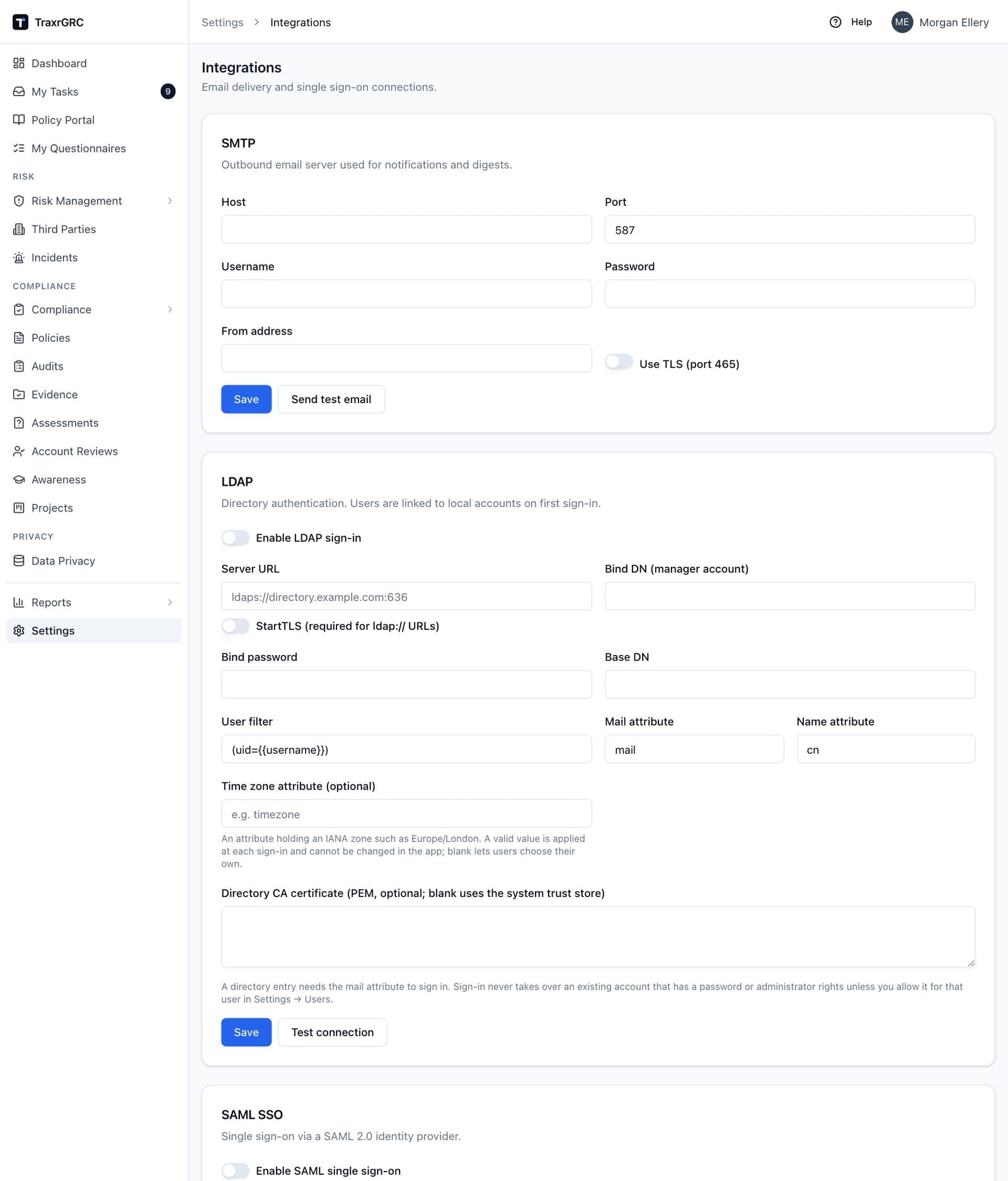
| Field | What to enter |
|---|---|
| Host | The SMTP server or relay hostname. Required. |
| Port | 587 for submission with STARTTLS, 465 for implicit TLS, 25 for an internal relay. |
| Username | The account to authenticate with. Leave empty for a relay that accepts the server without authentication. |
| Password | The account's password. Stored encrypted and never sent back to the browser; a stored one shows "Stored. Type to replace." |
| From address | The sender on every email, for example grc@example.com. Required. |
| Use TLS (port 465) | On for implicit TLS (port 465). Off for STARTTLS or a plain relay. |
Rules the server enforces:
- A password is never sent in clear. With a username set and Use TLS off, the server must offer STARTTLS; a relay that does not is refused with an error. Use port 465 with Use TLS, turn on STARTTLS at the relay, or use an unauthenticated relay.
- Changing the host or port clears a stored password unless you type it again in the same save, so a password is never sent to a server it was not entered for.
- An unauthenticated relay is used with opportunistic STARTTLS.
To configure the mail server:
- Open Settings → Integrations.
- Fill in the SMTP card and click Save. The save is recorded in the Audit Log with the values before and after (the password only as changed or unchanged), and every administrator is sent a security alert.
- Click Send test email (see below).
When an instance is restored onto a server with a different settings key, the
SMTP password cannot be decrypted: it reads as empty, the server logs
settings.decrypt_failed, and authenticated sending fails until you type the
password again (see Backup and Restore).
7.3 Testing email
Send test email on the SMTP card sends a message to your own account's address, with the product name and "SMTP test" in the subject. The result appears at once: "Test email sent to your address." or "Test email failed:" with the server's reason.
The test is sent directly by the web service. To prove the whole path through the worker, check a real email in the delivery log:
- Save the SMTP card. Saving emails every administrator a security alert.
- Open
/settings/notifications, tab Delivery log. - Find the
security.alertrows for the save. Sent means the worker delivered them; Failed shows the reason in Error; Queued that stays queued means the worker is not running.
For a test instance, the deployment includes a mail catcher that accepts every message and shows it in a web page. It is meant for trying things out, never for production:
docker compose --profile dev up -d mailpit
Then set Host mailpit, Port 1025, no username and Use TLS off,
and open http://127.0.0.1:8025 on the server to read the messages.
7.4 The Notifications page
Settings → Notifications (address /settings/notifications) has four
tabs:
| Tab | Who sees it | What it holds |
|---|---|---|
| Templates | notifications:read; editing needs notifications:update | Every email's subject and body |
| Rules | Administrators | Notification rules |
| Delivery log | notifications:read | Every email queued; rule and scheduled report emails only for administrators |
| Scheduler | notifications:read; saving needs notifications:update | When the daily sweeps run and their lead times |
The built-in GRC Manager role holds read and update on Notifications. All
changes are recorded in the Audit Log under the module notifications.
7.5 Templates
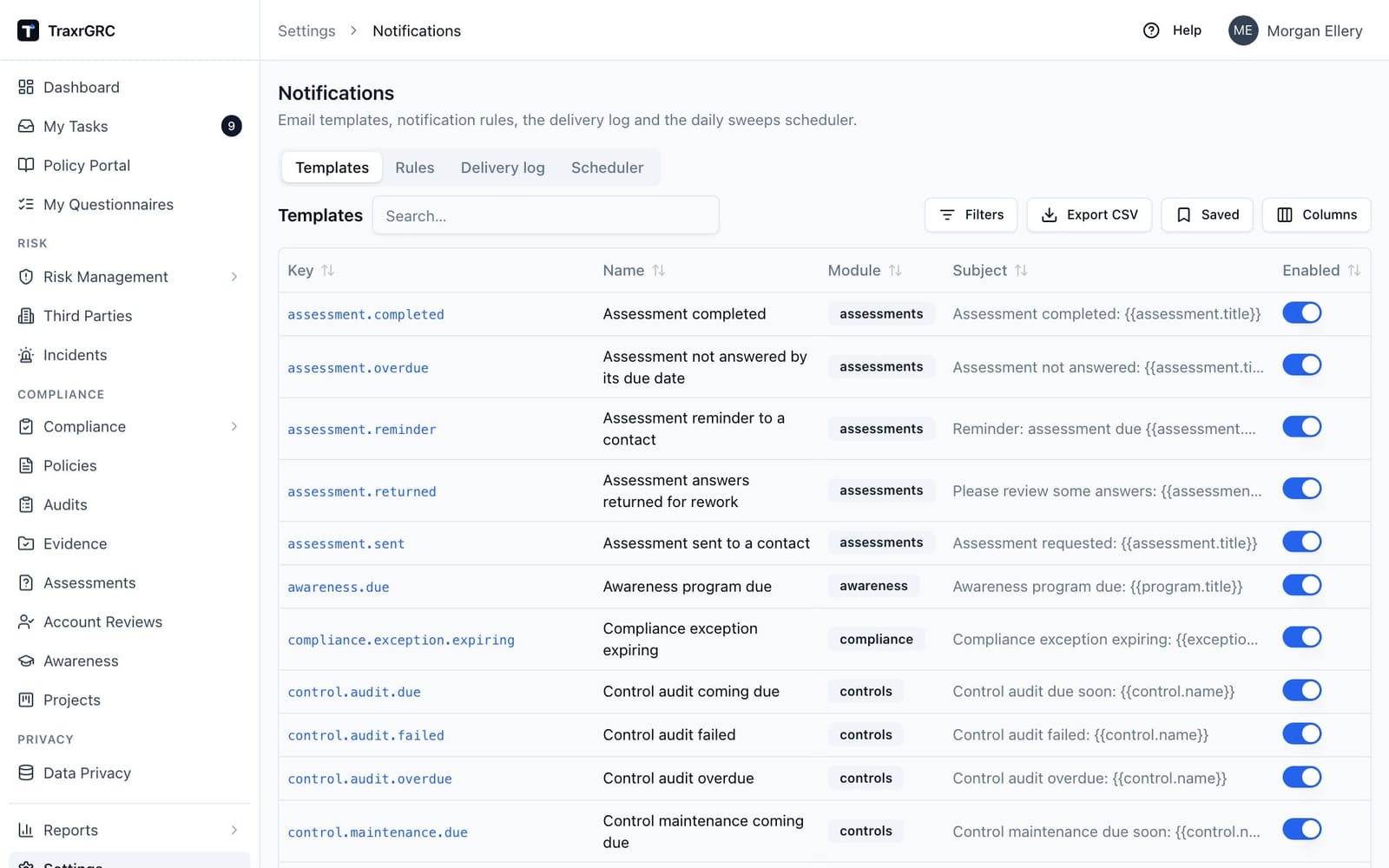
Every email TraxrGRC sends is built from a template with a fixed key. The Templates tab lists each one with its Key, Name, Module, Subject and an Enabled switch, with search and column filters. The Module filter offers Risks, Compliance, Policies, Controls, Awareness, Data privacy, Assessments, Reports and Platform.
7.5.1 Template keys and their variables
The variables below are the ones each default template uses. {{app.name}}
(the product name from Branding) works in every template.
| Key | Sent when | Variables |
|---|---|---|
risk.review.due | A risk review falls within the review lead days | risk.title, review.dueDate |
risk.review.overdue | A risk review is past due | risk.title, review.dueDate |
risk.appetite.breach | A risk's residual score moves into an over-appetite band | risk.title, risk.score, risk.band |
risk.exception.expiring | An approved risk exception expires within the exception lead days | exception.title, exception.expiresAt, risk.title |
risk.acceptance.rejected | Someone rejects the exception request a review's "Accepted over appetite" result raised; sent to the reviewer | risk.title, exception.decidedBy, risk.url |
compliance.exception.expiring | An approved compliance exception is expiring | exception.title, exception.expiresAt, item.code, item.name |
policy.review.due | A policy review is coming due | policy.title, review.dueDate |
policy.review.overdue | A policy review is past due | policy.title, review.dueDate |
policy.exception.expiring | An approved policy exception is expiring | exception.title, exception.expiresAt, policy.title |
policy.acknowledgement.requested | People are asked to acknowledge a policy | policy.title, policy.version, acknowledgement.dueDate, acknowledgement.url |
policy.acknowledgement.due | An acknowledgement is coming due | same as above |
policy.acknowledgement.overdue | An acknowledgement is overdue | same as above |
awareness.due | An awareness program is due and not completed | program.title, program.dueDate |
control.audit.due | A control audit is coming due | control.name, test.dueDate, control.successCriteria |
control.audit.overdue | A control audit is overdue | control.name, test.dueDate, control.successCriteria |
control.audit.failed | A control audit is recorded as failed | control.name, test.completedAt, test.notes |
control.maintenance.due | Control maintenance is coming due | control.name, test.dueDate, control.maintenanceTask |
control.maintenance.overdue | Control maintenance is overdue | control.name, test.dueDate, control.maintenanceTask |
dataprivacy.review.due | A record of processing review is coming due | record.name, review.dueDate |
dataprivacy.review.overdue | A record of processing review is overdue | record.name, review.dueDate |
dataprivacy.dpa.expiring | A third party's data processing agreement is expiring | thirdParty.name, dpa.expiresAt |
dataprivacy.dpa.expired | A data processing agreement has expired | thirdParty.name, dpa.expiresAt |
evidence.expiring | Evidence is within 30 days of its valid-until date (to its owner and, for a third-party report, the third party's owner; one email if they are the same person) | evidence.title, evidence.type, evidence.thirdParty (", name" or empty), evidence.validUntil, evidence.url |
evidence.expired | Evidence has passed its valid-until date (to the same people as evidence.expiring) | as evidence.expiring |
dataprivacy.tia.due | A transfer impact assessment review is coming due | thirdParty.name, tia.country, tia.reviewDue |
dataprivacy.tia.overdue | A transfer impact assessment review is overdue | thirdParty.name, tia.country, tia.reviewDue |
dataprivacy.questionnaire.sent | A data mapping questionnaire is sent to a Data Liaison | request.subject, request.requester, request.template, request.dueDate, request.message, request.url |
dataprivacy.questionnaire.submitted | A Data Liaison submits answers | request.subject, request.respondent, request.template, request.url |
dataprivacy.dpia.approvedAgainstAdvice | A DPIA is approved after the DPO advised changes or not proceeding (to the DPO) | dpia.title, dpia.record, dpia.approver, dpia.recommendation, dpia.reason, dpia.url |
dataprivacy.attestation.sent | The annual check of a record goes to its Data Liaison | request.subject, request.dueDate, request.url |
dataprivacy.questionnaire.due | A questionnaire is coming due | request.subject, request.dueDate, request.url |
dataprivacy.questionnaire.overdue | A questionnaire is overdue | request.subject, request.dueDate, request.url |
assessment.sent | An assessment is sent to an outside contact | assessment.title, assessment.contactName, assessment.dueNote, assessment.url |
assessment.reminder | An unanswered assessment is coming due | assessment.title, assessment.contactName, assessment.dueDate, assessment.url |
assessment.returned | Answers are returned to the contact for rework | assessment.title, assessment.contactName, assessment.flaggedCount, assessment.dueNote, assessment.url |
assessment.overdue | An assessment was not answered by its due date | assessment.title, assessment.contact, assessment.dueDate, assessment.url |
assessment.completed | An assessment is completed | assessment.title, assessment.contact, assessment.score |
report.scheduled | A scheduled report is sent | schedule.name, report.title, report.generatedAt, attachment.note, report.url, profile.url |
notification.rule | A notification rule matches | event.summary, event.detail, record.label, record.title, record.url, rule.name, profile.url |
digest.daily | The daily digest, when turned on | digest.date, digest.body |
security.alert | A security event (see Audit Log and Evidence Integrity) | alert.title, alert.detail, alert.actor, alert.ip, alert.time, alert.url |
user.password.reset | An administrator resets a user's password | reset.by, reset.time |
user.password.changed | A user changes their own password on My profile | change.time |
user.mfa.reset | An administrator resets a user's two-step verification | reset.by, reset.time |
Dates in reminder variables are written yyyy-MM-dd. alert.time,
reset.time and change.time are shown in the recipient's time zone. The
digest.daily subject defaults to "{{app.name}} daily digest:
{{digest.date}}".
7.5.2 Editing a template
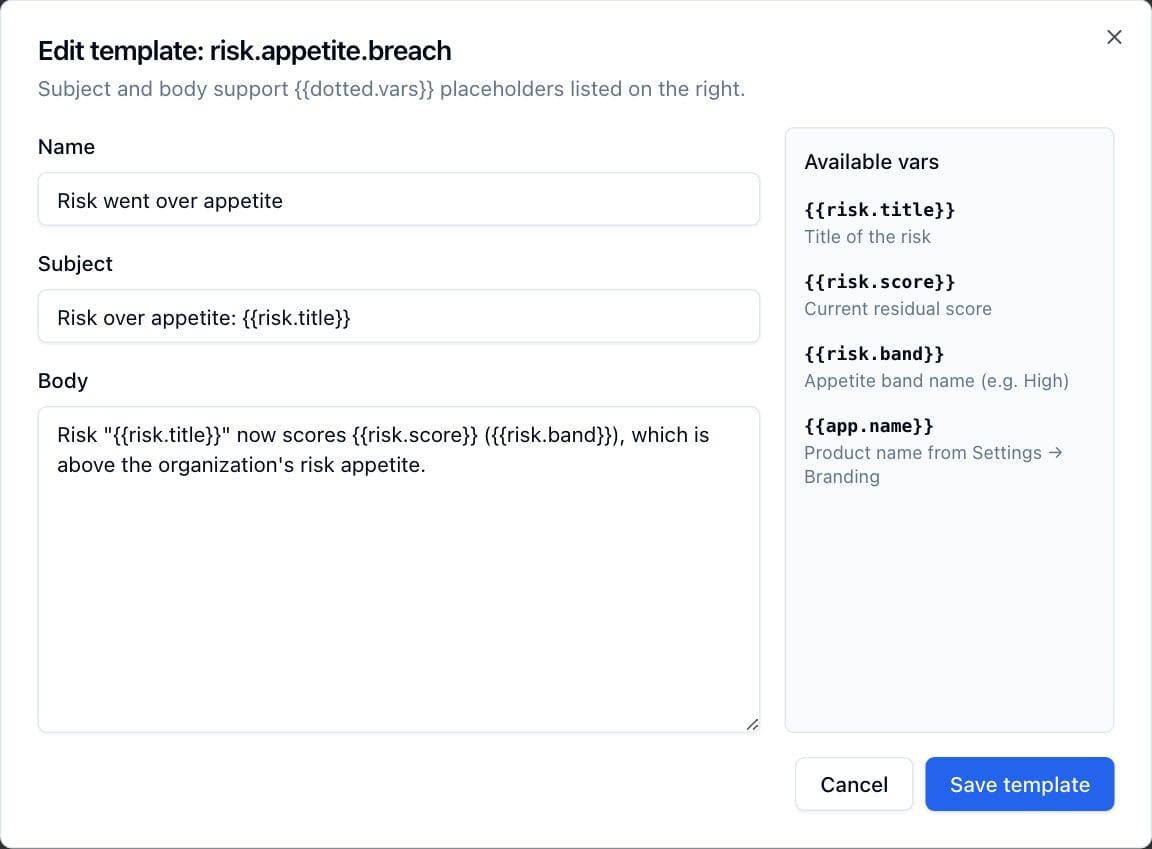
- Click the template's key. The edit dialog opens.
- Change the Name (up to 120 characters), Subject (up to 300) or
Body. Placeholders are written
{{variable.name}}. - Check the Available vars panel beside the fields. It lists each
variable the template receives, with its meaning, plus
app.name. - Click Save template. The next email queued from that template uses the new text; emails already queued keep the old text.
Things to know:
- A placeholder the template does not receive renders as nothing; there is no error. Send yourself a test (for example with Run sweeps now on an instance holding test data) after editing.
- There is no "reset to default". Copy the original text somewhere before
changing it. The defaults are in
prisma/reference-data.tsin the source. - Upgrades add new templates and never overwrite ones you edited.
- Keep the security wording in
notification.ruleandreport.scheduledthat tells people why they receive the email and links toprofile.url, where they can opt out. - Template edits and switches are recorded in the Audit Log with the text before and after.
7.5.3 Turning a template off
The Enabled switch stops a template without editing it. Nothing is sent
from a disabled template: fixed notifications are logged as Skipped with
the reason template-disabled, and rule and scheduled report emails as
Suppressed. Disabling security.alert stops security alerts to
administrators; leave it on.
7.6 Scheduler
The Scheduler tab holds the Daily sweeps scheduler card. Once a day the worker scans reviews, exceptions, control tests, awareness programs, data processing agreements, transfer impact assessments and questionnaires and queues the reminders above. The same run handles deadline notification rules, assessment reminders and repeats, and policy acknowledgement reminders.
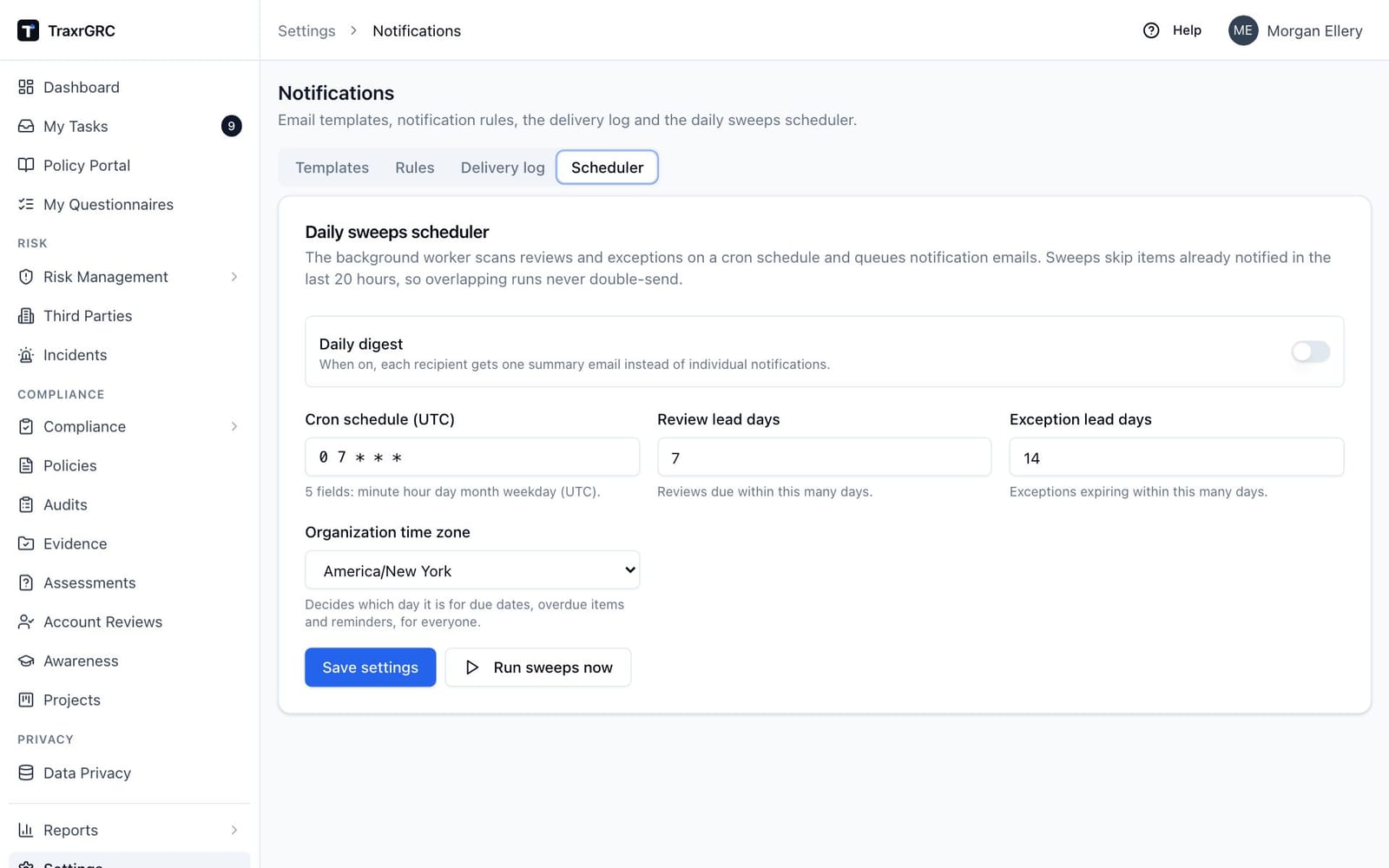
| Setting | Default | What it means |
|---|---|---|
| Daily digest | Off | When on, each person gets one digest.daily email listing their items instead of one email per item. |
| Cron schedule (UTC) | 0 7 * * * | When the sweep runs: five fields (minute hour day month weekday) in UTC. 0 7 * * * is 07:00 UTC every day; 30 5 * * 1-5 is 05:30 UTC on weekdays. Invalid expressions are refused. |
| Review lead days | 7 | Reviews (risk, policy, data privacy), control tests and awareness programs due within this many days are reminded as "due". Earlier ones are "overdue". 0 to 365. |
| Exception lead days | 14 | Approved risk, compliance and policy exceptions expiring within this many days are flagged. 0 to 365. |
| Organization time zone | America/New_York | The IANA zone that decides which calendar day it is for everyone: due and overdue (My Tasks, control status, lists, reports, the AI assistant), expiry of exceptions and evidence, new review and test dates, POA&M opened and due dates, the sweep's due and overdue buckets, form defaults and export file names. Each person's own zone still decides how times are shown. Stored as organization.timeZone; audited with the scheduler settings. Choose the zone your staff and auditors work in; the cron schedule stays in UTC. |
Click Save settings to store them. Saving applies a changed Cron schedule (UTC) to the job queue at once, and the confirmation reads "Scheduler settings saved. The new schedule is active." If the queue cannot be reached (for example because the worker has never run), the save still succeeds and a warning says "The new schedule takes effect when the background worker next starts"; start or restart the worker in that case:
docker compose restart worker
The digest switch and the lead days apply at the next run.
Run sweeps now runs the whole sweep at once and reports how many items it found, for how many recipients, and how many digests it queued. It sends real email. An item already reminded in the last 20 hours is skipped, so running it next to the scheduled run sends nothing twice. A reminder goes only to a person who can still read the record it names. The run is recorded in the Audit Log.
7.7 Notification rules
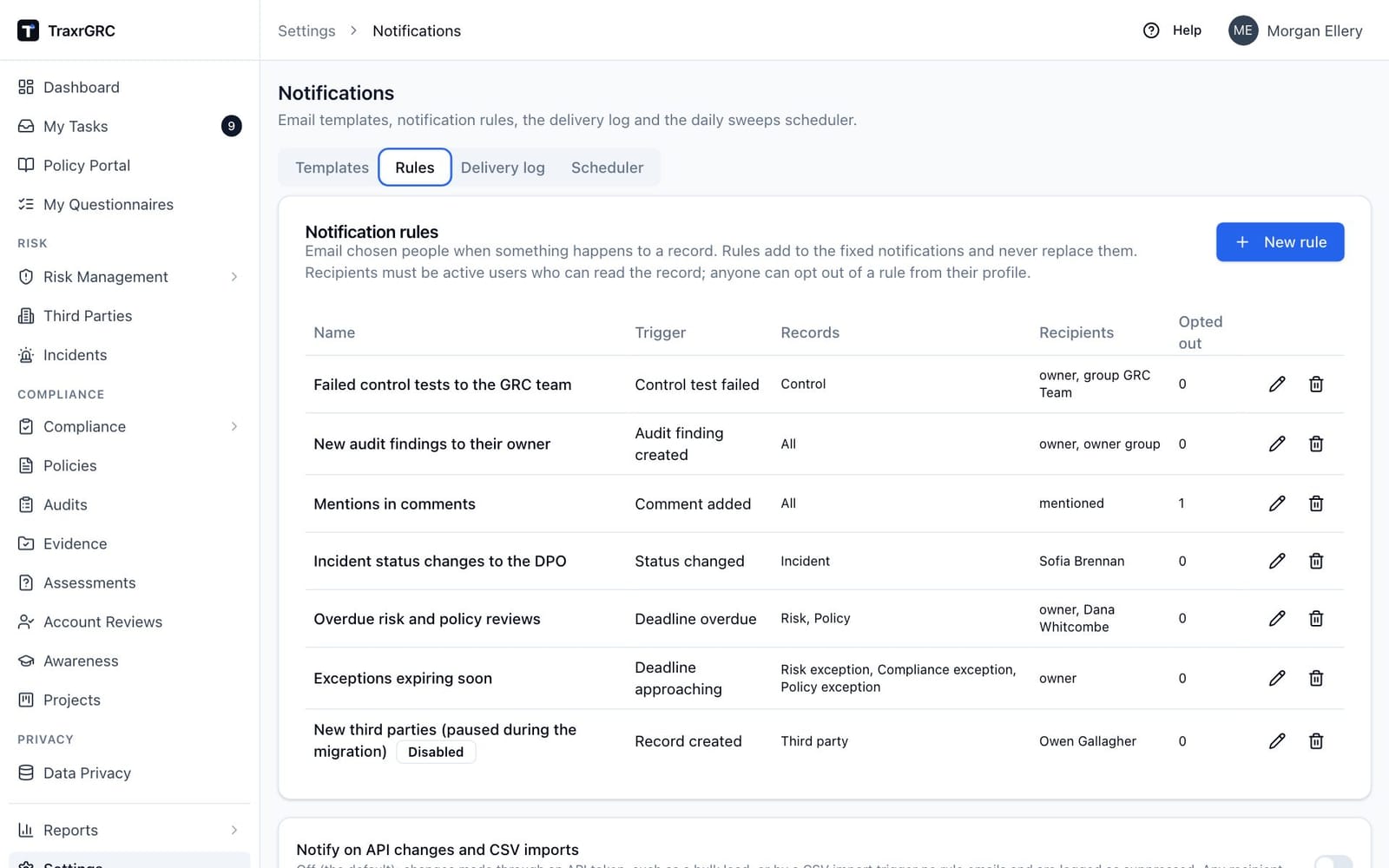
Fixed notifications go to record owners on fixed events. Notification rules let an administrator email other people about other events. The Rules tab and every rule action are for administrators only. A new or upgraded installation has no rules.
7.7.1 Creating a rule
- Click New rule. The New notification rule dialog opens.
- Fill in the fields and click Create rule (Save rule when editing).
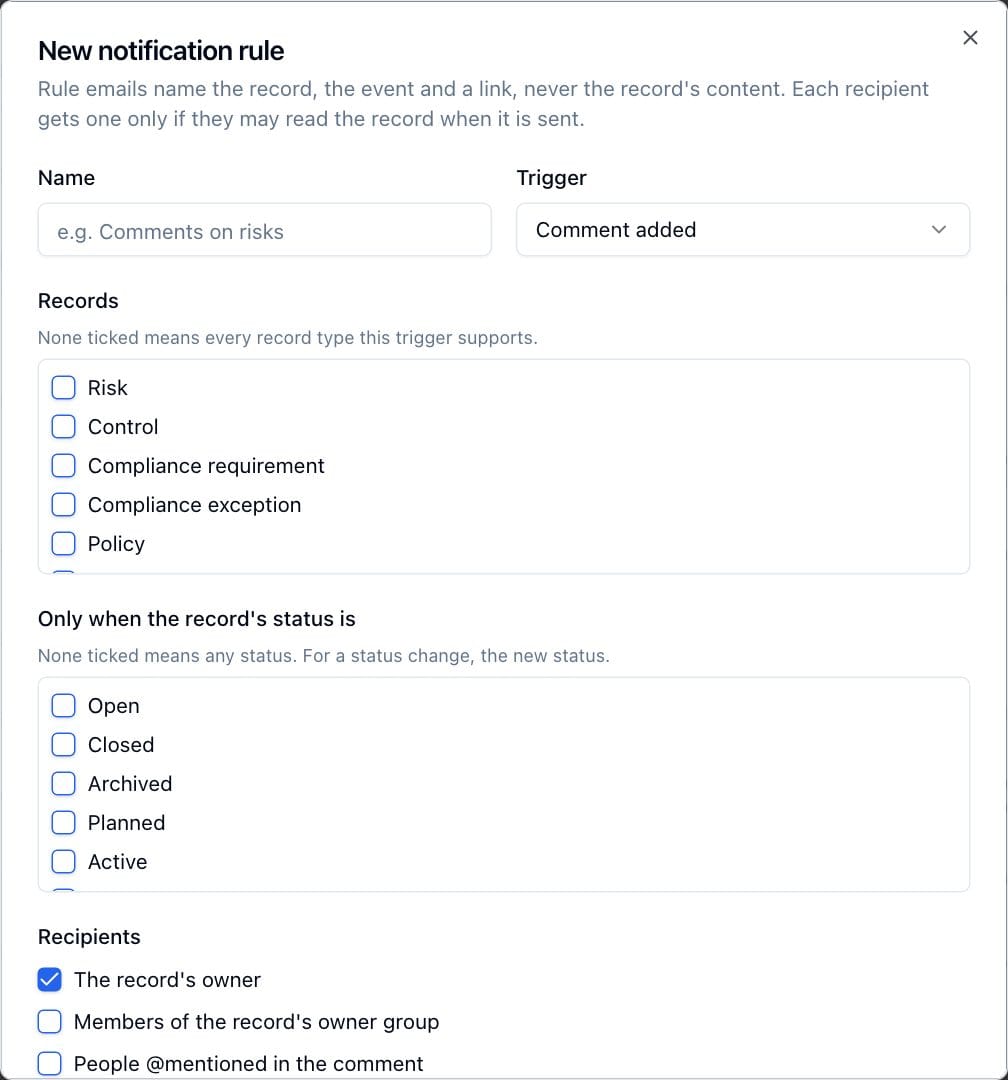
| Field | What it means |
|---|---|
| Name | Up to 120 characters. Shown in the email, in the delivery log and on each person's My profile page. |
| Trigger | Comment added, Record created, Status changed, Audit finding created, Control test failed, Deadline approaching or Deadline overdue. |
| Records | Risk, Control, Compliance requirement, Policy, Risk exception, Compliance exception, Policy exception, Incident, Project, Third party, Audit finding, as far as the trigger applies to them. None ticked means every kind the trigger supports. |
| Only when the record's status is | Optional. For Status changed, the new status; for other triggers, the status at the time. None ticked means any status. |
| Recipients | Any mix of: the record's owner; the members of the record's owner group; people @mentioned in the comment (Comment added only); named users; members of chosen groups; members of every group carrying a chosen role. Active users only; no outside addresses. At least one recipient is required. |
| Enabled | Untick to pause the rule. |
7.7.2 How rules are delivered
- Event triggers (comments, creation, status changes, findings, failed tests) are read from the Audit Log every minute, so an email follows the change within a minute or two.
- Deadline triggers run with the daily sweep, using the scheduler's Review lead days and Exception lead days. A deadline rule emails once when a deadline enters the lead window and once when it passes; moving the date starts again.
- Access is checked twice: when the rule fires and again just before
sending. A recipient who may not open the record gets nothing (
no-access). - Nobody is emailed about their own change.
- Each person gets at most 20 rule emails an hour; the rest are suppressed
(
rate-limit). - Content is minimal: the record's title or reference, what happened and a link. Comment text, descriptions and other fields are never included. An incident recorded as a personal data breach is named only by a short reference, since its title can name affected people.
- Retries: a rule email that the mail server refuses is tried four times, a minute or more apart, before it is marked Failed. One left in Sending by a crash is marked failed after 15 minutes and never resent.
- Opt-outs: anyone can switch a rule off for themselves on My profile. The Opted out column counts them. An administrator cannot override an opt-out.
7.7.3 Bulk changes and rules
Changes made through an API token (including the bundle loader) and through a
CSV import send no rule emails by default; the delivery log lists them as
Suppressed with the reason api-write. This keeps a data load from
flooding people's inboxes. To include them, turn on Notify on API changes and
CSV imports below the rules list. The hourly cap still applies. Fixed
notifications (reminders, decisions) are not affected by this switch.
7.8 Scheduled reports delivery
Scheduled reports are set up by users with Reports rights on Reports → Scheduled (see the User Manual, Report Center). For the administrator:
- Each scheduled report email uses the
report.scheduledtemplate and is sent through the same SMTP settings and worker. The worker checks for due schedules every minute. - Each recipient's copy is prepared with that recipient's permissions at sending time, so two people can get different files.
- Files over 10 MB are not attached; the email links to the report instead.
- A schedule missed while the worker was stopped runs once when it comes back.
- Recipients are active users only, and each can unsubscribe on My profile.
- Failed sends are retried like rule emails.
- Administrators see every scheduled report email in the delivery log, with the schedule's name in Rule or schedule and the attachment name.
A new or upgraded installation has no schedules. On an upgraded installation, add Create, Update and Delete on Reports to the roles that should manage schedules (see Users, Groups and Roles).
7.9 The delivery log
The Delivery log tab lists every email, newest first, with Created, Template, To, Rule or schedule, Subject, Status, Error and Sent at. Filter by status and search across the recipient, subject, template key and error. Users who are not administrators do not see rule or scheduled report emails.
| Status | Meaning |
|---|---|
| Queued | Waiting for the worker. |
| Sending | A rule or report email being sent. |
| Sent | Accepted by the mail server. |
| Failed | The mail server refused it or could not be reached; Error holds the reason. |
| Skipped | A fixed notification deliberately not sent: template-disabled, template-not-found, no-recipient, recipient-unavailable (the user is inactive or gone), or "sent in digest" when the item went into a digest. |
| Suppressed | A rule or scheduled report email deliberately not sent: no-access, opted-out, api-write, rate-limit, recipient-inactive, record-deleted, rule-disabled, template-disabled, schedule-paused, schedule-deleted or report-unavailable. |
A fixed notification that fails is not retried: it stays Failed. Review,
exception, control test and awareness reminders come again with the next
daily sweep while the item is still due. Reminders sent once per state (data
processing agreements, transfer impact assessments and data mapping
questionnaires) and event emails such as risk.appetite.breach may not be sent
again, so fix the mail server and tell the people concerned.
7.9.1 Troubleshooting
| Symptom | Likely cause and fix |
|---|---|
Every row Failed, error mentions localhost or ECONNREFUSED | SMTP was never configured. Fill in Settings → Integrations → SMTP. |
| Rows stay Queued | The worker is not running. Check docker compose ps and docker compose logs worker. |
| Failed with an authentication error | Wrong username or password, or the password was cleared by a host or port change. Type it again and save. |
| Failed with a TLS or STARTTLS error | Port and Use TLS do not match the server: 465 needs Use TLS on, 587 needs it off. A relay without STARTTLS cannot take a username. |
| Sent, but nothing arrives | The mail was accepted and then filtered or rejected downstream. See deliverability below and check the relay's own logs. |
| Reminders arrive at the wrong hour | The cron is in UTC. If saving showed the warning that the schedule takes effect when the worker next starts, restart the worker. |
| Links in emails point to the wrong address | APP_URL is wrong. Fix it in the deployment's .env and restart. |
| Nobody gets rule emails after a data load | Expected: API and import changes are suppressed (api-write). |
7.10 Deliverability
TraxrGRC hands mail to your SMTP server; whether it reaches inboxes depends on how that server and your domain are set up.
- Send through your organization's relay (Microsoft 365, Google Workspace, or your own mail gateway), never directly to the internet from the server.
- Use a From address on your own domain that the relay may send as, for
example a shared mailbox or a send-as permission for
grc@example.com. - Make sure SPF, DKIM and DMARC cover the relay for that domain. A From address on a domain whose SPF does not list the relay is often rejected or filed as junk, and the delivery log still shows Sent.
- Allow the sender in your mail filtering if reminders land in junk, and tell staff to expect mail from it.
- Assessment emails go to outside contacts. Their mail systems apply their own filtering; a From address on your main domain with DMARC alignment gives the best chance.
- Volume is modest (sweeps once a day, rules capped at 20 per person an hour), but a first sweep after loading a large register can queue many reminders at once. Check the relay's sending limits before go-live.