1 First steps
1.1 What TraxrGRC does
TraxrGRC is a self-hosted governance, risk and compliance platform. It gives your organization one place to record what could go wrong, show what you do about it, and prove it to an auditor. Each area of the work has its own module in the sidebar:
| Module | What it is for |
|---|---|
| Risk Management | The risk register with scores, treatments, reviews and exceptions, plus the shared controls, assets and business units |
| Third Parties | Vendors and partners, their contacts, linked risks and data protection details |
| Incidents | Security and operational incidents, including personal data breaches |
| Compliance | Frameworks loaded as packages, the analysis of each requirement, and the gap view |
| Policies | Policy documents with owners, versions, approvals and reviews |
| Audits | Audit plans and their findings |
| Evidence | Access review screenshots, scan review notes and vendors' SOC 2 reports, each linked to the controls and requirements it supports |
| Assessments | Questionnaires sent to vendors and other outside contacts |
| Account Reviews | Periodic reviews of who has access to what |
| Awareness | Training programs with tests, and who has passed them |
| Projects | Remediation and improvement projects |
| Data Privacy | Records of processing, transfers, DPIAs and data mapping questionnaires |
| Reports | The Report Center and reports emailed on a schedule |
| My Tasks | Everything waiting on you, from every module you can read |
| Policy Portal | The published policies everyone can read and acknowledge |
The modules share one library of records. A control you add once can treat several risks, satisfy several compliance requirements and carry audit findings, and its test results show up wherever it is used.
1.2 Signing in
- Open TraxrGRC in your browser at the address your administrator gave
you. If you are not signed in, the
/loginpage shows the Sign in to GRC Platform form (with your organization's product name). - Enter your Email and Password.
- Click Sign in.
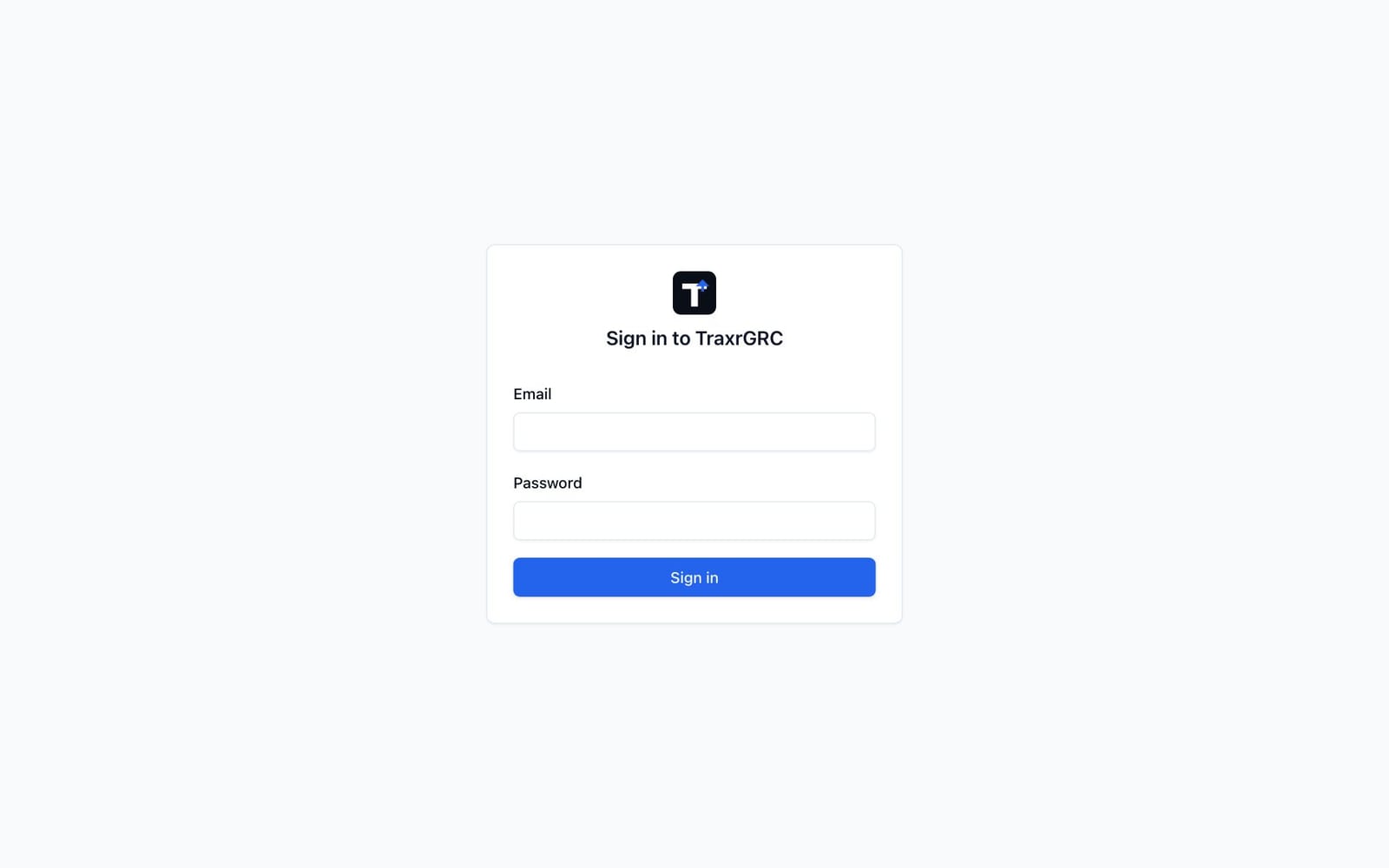
You land on the page you originally asked for, or on the Dashboard. If your role has no Dashboard access you land on the Policy Portal, or, if you are a Data Liaison, on My Questionnaires.
Single sign-on. When your administrator has enabled SAML single sign-on, a Sign in with SSO button appears below the password form. Click it and sign in with your organization's identity provider; you return to GRC Platform signed in. When the administrator has made SSO the only way in, the page shows just Sign in with SSO. The Emergency administrator sign-in link below it is for break-glass administrators only.
Directory (LDAP) sign-in needs no separate button: when it is enabled, your directory email and password work in the normal form.
Two-step verification. If you have set up two-step verification (see Your profile and time zone), the next page asks for the Code from your authenticator app: enter the six-digit code and click Verify. Without your phone, click Use a recovery code instead. If your administrator requires two-step verification and you have not set it up yet, that page asks you to Set up now before you can continue. Single sign-on never asks for a code here; your identity provider handles its own verification.
If sign-in fails, the form says why:
| Message | What to do |
|---|---|
| Invalid email or password. | Check both and try again. Repeated failures lock your network address out of that account for 15 minutes. |
| Your account is inactive. Contact an administrator. | Your account has been deactivated; ask an administrator. |
| Sign-in is misconfigured. Contact an administrator. | The server's sign-in setup is broken; report it. |
| Single sign-on failed. Please try again or contact an administrator. | The identity provider's answer was refused; try again, then report it. |
Signing out. Open the user menu (your initials and name, top right) and click Sign out. Sign out everywhere also ends your sessions on every other browser and device within a minute. A session ends on its own after 12 hours, or after 60 minutes without use, unless your administrator changed these limits.
Full details: User Manual, Getting Started, Signing in.
1.3 Finding your way around
Every screen after sign-in shares the same frame: the sidebar on the left, a header across the top, and the page itself.
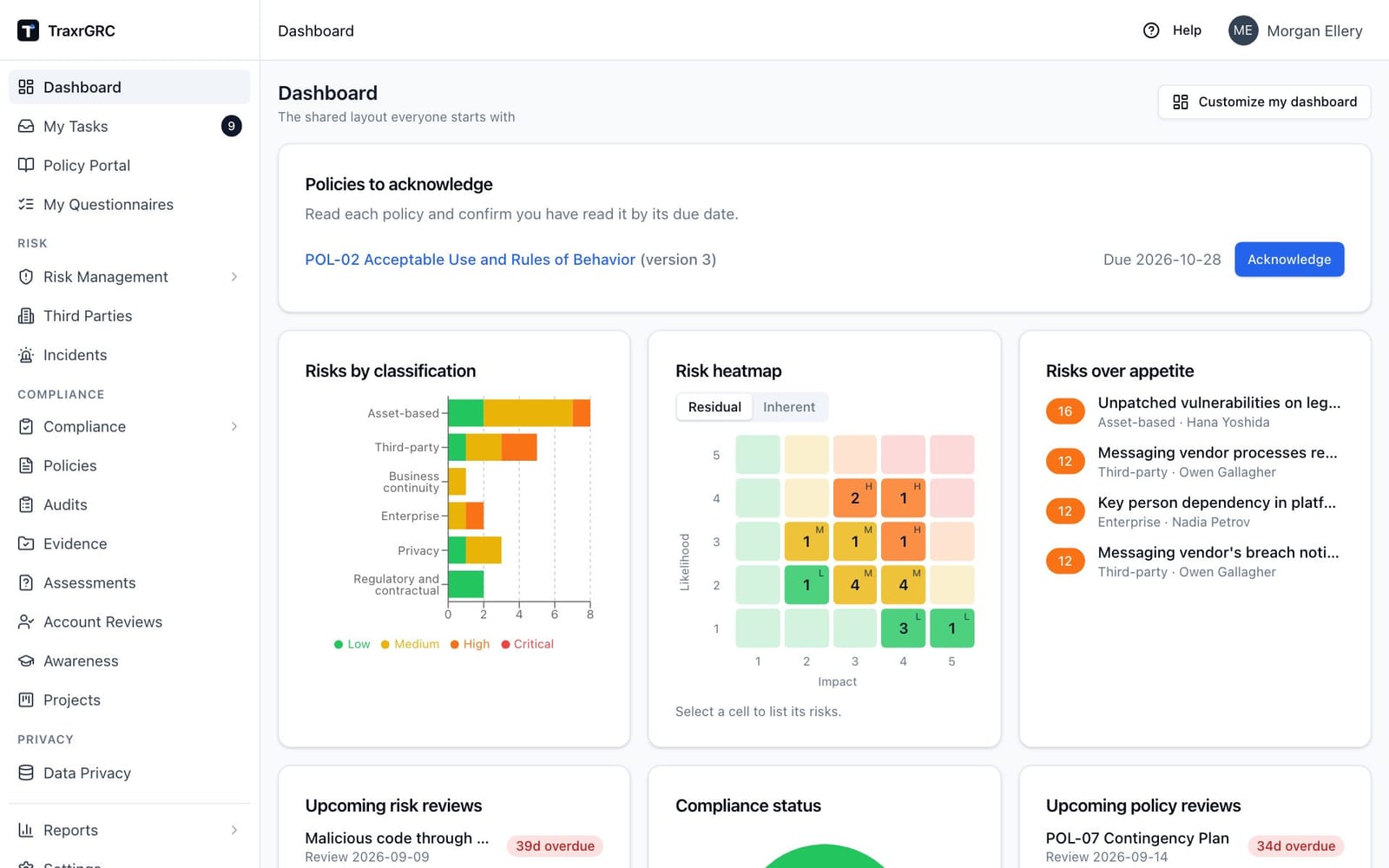
1.3.1 The sidebar
| Section | Entries |
|---|---|
| (top) | Dashboard; My Tasks (every signed-in user); Policy Portal (every signed-in user); My Questionnaires (Data Liaisons) |
| Risk | Risk Management (with Risks, Controls, Assets, Business Units and Risk Settings); Third Parties; Incidents |
| Compliance | Compliance (with Analyses, Packages, Gaps, POA&M and Catalog); Policies; Audits (with an Open findings button for findings across all plans); Evidence; Assessments; Account Reviews; Awareness; Projects |
| Privacy | Data Privacy |
| (bottom) | Reports (with Report Center and Scheduled); Settings |
An entry with sub-pages opens while you are on one of them; click its name to open or close it. Collapse at the bottom of the sidebar shrinks it to icons; click the button again to expand it.
You see only the modules your role can read. Roles are attached to groups, and you receive the roles of every group you belong to. If a module you need is missing, ask your administrator to add you to the right group.
1.3.2 The header and user menu
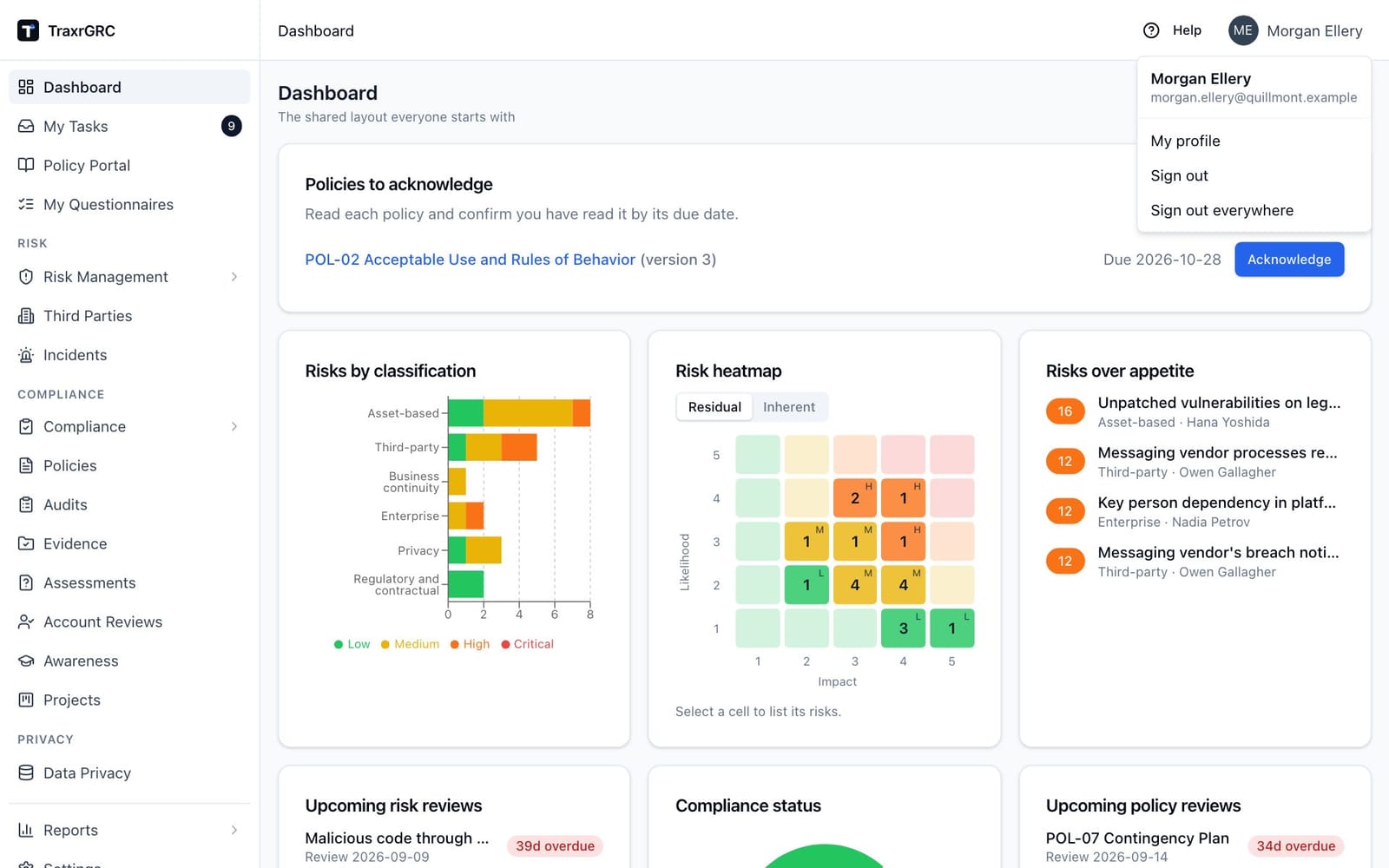
The header shows where you are on the left, as a trail such as Risk Management > Risks > UNP-01, each step linking back to its list, and Help and your user menu on the right. Help opens the User Manual section for the page you are on in a panel beside it, with a link to the whole manual. Click your initials and name to open the menu:
| Item | What it does |
|---|---|
| My profile | Your time zone, your policies and your notification choices. |
| Sign out | Ends this session. |
| Sign out everywhere | Ends this session and every other session you have, within a minute. |
1.3.3 The Dashboard
The Dashboard is a grid of widgets: risks over appetite, upcoming reviews, compliance status, open incidents, control testing status and more. Everyone starts on the same shared layout, each widget counting only the records you may see; a widget for a module you cannot read is hidden. Customize my dashboard makes it your own to add, move and remove widgets, and Reset to default takes you back. When you have policies to acknowledge, a Policies to acknowledge card sits at the top.
Review chips follow one convention everywhere: red Nd overdue is past its date by N days, amber due in Nd is due within 14 days, gray due in Nd is later than that.
1.3.4 When a page is off limits
A page you have no permission for shows 403: Forbidden, asks you to contact your administrator, and offers Go to My Tasks and Policy Portal. A link to something that does not exist shows Page not found with a Back to dashboard button.
Full details: User Manual, Getting Started, The app layout and The Dashboard.
1.4 Your profile and time zone
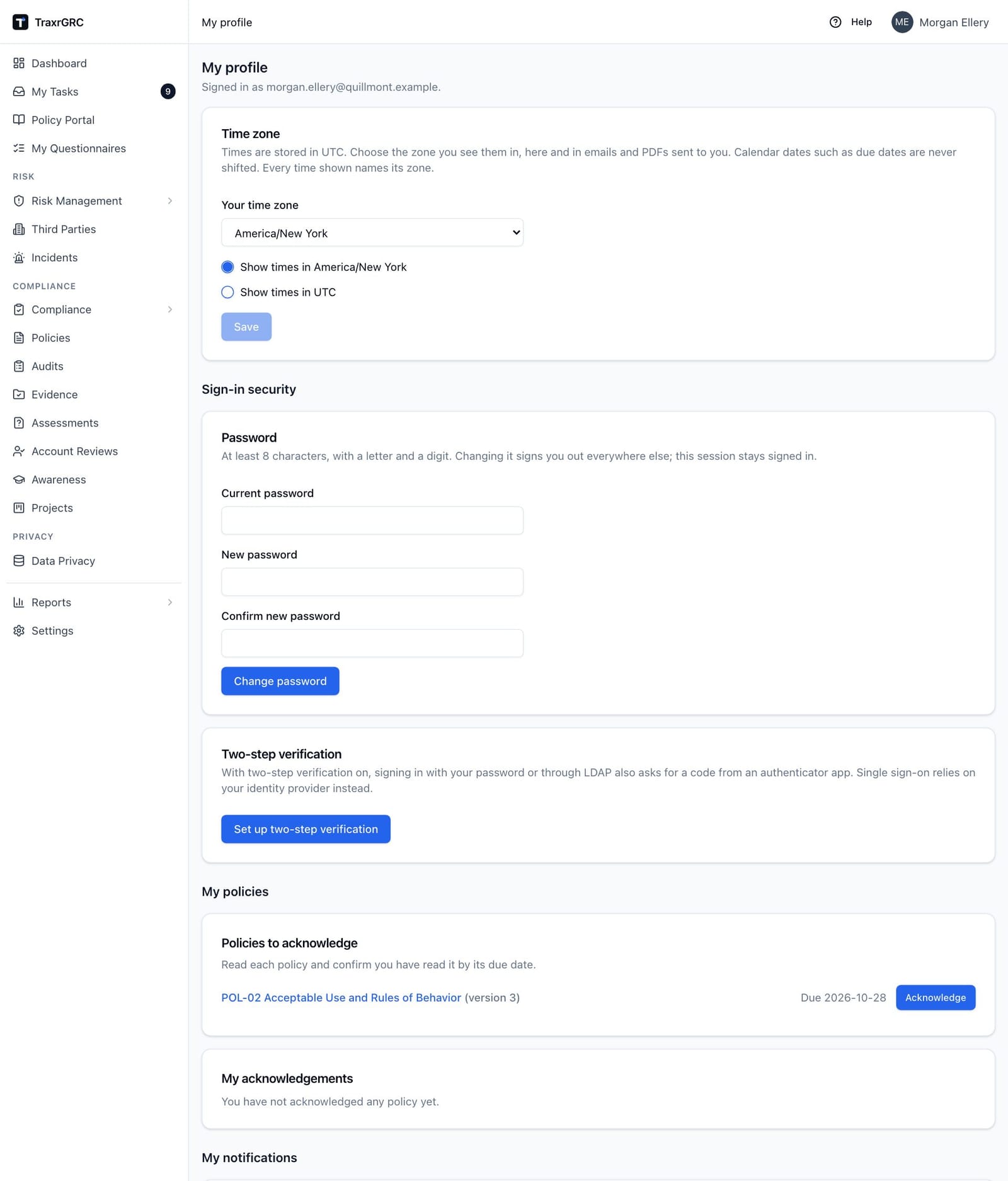
Open the user menu and choose My profile. The page has up to four parts: Time zone, Sign-in security (your Password and Two-step verification, when they apply to your account), My policies (policies to acknowledge and your acknowledgements) and My notifications.
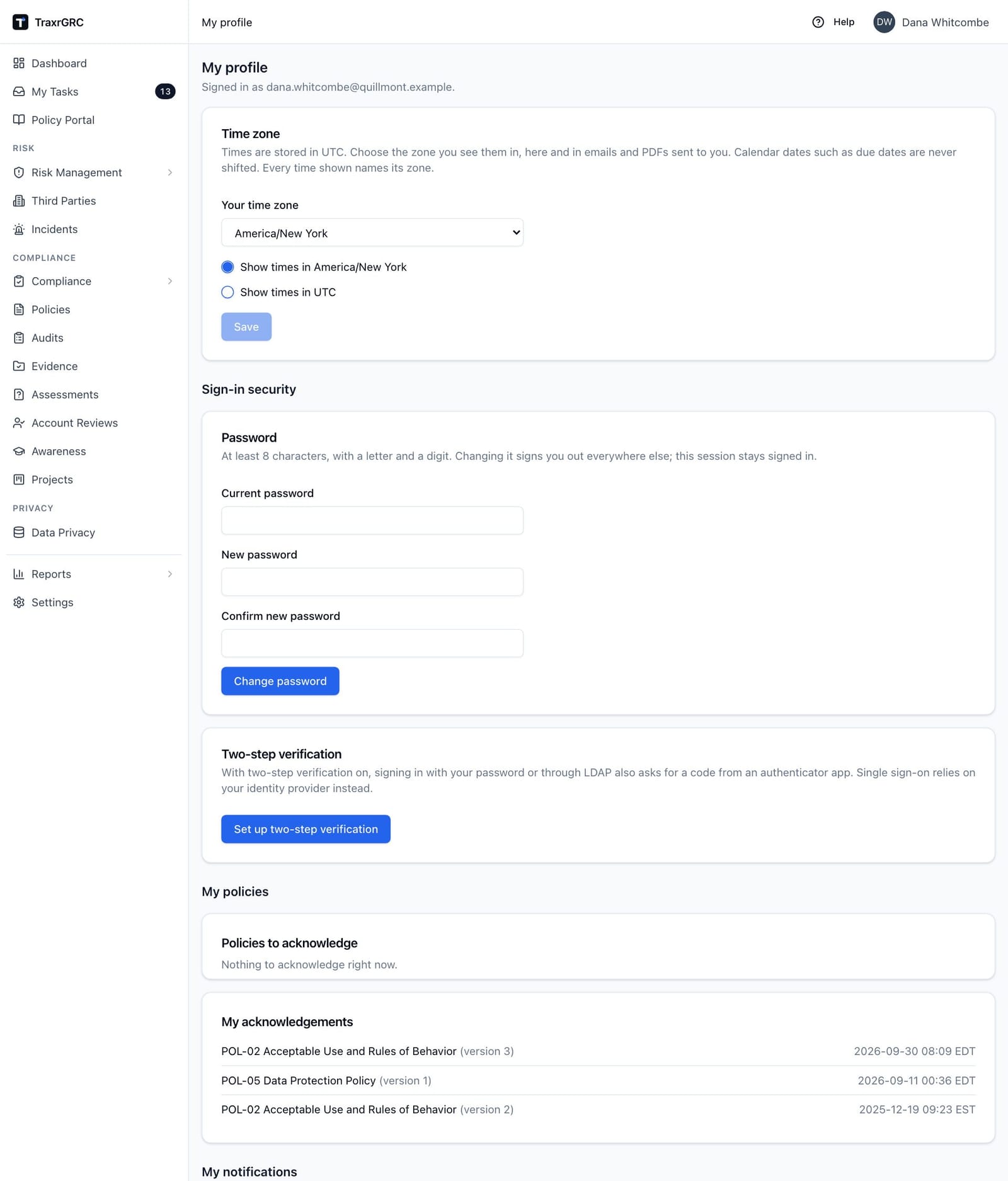
Every time in TraxrGRC is stored in UTC. Until you choose a zone, you see UTC. To see times in your own zone:
- In the Time zone card, pick Your time zone from the list (IANA
names such as
America/New_YorkorEurope/London). - Choose Show times in your zone, or Show times in UTC.
- Click Save.
Every time on screen, in emails and in PDFs then names its zone, for example
2026-10-14 09:05 EDT. Calendar dates such as due dates are never shifted:
a due date is the same day for everyone, and what counts as today (and so as
overdue) follows the organization's time zone, which an administrator sets. If your zone comes from your
directory, SSO or provisioning, the list is grayed out and shows where it
comes from; change it there.
Your password. If you sign in with a TraxrGRC password, change it under Sign-in security, in the Password card:
- Enter your Current password.
- Enter the New password twice, in New password and Confirm new password: at least 8 characters, with a letter and a digit.
- Click Change password.
Your other sessions are signed out; this one stays signed in, and you receive an email confirming the change. If you sign in with SSO or your directory password, the card is not shown: change your password there. There is no "forgot password" link: if you have forgotten yours, an administrator sets a new one in Settings → Users.
Two-step verification. To protect a password or directory sign-in with a code from an authenticator app (Microsoft Authenticator, Google Authenticator, 1Password and others):
- In the Two-step verification card, click Set up two-step verification.
- In your authenticator app, add an account and scan the QR code shown. If you cannot scan it, type the setup key under it, or click Open in authenticator app on the device that has the app.
- Enter the six-digit code the app shows and click Confirm.
- Save the ten recovery codes shown, for example in a password manager, then click I have saved my recovery codes. They are not shown again; each works once if you lose your device.
You cannot turn two-step verification off yourself. If you lose your device or run out of recovery codes, ask an administrator to reset it, then set it up again.
Full details: User Manual, Getting Started, My profile and Times and time zones.
1.5 Notifications
TraxrGRC notifies you by email; there is no in-app inbox. You receive three kinds of message:
| Kind | Examples | Can you turn it off? |
|---|---|---|
| Reminders about your own work | A risk or policy review coming due or overdue, a control test due, a policy to acknowledge, an awareness program due | No. These stop when the work is done. |
| Notification rules | Emails set up by your administrators, for example when you are mentioned in a comment or a finding is assigned to you | Yes, per rule. |
| Scheduled reports | A report emailed to you on a schedule | Yes, per report. |
To stop a notification rule or a scheduled report from emailing you:
- Open My profile.
- Under My notifications, find the rule in Notification rules or the report in Scheduled reports.
- Turn its switch off. Turn it on again to resume.
Email works only once your administrator has configured outgoing mail.
Full details: User Manual, Getting Started, My notifications.
1.6 Working with lists
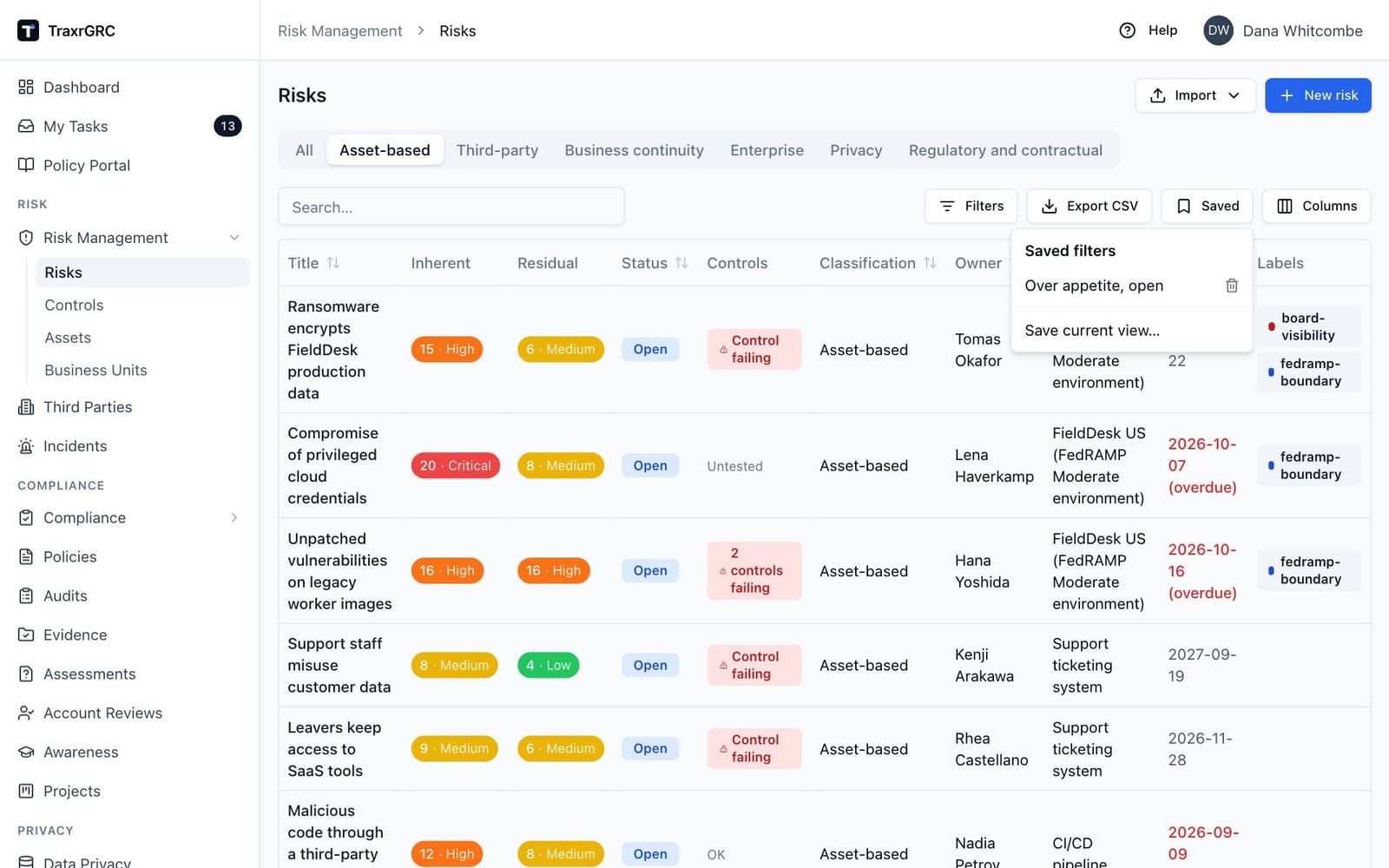
Every module list (risks, controls, policies, incidents and the rest) is the same table, so learning one teaches you all of them.
| Tool | How to use it |
|---|---|
| Search | Type in Search… above the table to match text across the searchable columns. |
| Column filters | Filters opens a panel with a filter per column: a text box (Contains…), a list starting with All, or a date picker. Filters apply as you type; each active filter shows as a chip you can remove, and Clear all removes them all. |
| Sorting | Click a column heading; click again to reverse. |
| Page size | Choose 10 / page, 25 / page (the default), 50 / page or 100 / page in the footer. |
| Columns | Columns shows or hides individual columns. |
| Saved | Saved lists your saved views and saves the current one (see below). |
| Export CSV | Export CSV downloads every row matching your current search, filters and sort, up to 5,000 rows. |
To save a view you use often:
- Set the search, filters, sort, page size and columns you want.
- Click Saved, then Save current view….
- Enter a Filter name and click Save filter.
Click a saved name in the Saved menu to reapply it, or its trash icon to delete it. Saved views are personal; nobody else sees them.
The page, sort and filters are also kept in the browser address, so you can bookmark a filtered list or send the link to a colleague. They still need permission to see the records.
Full details: User Manual, Getting Started, Shared UI conventions.